REMOTE CONTROL WEB SERVER
Introduction
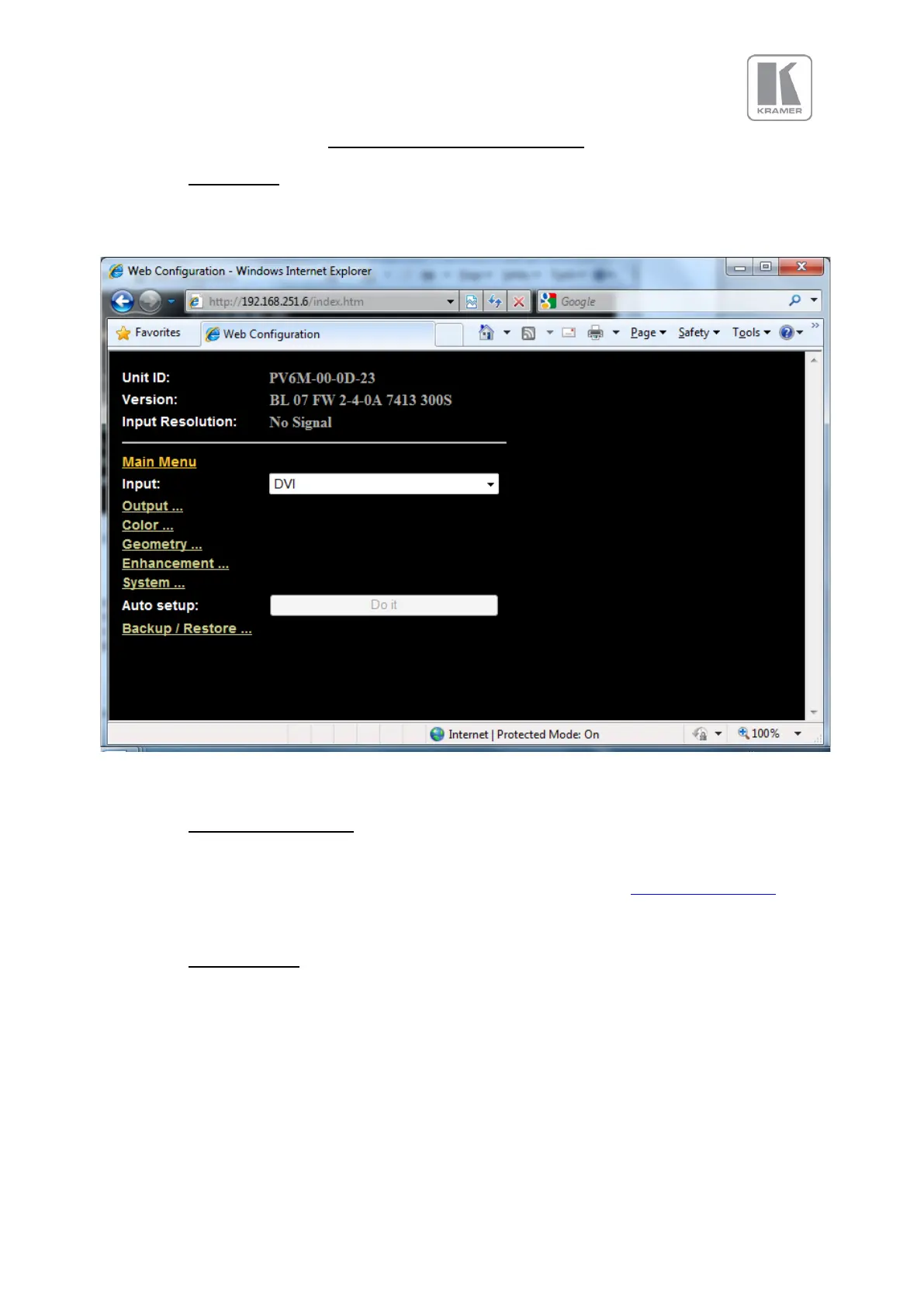
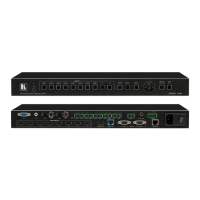
VP-792 features a Web server which connects to a PC Web browser via TCP/IP. The menu system of
VP-792 is mirrored into the Web browser and all menu items can be accessed and controlled through
the keyboard or mouse of the PC.
Note: Backup and Restore is only available for V2 hardware.
Installing the Software
No extra software needs to be installed on a PC. The PC Web browser is used as the graphical user
interface for all control items. To connect to the VP-792 the TCP/IP address of the unit has to be
entered into the address list box of the Web browser in the following format http://xxx.xxx.xxx.xxx. The
TCP/IP address assigned to VP-792 can be found in the System>Network Settings menu.
Discovery Tool
Kramer provides a DiscoveryTool.exe Windows application to identify Kramer boxes in the network.
Clicking on the link of the recognized box will open a browser and make a connection to the
corresponding box. The box identifier is made up of “PV6S” in the case of VP-792 followed by the 6
least significant digits of the MAC address. The MAC address of the box can be found in the
System>Network Settings menu.
Note: This is for use on a network not on a single wire connection.



 To Next Page