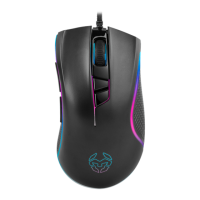
The KADRU 4000 DPI Gaming Mouse is a wired optical mouse designed for gaming, offering a range of customizable features and settings to enhance user experience. It is compatible with Windows 7, 8, 8.1, and 10 operating systems.
Technical Specifications
The mouse is equipped with an optical AVAGO 3050 sensor, providing a resolution range from 250 to 4000 DPI. It features 6 programmable buttons, allowing users to assign various functions through the accompanying software. The internal memory of the mouse is 64kb, which helps store custom settings directly on the device.
The polling rate can be adjusted between 250 Hz, 500 Hz, and 1000 Hz, offering flexibility in responsiveness. It boasts an acceleration of 20 G and a speed of 60 inches per second. The cable length is 150 cm ± 10 cm, and it connects via a USB interface. The physical dimensions of the mouse are 130 x 65 x 45 mm, and it weighs 160 ± 5 grams.
The 6 buttons on the mouse are:
- Left button
- Right button
- Scroll & wheel button
- DPI button
- Forward button
- Backward button
Usage Features
The KADRU gaming mouse offers extensive customization through its software manual.
Software Installation:
To use the full range of features, the software must be installed.
- Plug the KROM KADRU USB connector into a USB port on your PC.
- Download the software from www.kromgaming.com. Navigate to the product sheet, find the "Downloads" section, and click on "DRIVERS" to download the software.
- Double-click "setup.exe" to start the installation.
- Select the installation folder and click "Next."
- After automatic installation, click "Finish" to complete and restart your PC if prompted.
Basic Settings - Button Assignment:
Users can assign different functions to any of the 6 buttons.
- Open the "Key Settings" dropdown menu.
- Select the button whose function you wish to change.
- Choose the desired function from the highlighted options in the dropdown menu.
Basic Settings - DPI Switch:
The DPI switch function can be assigned to any button, allowing for quick adjustments to mouse sensitivity.
- Open the "Key Settings" dropdown menu and select the button for DPI assignment.
- Choose from "DPI+", "DPI-", "DPI Loop", or "Shift DPI" to define the exact action when the button is pressed.
Basic Settings - RGB On/Off:
A button can be assigned to control the RGB illumination.
- Open the "Key Settings" dropdown menu and select the button for RGB ON/OFF.
- The assigned button will toggle the mouse's RGB illumination on or off.
Functions - Windows Function:
Windows-specific functions can be assigned to any button.
- In the "Key Settings" menu, select a button and choose the "Windows" option.
- A dialog box will appear, allowing you to select a Windows function. Click "Ok" to save.
Functions - Multimedia Function:
Multimedia controls can also be assigned to buttons.
- In the "Key Settings" menu, select a button and choose the "Multimedia" option.
- A dialog box will open to select a multimedia function. Click "Ok" to save.
Keys Combinations - Fire Key Creation:
A "Fire Key" function can be created and assigned to a button for rapid, repeated actions.
- In "Key Settings," select a button and choose "Fire Key."
- A dialog box will allow you to set:
- The firing key (A to J).
- The firing speed.
- The number of times the action repeats per click.
- Click "Ok" to save.
Keys Combinations - Single Key Creation:
Any single key on the keyboard can be assigned to a mouse button.
- In "Key Settings," select a button and choose "Single Key."
- A dialog box will appear to select the desired key. Click "Ok" to save.
Keys Combinations - Combo Keys Creation:
Complex key combinations (macros) can be assigned.
- In "Key Settings," select a button and choose "Combo Key."
- A dialog box will allow you to set:
- Control / Shift / Alt / Win key (choose one from left to right).
- Additional keys to complete the combo.
- Click "Ok" to save.
Keys Combinations - Macro Keys Combination Button Assignment:
Pre-created macros can be assigned to buttons.
- In "Key Settings," select a button and choose "Macro Key."
- A dialog box will allow you to choose:
- Which macro combination to assign.
- Which action should run when the button is pressed.
- Click "Ok" to save.
Backlit Effect Modes:
The mouse offers several RGB illumination modes.
- Standard mode: Sets a fixed RGB illumination. The strength can be regulated by choosing a percentage in the "Parameter" box list.
- Breathing mode: Sets a breathing RGB illumination effect. The interval can be regulated by choosing a time frame in the "Parameter" box list.
- Neon mode: Sets a bright neon RGB illumination effect. The transition interval can be regulated by choosing a time frame in the "Parameter" box list. Users can also choose to add an RGB flash effect or a fixed RGB effect to the transition.
Advanced Settings - Macros Creation:
The software provides a comprehensive macro creation tool.
- Set Macro Name & Loop Times:
- Define a name for the macro and the number of times it should repeat.
- Click "New" to save these parameters before recording.
- Start Recording:
- Press "Start Recording" to begin registering the key sequence for the macro.
- Run the Keystrokes:
- Type the desired macro key combination on your keyboard. The software interface will display each key stroke.
- Stop Recording:
- Press "Stop Recording" to finish registering the macro.
- Save Recorded Macro Combination:
- Press "Confirm" to save the macro. Failure to do so will result in loss of recorded data.
- Assign Mouse's Buttons Events to the New Macro:
- Additional mouse events (left, right, and middle button clicks/presses/releases) can be added to the macro using a dropdown menu.
Advanced Settings - Speed Settings:
The software allows for adjustment of various speed levels.
- Mouse Speed: Adjusts the cursor speed and precision.
- Scrolling Speed: Adjusts the scroll button speed.
- Double-click Speed: Adjusts the double-click speed of the main buttons.
Maintenance Features
Warranty:
The warranty is valid for the original purchaser only.
- What the warranty protects: 2 years from the purchasing date (may vary by country's laws). For claims, contact Krom gaming overseas distribution partners (list available at www.kromgaming.com).
- What the warranty does not cover:
- Products with defaced, modified, or removed serial numbers.
- Damage from accident, misuse, neglect, fire, water, lightning, other acts of nature, unauthorized modification, or failure to follow instructions.
- Repair or attempted repair by unauthorized personnel.
- Damage to or loss of programs, data, or removable storage media.
- Software or data loss during repair or replacement.
- Damage due to shipment.
- Removal or installation of the product.
- External causes like electric power fluctuations or failure.
- Use of supplies or parts not meeting Krom gaming's specifications.
- Normal wear and tear.
- Any other cause unrelated to a product defect.
For technical problems, contact Krom gaming via their website: www.kromgaming.com. Krom reserves the right to modify text and/or images.

 Need help?

 To Next Page
 General