Profiles menu
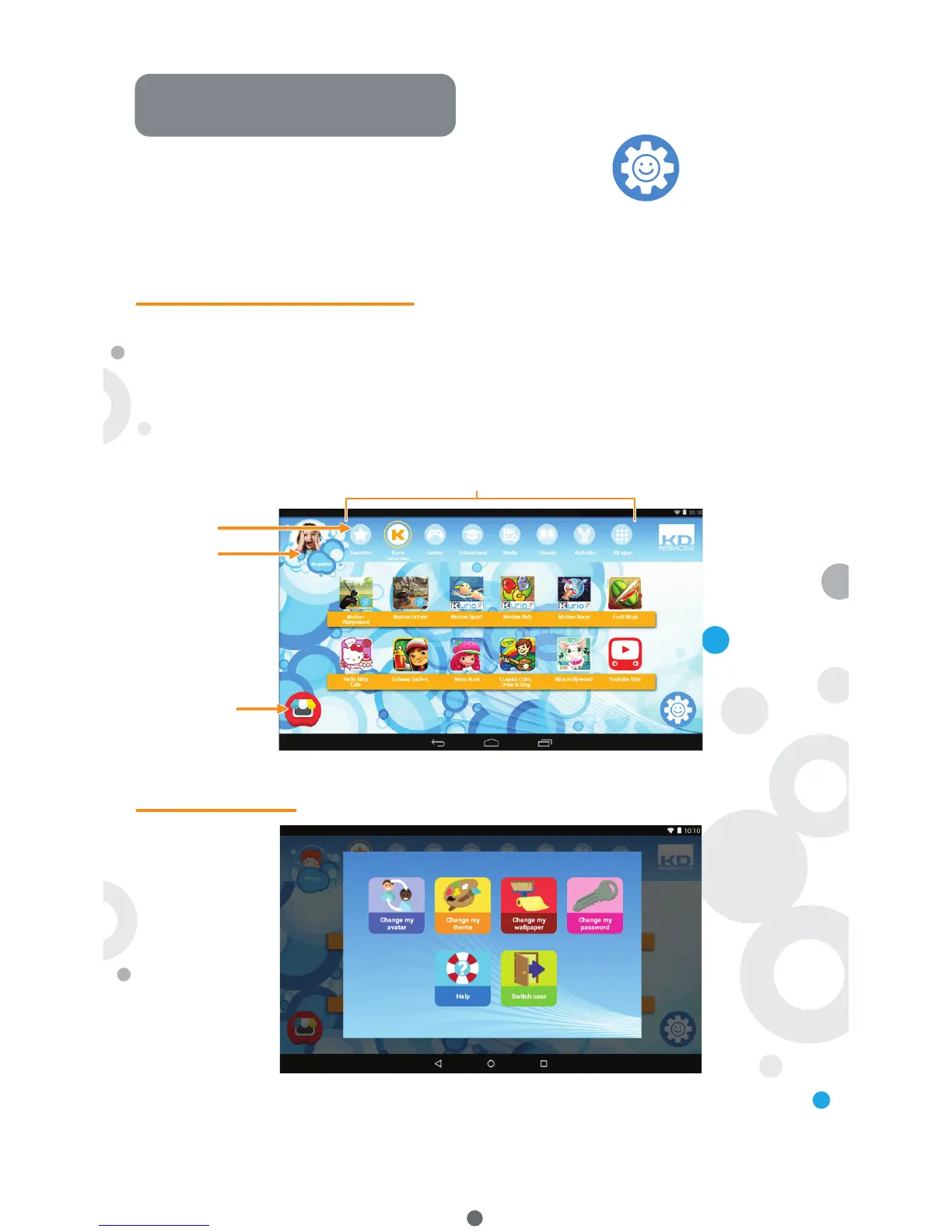
Child’s menu
Kurio Profile Interface
To access this menu, press the menu icon at the bottom right.
• Create a new child profile.
• Delete the current child profile.
• Select another child profile if you created more than one.
• Access Parental account settings.
• Change my avatar: Press here to select another avatar or to take a picture as the child's profile avatar.
• Change my theme: Press here to select another theme.
• Change my wallpaper: Press here to pick a new wallpaper or picture from the gallery.
• Change my password: Press here to create or modify the child 's profile password.
• Help: Press here to read the help screens of the child's profile.
• Switch user: Press here to log out from this profile and access another one.
• Avatar: The avatar can be modified from the Child’s menu.
• Categories: Use the categories to find your different apps.
• Favorites: Drag and drop your favorite apps in the Favorites tab.
• Store: Access directly the KIDOZ Store.
• Kurio Genius: Access the Kurio Genius app directly from your child profile with your parental password.
• Switch user: Use this app to switch to another profile quickly.
• Updater: Use this app to update, install or uninstall the tablet’s preloaded apps with your parental password.
• Child’s menu: Access the different options of the child 's profile interface.
5
Avatar
Favourites
Store
Categories



 To Next Page