Need help?
Do you have a question about the Kurio 7 and is the answer not in the manual?
Lists the physical items included with the Kurio tablet package.
Identifies and labels the main components and buttons of the Kurio tablet.
Explains how to charge the Kurio tablet using the power adapter or USB cable.
Describes the tablet's sleep mode and how to unlock it after inactivity.
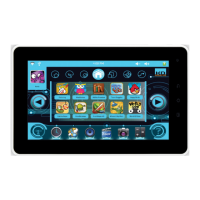
Details the icons and functions available on the Kurio's main home screen.
Explains the tablet's ability to rotate screen orientation and how to control it.
Outlines basic touch gestures for interacting with the Kurio interface.
Details the tablet's front and rear cameras for photos and videos.
Instructions for transferring files between the Kurio and a computer via USB.
Explains how to use USB drives or SD cards for storing and accessing files.
Discusses saving files from external storage to Kurio using the File Manager.
Guides users on how to access the underlying Android operating system.
Provides instructions for connecting the Kurio to a TV using an HDMI cable.
General introduction to the initial configuration process for the Kurio tablet.
Select the preferred language for the Kurio interface during initial setup.
Configure the correct date and time for accurate system operation and filtering.
Connect the Kurio tablet to a Wi-Fi network for internet access.
Authenticate the Kurio device by entering its unique serial number.
Set up a parent account with email, password, and security question for system management.
Create individual user profiles with basic information, avatars, and themes.
Define internet access permissions and filtering levels for user profiles.
Configure content filtering profiles and custom rules for safe web browsing.
Set daily playtime limits and session controls for user profiles.
Manage which applications are accessible to specific user profiles.
Finalizes the initial setup process, making the Kurio ready for use.
Instructions on how to access the main parental control interface.
Manage settings for individual user profiles, including time and app access.
Configure system-wide tablet settings and startup behavior.
Access the marketplace to search, download, and purchase applications.
Manage the primary parental account details, email, and password.
Switch to the underlying Android system, disabling parental controls.
Guide on how to update the Kurio system software via the Kurio Store.
Lists important safety precautions and handling guidelines for the device.
Information on obtaining technical assistance and understanding the product warranty.
Notes on device usage restrictions, particularly concerning airline travel.
Provides solutions for common issues and troubleshooting steps.
Details compliance with RF energy regulations and FCC standards.
Guidance on the proper disposal and recycling of the product and its batteries.
Official statement declaring the product's compliance with relevant EU directives and standards.
Lists copyright information for the product, software, and included content.
 General
| Display Size | 7 inches |
|---|---|
| Processor | 1.2 GHz dual-core |
| RAM | 1 GB |
| Internal Storage | 8 GB |
| Operating System | Android 4.1 (Jelly Bean) |
| Front Camera | 0.3 MP |
| Weight | 320 g |
| Wi-Fi | 802.11 b/g/n |
| Rear Camera | 2 MP |
| Expandable Storage | microSD up to 32GB |

 To Next Page