32
Step 10: App management
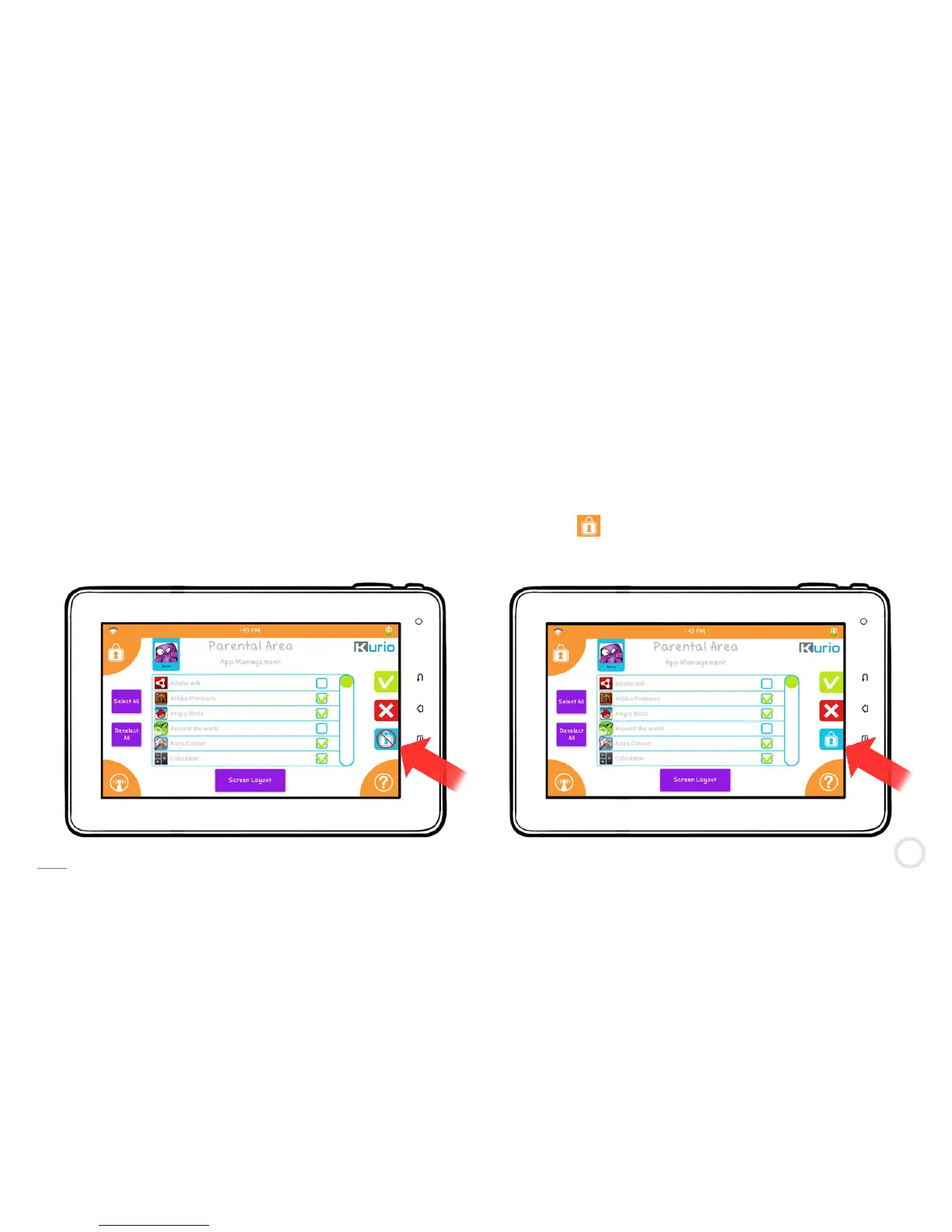
In this part, you can manage the applications the profile is authorized to use. From the master list of apps
shown, check the box next to the application to use it in this profile.
All unchecked applications will not appear on this profile’s interface. This is done for every profile. Each profile can
have access to different applications, or none at all.
By default, the user will be allowed to add or remove authorized apps by themselves in the Kurio interface. If you want
to lock the user's screen, press the lock icon. When the icon is like this , the user won’t be able to delete or add
any app from the interface.
App Layout Unlocked in Kurio Interface App Layout Locked in Kurio Interface
Note: These settings may be changed later on at any time.


 To Next Page