visit sprint.com/prepaidsupport for guides, tutorials and more 7
Android Basics
Your Home Screen
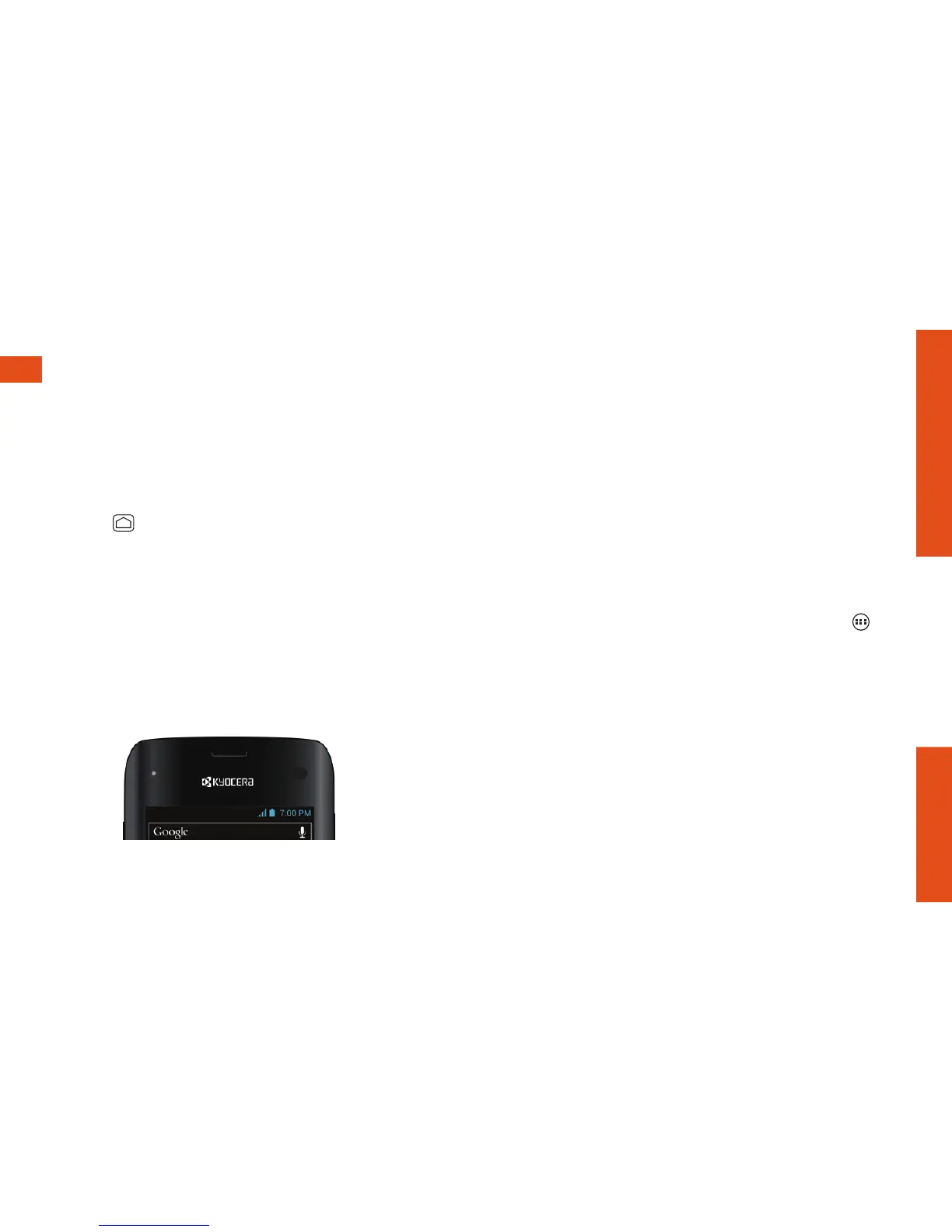
Viewing Your Home Screen
Your phone’s Home screen extends
horizontally up to ive full screens.
• To display the main (center) Home screen,
press
from any screen.
• To view extended screens, swipe the screen
left or right.
Status Bar
The status bar at the top of the Home screen
lets you quickly see both your phone status
(connections, signal strength, battery, GPS)
and any current notiications.
Notiications Panel
You can expand the notiication area to see
more about your notiications.
1. Drag down from the top of the screen to
open the Notiications panel.
2. Touch a notiication to open its application.
Customize Your Home Screen
• To add app shortcuts or widgets, touch ,
touch and hold an app icon or widget, and
drag it to the home screen.
• To change wallpaper, touch and hold an
empty area on a home screen and choose a
wallpaper option.












 To Next Page