EasyManua.ls Logo

Kyocera Gratina - User Manual

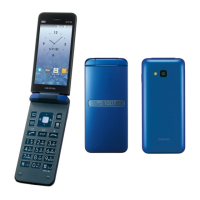
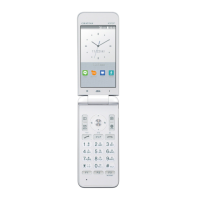
Kyocera Gratina
148 pages
Print Icon
To Next Page IconTo Next Page
Loading...
Contents
Safety Precautions
Basic Operations
Character Input
Phone
Phone Book
Mail
LINE
Internet
Camera
TV
Useful Functions
Settings
Appendix
Basic Manual

Table of Contents

Questions and Answers

  • X
    xlopezJul 27, 2025
    How to force restart Kyocera Gratina Cell Phone when screen freezes?
    • T
      Travis GreenJul 27, 2025
      If your Kyocera Cell Phone is unresponsive, you can force it to power off and reboot by holding down the . and v keys simultaneously for at least 11 seconds.
  • C
    Carla PearsonJul 31, 2025
    What to do if the keys panel on my Kyocera Cell Phone doesn't work?
    • A
      April BoltonJul 31, 2025
      If the keys on your Kyocera Cell Phone are not working, first ensure that the device is powered on and not locked. If the problem persists, try turning the power off and then back on again.
  • M
    Mary ClarkAug 4, 2025
    Why can't I receive calls on my Kyocera Gratina?
    • A
      Amy GomezAug 4, 2025
      There could be several reasons why you are unable to receive calls. Check if the signal strength is sufficient and that you are within the service area. Ensure that the device is powered on and the correct au IC card is inserted. Also, verify that 'Incoming Reject', 'Airplane mode', and 'Call forwarding services' are not enabled.
  • S
    Scott SmithAug 8, 2025
    Why does the battery pack on my Kyocera Gratina only last a short time?
    • C
      Colleen JohnsonAug 8, 2025
      The battery might be draining quickly for a few reasons. Ensure the battery is fully charged until the red charging/notification indicator turns off. Also, consider if the battery pack has reached its end of service life. Leaving the phone in an area where it displays “out of service area” for extended periods can also drain the battery.
  • L
    Lisa LittleAug 12, 2025
    What to do if my Kyocera Gratina gets a busy signal when making calls?
    • W
      William PerryAug 13, 2025
      If you receive a busy signal when making a call on your Kyocera Cell Phone, it could be due to being outside the service area or in an area with poor signal strength. Alternatively, the wireless line might be busy, or the person you are calling may be on another call. Please try again later.
  • B
    Brianna MckinneyAug 17, 2025
    What to do if the pointer on my Kyocera Cell Phone does not move correctly?
    • M
      Monica GrahamAug 17, 2025
      If the pointer on your Kyocera Cell Phone is not moving as expected, first, review the correct method for using the pointer. If issues persist, try turning the power off and then on again.
  • X
    xburtonAug 21, 2025
    How to interact with pop-up windows on the Kyocera Gratina Cell Phone browser?
    • J
      Jeremiah MyersAug 21, 2025
      If a pop-up window appears in the browser of your Kyocera Cell Phone, use the Pointer to interact with it.

Summary

Preface and Initial Setup

Preface

Introduction to the manual and product.

List of Packaged Items

Details the items included with the product upon purchase.

Operating Instructions

GRATINA guide and Illustrations

Explains the GRATINA guide and notes on key illustrations in the manual.

Operations and Notes on Visuals

Describes operations for selecting items and notes on manual illustrations/screenshots.

Safety Precautions

When Using the Product

Provides initial safety guidelines before product use.

Safety Precautions (Observe Strictly)

Details safety levels (DANGER, WARNING, CAUTION) and associated risks.

General Precautions and Symbols

Explains graphic symbols and provides general safety precautions for device components.

Device Components and Their Precautions

Outlines safety advice for specific device parts and usage near medical equipment.

Material List

Lists the materials used for various parts of the GRATION KYF37 main unit.

Handling Precautions

Provides general precautions for handling the product to prevent faults.

Notes on Waterproof;Dustproof;Shockproof Properties

Details the product's protection ratings and important usage notes.

Notes on Using Bluetooth;Wireless LAN (Wi-Fi) Function

Discusses precautions and considerations for using wireless functions.

Security Code;PIN Code

Explains security codes, PIN code usage, and management.

Notes on Data Communication Charges

Informs about potential data communication charges and recommendations.

Notes on Applications and Cell Phone Etiquette

Covers app usage, security, and etiquette for phone use in public places.

Be Considerate of People Around You

Provides guidelines for considerate phone usage in public spaces.

Basic Operations

Names and Functions of Parts

Identifies and describes the main physical parts of the device.

Core Navigation and Input

Covers sound reception, screen pointer operation, and display language settings.

Standby Screen and Widgets

Explains using the standby screen, widgets, indicators, and monitoring device status.

Status Indicators and Panels

Describes notification/settings panels, LED indicators, auto assist, and sub-display functions.

Menus and Applications

Covers main menu navigation, application management, and common operations.

Input Methods and Operations

Explains checkbox usage and disabling/enabling key operations when the product is folded.

Character Input

Learning Character Entry

Teaches how to enter characters and details key assignments for input.

Character Type and Input Methods

Covers changing character types, writing characters, and using entered characters from standby.

Phone

Making and Receiving Calls

Guides on making, receiving, and managing calls, including emergency notifications.

Call Management Features

Covers voice memos, ringtone settings, missed call notifications, and auto answering.

Speed Dial and International Calls

Explains speed dial usage and making international calls.

Phone Number and Profile Management

Details how to check and edit your phone number and profile information.

Phone Book

Managing Contacts

Instructions for registering and managing contact information in the phone book.

Viewing and Searching Contacts

Guides on displaying, viewing, and searching contacts in the phone book.

Pair Function for Contacts

Explains setting up and using the pair function for contacts.

Mail

Managing E-mail

Covers checking, viewing, sending, and receiving e-mails, including recipient management.

SMS (C-mail) Management

Guides on inquiring, sending, and receiving SMS messages.

LINE

Internet

Internet Access Methods

Details how to access the internet via data communication and Wi-Fi.

Internet Usage and Browser

Covers confirming charges, browser functions, webpages, and pointer usage.

Camera

Camera Basics

Introduces camera basics and explains the viewfinder layout.

Capturing Photos and Videos

Guides on how to capture still pictures and record videos.

TV

TV Usage and Precautions

Explains how to use TV and provides precautions during usage.

TV Operations

Covers initial TV settings, program viewing, screen operations, and exiting TV.

Useful Functions

Displaying Photos on TV

Instructions for displaying photos wirelessly on a TV.

Alarm and Weather Forecast

Covers setting alarms and using the weather forecast alarm feature.

Utilities

Explains flashlight, Kanji check, and screenshot functionalities.

Settings

Navigating Settings

Guides on accessing the settings menu and configuring the manner mode.

Wireless LAN (Wi-Fi) Configuration

Covers enabling, connecting, and disconnecting from Wi-Fi networks.

Appendix

Software Updates

Details how to update the product's software for optimal performance.

Troubleshooting and Support

Provides troubleshooting tips, device tracking, and after-sales service information.

Service and Accessories

Covers au IC card, after-sales service, SIM unlock, accessories, and earphones.

Technical Information

Includes device specifications, SAR information, FCC compliance, regulations, and IP rights.

Kyocera Gratina Specifications

General IconGeneral
SIMMini-SIM
Camera3.15 MP
VideoYes
LoudspeakerYes
3.5mm jackNo
MessagingSMS, MMS, Email
GamesYes
Display TypeTFT
Resolution240 x 400 pixels
Alert typesVibration, MP3 ringtones
USBmicroUSB v2.0
BrowserYes
JavaYes
BatteryRemovable Li-Ion battery
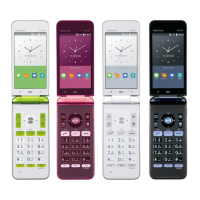
ColorsPink, White, Black

Related product manuals