LAVA Computer MFG Inc.
A7 Lite Enclosure Quick Start Guide - Rev A02
5.
6.
7.
8.
9.
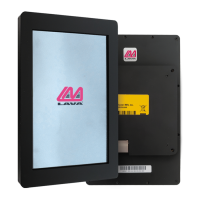
Once the tablet is plugged into the adapter, you can reassemble the enclosure. Place the
back plate face down on top of the frame and fit the tablet snugly inside it. Take caution
as you push the tablet into the frame. There are sponge tabs in the frame's corner to keep
the tablet from moving and protect it from minor impact. However, if you press too hard,
the tablet might catch the edge of one of these tabs and cause them to not fit properly
when the enclosure is fully assembled.
Next, take the four screws you had removed and screw them into the corner holes. This
way, you can see if there are any bumps because something is sitting wrong on the inside.
Then, screw in the remaining screws and continue to ensure the back plate lies flat against
the frame.
The back of the enclosure's adapter has four large screw holes. These are VESA 100 holes
that allow you to attach the enclosure to a standard VESA mount. Follow the instructions
provided by the mount to attach the enclosure. LAVA does not provide the VESA screws
for mounting.
Once the enclosure is mounted, you can remove the white paper covering the frame. It is
used to protect the enclosure from scratches during shipping. It is recommended that this
paper is removed after final install on the VESAmounting as this prevents any accidental
scratches or dings that may occur during this process.
The enclosure has a hole over the power button. Feed a small stick into the hole to turn on
the tablet.
10. Once the product is powered, the Yellow eSynC status LED light will start blinking,
indicating that the unit is receiving power.
11. You will also receive a pop-up message regarding opening LTM once the USB connection
is established. You will receive this pop-up every time unless you click "Always open
LTM..." Click "0K" (
12. Figure10).
2 Vulcan St. Toronto, ON
Canada, M9W I L2
Tel: +1 416 674-5942
Toll Free (US & Canada): 800 241-5282
www.lavalink.com
Page 9


 To Next Page
 Loading...