Driver & Application Installation
Step 16:
Next
The setup program will next ask you if you want to update your component or
reinstall the component entirely. Tick your desired option and then click .
Step 17:
Next
The setup program will then show a list of components. Make sure the
component check boxes are checked. And then click .
Step 18:
Next
The setup program is now ready to install the Windows Media components.
Click .
Step 19: FinishWhen the setup has completed, click .
Step 20: FinishThe entire installation of the application is completed, click .
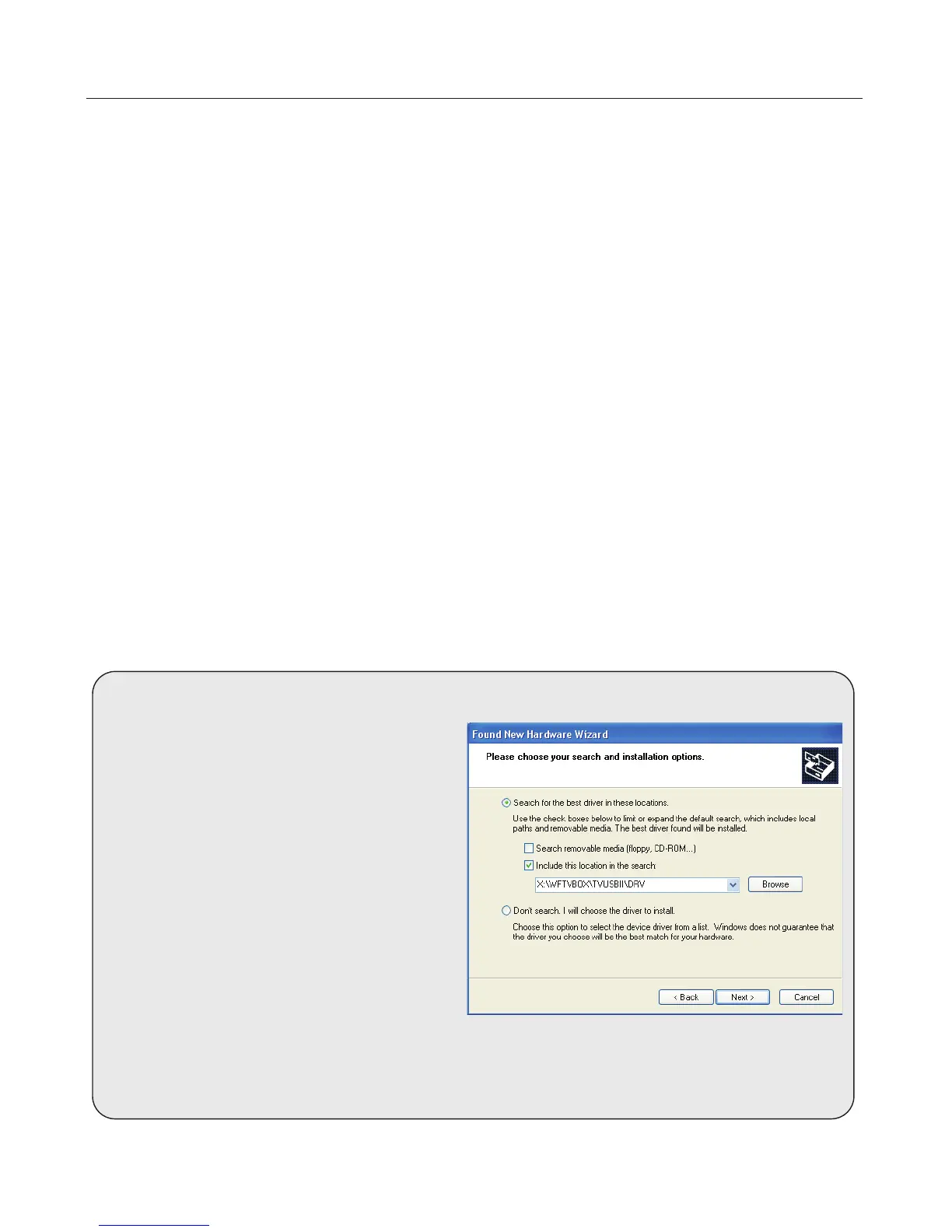
The system may pop up a
window when you change its
location. Check
and click . Tick
and
. Browse for the file under
(X is the
letter of the CD-ROM drive) and click
to install it.
Found New
Hardware
Install from a list or
specific location Next
Search for the best driver in these
locations Include this location in
the search:
X:\WFTVBOX\TVUSBII\DRV\
Next
The window may appear
and request
File Needed
when you
plug WinFast TV USB II in the
PC/Laptop. Insert the software CD and
browse for the file under
(X is the
letter of the CD-ROM drive) and click
to install it.
emDevice.sys
X:\WFTVBOX\TVUSBII\DRV\
OK
If you plug the WinFast TV USB II in a different USB port
There is no need to install WinFast
PVR again if you have already
installed it.
4
Step 15:
Next
The Windows Media Component Setup welcome message appears. Click
.
Step 14:
Yes
Another Microsoft license agreement appears stating the terms of using
Windows Media Player codecs. Click to continue.
Step 13:
Yes
A dialog box prompts you to exit all other applications before installing the
Windows Media Player Codecs. Click .
Step 12:
Yes
During the installation a Microsoft Windows Media Format License agreement
appears stating the terms of using Windows Media Player codecs. Click .
Step 11:
Setup Status
The InstallShield Wizard starts to install the driver. The progress is shown in
the dialog box as shown in the figure to the right.


 To Next Page