Check out the ever-growing
DIDJ
™
custom gaming system library!
Product Information
JetPack Heroes
The DIDJ™ handheld includes a game that can be
downloaded at no cost from the LEAPFROG® Connect
Application. Once the game has been downloaded to
the handheld, select the JetPack Heroes game icon and
strap on your jetpack—it’s time to save the world!
Game Background
Deep beneath the surface of the happy planet, Energy Buddies create a
network of energy that provides light and life for the planet. But an evil
villain, Gooracha, and his henchman from a distant galaxy have kidnapped the
Energy Buddies.
Your mission is to use your mathematics skills to save the captured Energy Buddies
from their prisons and defeat Gooracha and his goons. Along the way, rack up your
score, prove your prowess and earn Badges to customize your game.
Make It Your Game!
Play Jet Pack Heroes with your customized Didji character or buy Micromods such as
game backgrounds, secret keys and new spaceships to change your game. JetPack
Heroes teaches and reinforces mathematics skills for 1st through 4th grade players
(ages 6-10), including addition, subtraction, multiplication and division. Play at
your grade level or use the LEAPFROG® Connect Application to customize the
mathematics skills you want to learn.
Access a full JetPack Heroes Game Guide by going to leapfrog.com/didj.
Country Selection
Selecting your country of residence adjusts the phonetic pronunciation and spelling
of some letters and words. If you need to change your country selection, follow
these steps:
1. Hold down the Left Shoulder button and B button at the same time.
2. Turn on the handheld while holding both buttons until the Country Select
screen appears.
3. Wait for the Health & Safety screen to fi nish.
4. When the LEAPFROG® Legal screen comes on after the Health & Safety screen,
follow these steps:
A. Hold down the Left Shoulder button and B button at the same time.
B. Wait for the Country Code screen to appear.
C. Release the buttons.
D. Choose the Country Code you prefer.
Getting Started
Read all Cautions and Warnings before using. / Lire toutes les mises en garde et
autres avertissements avant usage.
Complete three easy steps to start gaming and learning with the DIDJ™ custom
gaming system.
I. Set up the DIDJ Handheld
Start the DIDJ handheld by sliding the On/Off button.
1. Select a country (required the fi rst time only).
2. Create a profi le by entering a nickname and grade or year in school. This
information can be changed at any time from the About Me menu screen.
3. The DIDJ handheld will store profi les of up to three players and a guest. To delete
a player profi le, go to the About Me menu screen on the handheld.
4. Select a profi le on the Player Select screen to begin.
II. Install the LEAPFROG® Connect Application on the Computer
Once the DIDJ handheld has been set up, install the LEAPFROG Connect
Application. Installing the application and registering the DIDJ handheld gives
parents access to the LEAPFROG® Learning Path, a powerful tool that lets them
see their kid’s learning progress and customize the learning.
How to install:
1. Insert the included CD-ROM into your computer’s disk drive to install
the application.*
2. Follow the instructions on the computer screen to complete the installation
process and to register.
* If you already have the LEAPFROG Connect Application installed for another device,
you will still need to insert the included CD into your computer’s disk drive to install your
DIDJ software.
Product Guide & Instructions
This guide contains important information. Please keep it for future reference.
DIDJ. You choose. You play. You rule.
Play and learn your way with the DIDJ™ custom gaming system, combining
video game fun with core school skills for 1st to 4th grade players (6-10 years).
Customize the gameplay by creating your own DIDJ avatars (or Didjis) and
downloading new features (or Micromods) to make it your game. Customize the
learning included in each game by downloading your own spelling list or choosing
the skills that you are studying in school.
leapfrog.com
Additional games sold separately. All games may not be available in all markets. Actual cover art may vary.
Product Information
III. Connect the DIDJ™ Handheld to the Computer
1. Turn on the DIDJ handheld and connect it to the computer using the included
USB cable.
2. Navigate to the DIDJ view of the LEAPFROG® Connect Application.
3. Choose a profi le and select the On My DIDJ button from the left navigation bar.
4. Transfer the game JetPack Heroes onto the DIDJ handheld.
5. Disconnect the DIDJ handheld from the computer and you are ready to play!
Note: During normal play, the DIDJ handheld will automatically turn off after 5 minutes of
inactivity. Turn on the handheld by pressing the On/Off button. While the DIDJ handheld
is connected to the computer, it will not shut down automatically. Wait until the device has
fi nished downloading and can be disconnected before turning off the handheld.
Navigating the DIDJ Handheld
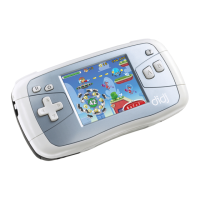
The DIDJ handheld has three main menu areas. Use the D-pad to scroll through the
menu icons. Then press the A button to select.
1. My Games—Launch a cartridge or download games by selecting a game icon on
the menu wheel.
2. My Didjis—Download and display up to 10 customized Didji characters.
3. My DIDJ—Track and change the DIDJ handheld preferences.
a. My Screens—Customize the colors/colours of the DIDJ menu screens and
change the screen contrast level.
b. My Stuff—View the Micromods earned to customize the games.
c. About Me—Change the name and grade or delete a profi le.
Warning: Deleting a profi le on the handheld will delete all game and curriculum
tracking, as well as any achievements earned for that profi le, since the last time the
handheld was connected to the computer.
Instructions For Play
DIDJ. Make It Your Game!
The DIDJ handheld offers a universe of options for gaming and learning. Connect the
handheld to the computer to customize the game.
Create an Avatar
Connect the DIDJ handheld to the computer. Through
the LEAPFROG® Connect Application profi le, use the
Didjerator to create a custom Didji character. Then
download the character to the handheld to make it
available to play in any game that uses Didji characters.
Cartridge slot
Hint button
A & B buttons for
gameplay
AC adapter jack
(AC adapter sold
separately)
Headphone jack
D-pad
Battery
compartments
(back)
On/Off
USB cord slot
Earn Cool Rewards
Earn Badges for in-game achievements, such as fi nishing a level or answering
10 correct questions in a row. See the Badges that can be earned by going to
the Badges screen in each game.
Each Badge is worth a particular number of Bitz, or
points, that can be traded to customize any DIDJ™
game. Just connect the handheld to the computer to
update the number of Bitz each player has earned. Use
the LEAPFROG® Connect Application to trade your
Bitz for Micromods such as new spaceships, in-game
backgrounds or music that will change each game, and
then download them to your handheld.
Because data storage space is limited, it is important to connect the DIDJ handheld
to the computer periodically to upload game progress and new Bitz earned.
DIDJ Learning Edge
The DIDJ handheld teaches important school skills such as mathematics, spelling
and language arts. Each game has multiple learning levels that progress in diffi culty,
challenging players to learn more advanced concepts as they play. The DIDJ
handheld dynamically advances the learning level, adjusting the curriculum to each
player’s skill level so that the learning is neither too easy nor too hard.
Use the Hint button to access tailored tutorials that will explain new learning
concepts and how to apply a new skill.
Customize the Learning
The learning included in each DIDJ game can be
customized by connecting the DIDJ handheld to the
computer. Use the LEAPFROG® Connect Application
to create a spelling list from over 10,000 words, for
example, or to focus on a particular skill or concept
like learning to multiply by 7s and 8s. Then, download the
customized learning skills and use the DIDJ handheld to get
ready for a test or to get practice in key school skills.
See and Share Learning Success
Every time the handheld is connected to the computer, the system will update each
player’s learning and gaming progress. Parents can see and celebrate the learning
by going online at leapfrog.com/learningpath or going to the LEAPFROG® Learning
Path page of the LEAPFROG® Connect Application.
Product Information
L and R shoulder
buttons
Volume control
Menu button
Pause button
Brightness
control
© 2008 VIACOM
INTERNATIONAL INC.
Created by
Stephen Hillenburg.
NANCY DREW is
a trademark of
Simon & Schuster.
© WBEI. (s08)
© 2008 VIACOM
INTERNATIONAL INC.
All rights reserved.
SPONGEBOB created by
Stephen Hillenburg.
© 2008 Lucasfi lm Ltd. & TM.
See the Learning.
TM
Learning experiences are never
one-size-fi ts-all. That’s why we created
an online LeapFrog Learning Path that
can be custom-tailored to shape and
inspire each child’s unique learning
journey. Connect and see what they’re
learning, how they’re growing and, most
importantly, who they’re becoming.
leapfrog.com/learningpath
Images represent gameplay only and do not refl ect actual screenshot pixelation.


 To Next Page
 General