EasyManua.ls Logo

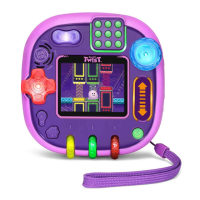
LeapFrog Rockit Twist - User Manual

LeapFrog Rockit Twist
12 pages
Print Icon
To Next Page IconTo Next Page
Loading...
Parent’s Guide
This guide contains important information. Please keep it for future reference.
91-003672-008
US

Questions and Answers

  • R
    Richard MullenJul 28, 2025
    What to do if LeapFrog Game Console RockIt Twist™ charging indicator flashes rapidly?
    • T
      tara54Jul 28, 2025
      If the charging indicator on your LeapFrog Game Console RockIt Twist™ flashes rapidly while charging: 1. Disconnect the USB cable from the power source. 2. Check the charging cable for any signs of damage. 3. Reconnect the charging cable. 4. If the issue persists, try using a different cable or power source.
  • J
    John DavilaAug 3, 2025
    What to do if LeapFrog Game Console RockIt Twist™ screen is not working correctly?
    • M
      Michelle PetersenAug 3, 2025
      If the screen on your LeapFrog Game Console RockIt Twist™ is not working correctly: 1. Press and hold the Power Button for 30 seconds. 2. Release the Power Button, then press it again to turn the system back on. It should now work properly.
  • J
    jessica50Aug 9, 2025
    Why my LeapFrog Game Console RockIt Twist™ cannot connect to the computer?
    • A
      Annette SanchezAug 9, 2025
      If you cannot connect the LeapFrog Game Console RockIt Twist™ system to a computer: 1. Check the connections on the cable between the RockIt Twist™ system and the computer. 2. Press and hold the Power Button for 30 seconds, release, and press again to turn it back on. Reconnect to the computer once the RockIt Twist™ system restarts.
  • T
    Tyler BlairAug 15, 2025
    What to do if static electricity causes my LeapFrog Game Console RockIt Twist™ to malfunction?
    • W
      Wendy BrightAug 15, 2025
      If your LeapFrog Game Console RockIt Twist™ is malfunctioning due to static electricity, reset it by pressing and holding the Power button for 10 seconds until it switches off. Then, press and hold the Power button for 3 seconds to turn it on again. If the malfunction occurred during downloading, disconnect the USB cable, delete the corrupted file, reset the console as described, and restart the download.
  • D
    Daniel WeaverAug 20, 2025
    How to fix LeapFrog Game Console RockIt Twist™ that has stopped working?
    • G
      Gabriella CombsAug 20, 2025
      If the LeapFrog Game Console RockIt Twist™ system has stopped working, follow these steps: 1. Press and hold the Power Button for 30 seconds. 2. Release the Power Button, then press it again to turn the system back on. It should now work properly. 3. If the RockIt Twist™ system still doesn't work, recharge the battery and repeat steps 1 and 2.

Summary

Introduction

Product Layout and Buttons

Overview of the Rockit Twist system's physical components and controls.

Product Features

Included in This Package

Getting Started

Battery Charging

Instructions on how to charge the Rockit Twist system using a USB cable and adapter.

Battery Life

Information on how long the battery lasts and when to recharge.

Battery Maintenance

Guidance on regularly charging the battery for optimal performance.

Battery Notice

Quick Start

Install Game Packs and Transfer MP3 Files

System Requirements for Computer Connection

Details on PC and Mac requirements for connecting the system to a computer.

Care & Maintenance

Troubleshooting

Suppliers Declaration of Conformity

Disclaimer and Limitation of Liability

LeapFrog Rockit Twist Specifications

General IconGeneral
AudioBuilt-in speaker
TypeHandheld game console
ManufacturerLeapFrog
ModelRockit Twist
CategoryGame Console
Age Range4-8 years
DisplayLCD screen
ControlsButtons, Dials, Slider
GamesPre-loaded games
Screen1.54 inch LCD
ColorVarious colors available

Related product manuals