SET AUTO TIMER
1. Press and hold START and ENTER buttons
at the same time for 3 seconds.
2. Press buttons until SET AUTO
appears on the display.
3. Press ENTER.
4. Total Time: (Enter the total amount
of time. It will automatically split
between green, yellow and red
lights). Use buttons to scroll
through numbers and ENTER to
accept.
5. Sound?: Do you want a sound effect
at the start of the green light?
6. Yes/No: Use buttons to move
cursor and ENTER to accept.
7. If yes, use buttons to scroll
through sounds and ENTER to accept.
8. Repeat steps 7 and 8 for yellow and red sections.
9. Press MENU.
STARTING THE TIMER
1. After you set Manual and/or Auto time, press MENU
(the display will show CLOCK).
2. Use buttons to choose MANUAL TIMER or
AUTO TIMER and ENTER to accept.
3. Press the START button to start the timer.
GETTING STARTED
The Time Tracker has 3 modes:
CLOCK – Regular digital clock
MANUAL – Program
exactly how long you
want each color section
to stay lit.
AUTO – Program the
total amount of time,
and the color sections
will automatically be
divided into 80% green,
15% yellow, and 5%
red. For example, if
you program 10 minutes
as your total time, the
green section will stay lit
for 8 minutes, the yellow
section for 1 minute 30 seconds, and the red section for 30
seconds.
The Time Tracker has six different sound effects. You may
program a sound effect to be used before one, two, or all three
of the colored sections. The sound effects are:
Begin! Siren Buzzer
Bell Ticking Clock Time’s Up!
Before setting the time, please note:
1. If you do not press any key for 20 seconds, the unit will
exit the programming mode.
2. Press MENU at any time to go back to the previous step.
3. Once you have set the Manual and/or Auto timer, those
times will remain programmed in the unit until you
change them. Once programmed, you can go directly
to START TIMER.
36
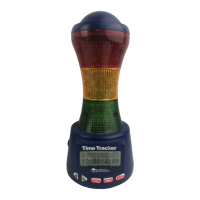
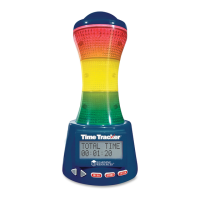
Red Section
Yellow Section
Green Section
Display
Screen
Volume Control
Speaker
(behind)
Adapter Outlet
Reset Key
Left Arrow
Right Arrow Menu Start
Enter
Battery
Compartment
(underneath)
SET
AUTO
TOTAL TIME
00:00:00
SOUND ?
YES/NO


 To Next Page