Need help?
Do you have a question about the Lenovo A700 Series and is the answer not in the manual?
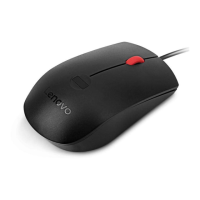
Standard operation on a flat surface.
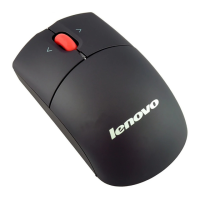
Wireless cursor control in the air.
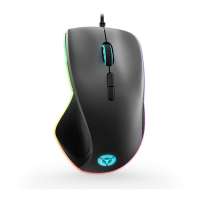
Vertical grip operation for gaming.
Identification of buttons, indicators, and ports.
Explanation of indicator light behavior.
Steps to install and start the game platform.
Instructions for playing various games.
Important safety guidelines for device usage and care.
Answers to frequently asked questions and common issues.
Compliance with Federal Communications Commission rules.
Compliance with Industry Canada regulations.
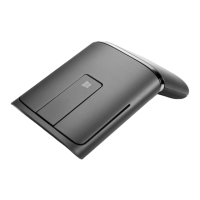
This document describes the Lenovo A700 Series 3-in-1 Mouse, a versatile input device designed for use with Lenovo All-In-One PCs. It functions as an ordinary optical mouse, an air mouse, and a game controller, offering multiple modes of interaction for various tasks and entertainment.
The Lenovo A700 Series 3-in-1 Mouse is engineered to provide a flexible and intuitive user experience. Its primary function is to serve as a standard optical mouse when placed on a flat surface, allowing for precise cursor control and navigation in typical desktop environments. This mode is ideal for everyday computing tasks such as browsing, document editing, and general software use.
Beyond its conventional role, the mouse transforms into an "air mouse" when held in the air. In this mode, the device detects motion and translates it into cursor movements on the screen. This feature supports both vertical and horizontal grips, offering a more dynamic way to interact with the PC, particularly useful for presentations, media control, or navigating interfaces from a distance. The air mouse mode allows users to move the cursor by simply moving the mouse up, down, left, or right in the air, providing a natural and engaging control method.
The third distinct function of the Lenovo A700 mouse is its "game mode." When a game platform is launched and a game is entered, the mouse automatically switches to this specialized state. In game mode, the mouse is intended to be used vertically, and its traditional left and right buttons are remapped to the A and B buttons, along with the joystick, to provide game-specific controls. This integration with the Motion Drive Game Zone platform enhances the gaming experience by offering a dedicated control scheme tailored for interactive gameplay. The manual provides detailed operation instructions for various games, including Tennis, Golf, Pingpang, Fishing, and Snowball, outlining how the mouse's movements and buttons correspond to in-game actions like waving to serve, swinging for a golf shot, or throwing a snowball.
The mouse features a connect button for Bluetooth pairing, a mouse wheel, left and right buttons, A and B buttons, and a joystick. An optical light is located at the bottom for surface tracking, and a power on/off switch helps conserve battery life. A hand strap, with a length adjustment buckle, is included to secure the mouse to the wrist, preventing accidental drops during active use, especially in air mouse and game modes.
The Lenovo A700 mouse offers a seamless transition between its different modes. When used as an ordinary optical mouse, it provides reliable tracking on a table surface. For air mouse functionality, simply lifting the mouse into the air automatically activates this mode. The device supports both vertical and horizontal grips in air mouse mode, with buttons A and B typically functioning as left and right clicks, respectively. It is crucial not to block the optical light at the bottom with fingers to ensure accurate tracking in air mouse mode.
In game mode, the mouse is designed for vertical use, with the joystick and A/B buttons becoming the primary input methods. The manual emphasizes that the mouse should be held vertically during gameplay for optimal control. The integrated Motion Drive Game Zone platform provides a suite of games that leverage the mouse's unique capabilities, offering an immersive gaming experience. Users can easily launch games from the desktop shortcut, the Start menu, or by pressing the joystick button downward while in desktop state. During gameplay, pressing the wheel button brings up a help screen, providing guidance on how to play the current game.
The mouse incorporates an intelligent sleep mode to conserve energy. If there is no operation for three minutes while the device is powered on, it will enter sleep mode, indicated by the front-end indicator turning off and the optical lens lamp blinking. The mouse can be woken up by pressing any button or moving it, quickly restoring normal functionality.
Bluetooth connectivity is a core feature, allowing the mouse to wirelessly pair with the All-In-One PC. The initial setup involves inserting batteries, ensuring the PC is off, and then switching the mouse power to "ON." The green light on the front flashes to indicate the matching process has begun. The PC will then automatically search for Bluetooth devices. Once "Lenovo Motion Drive Mouse" appears, selecting it and proceeding with the matching operation establishes the connection. A constant red light on the mouse signifies a successful connection. If the mouse needs to be reconnected or is not working properly, the connection steps can be repeated.
The mouse also features an air mouse calibration function. If the cursor drifts while the mouse is still in air mouse mode, users can calibrate it by propping up the front end or turning it over and placing it still on a table. The mouse will automatically calibrate within ten seconds, after which it can be used normally.
Proper maintenance of the Lenovo A700 mouse ensures its longevity and optimal performance. Users are advised to switch the power button to "OFF" when the device is not in use. For extended periods of inactivity, removing the batteries is recommended to prevent potential damage from battery leakage.
The device's indicator lights provide important status information:
Troubleshooting tips are provided in the manual to address common issues. If the mouse cursor floats disorderly in air mouse mode, it could be due to fingers blocking the optical lens or a calibration issue. Turning the mouse over and placing it on a table for ten seconds can resolve calibration problems. If the mouse does not work well after some usage, it might be due to accidentally pressing the connect button, requiring reinstallation in Windows, or a low battery, which can be fixed by replacement. The manual also explains that a brief pause in cursor movement when a button is pressed in air mouse mode is a deliberate design choice to facilitate double-click functionality in the air.
General cautions include avoiding dropping, striking, scratching, or beating the device. It should be kept away from fire and heat sources to prevent explosions and away from liquids and damp conditions to protect internal components. Battery replacement by children should only occur under adult supervision. Users are explicitly warned against disassembling or replacing any components other than the battery.
 General
| Connectivity Technology | Wired |
|---|---|
| Interface | USB |
| Movement Detection Technology | Optical |
| Number of Buttons | 3 |
| Model | A700 |
| Color | Black |
| Type | Optical Mouse |
| Buttons | Left, Right, Scroll Wheel |


 To Next Page