Camera
Camera basics
You can use the Camera app to take photos and record videos.
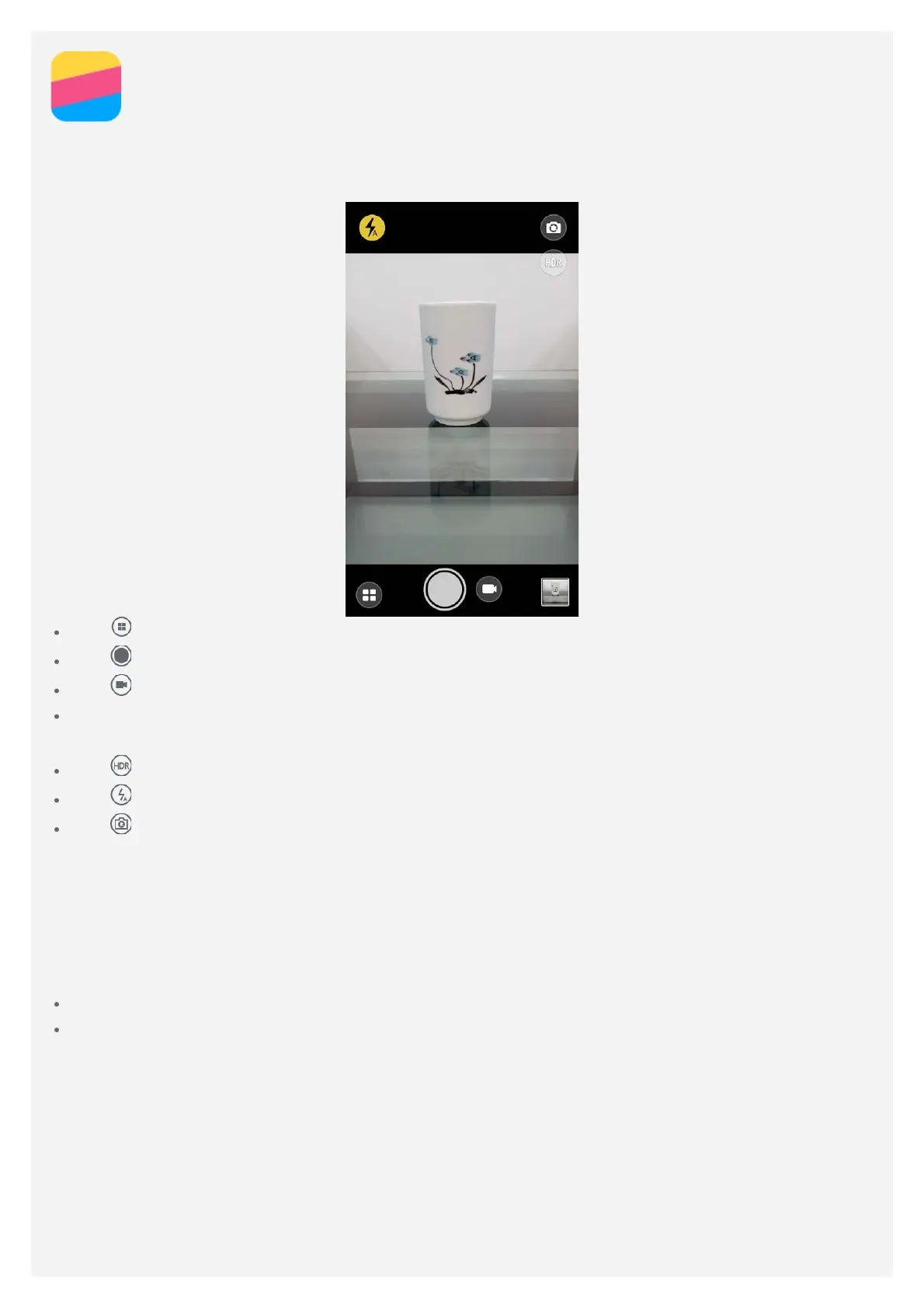
Tap to choose a camera mode.
Tap to take a photo.
Tap to record a video.
Tap the photo or video thumbnail to view the photo or video in the Gallery app. For more
information, see Gallery.
Tap to use HDR (High Dynamic Range).
Tap to switch between flash modes.
Tap to switch between the front-facing camera and the rear-facing camera.
Taking a screenshot
Press and hold the On/Off button and the volume down button at the same time to take a
screenshot.
By default, the screenshots are stored in your phone's internal storage. To view the screenshots,
do one of the following:
Open the Gallery app and find the Screenshot album.
Open the File Manager app and go to the Internal Storage > Pictures > Screenshots folder.


 To Next Page