EasyManua.ls Logo

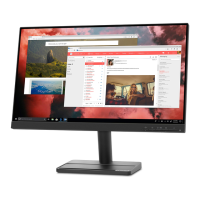
Lenovo L22e-30 - User Manual

Lenovo L22e-30
33 pages
Print Icon
To Next Page IconTo Next Page
Loading...
Lenovo
L22e-30
User Guide

Other manuals for Lenovo L22e-30

Questions and Answers

  • E
    elizabeth77Jul 27, 2025
    How to fix a Lenovo Monitor when the power indicator is off and there is no image?
    • K
      Kimberly ClarkJul 28, 2025
      If the power indicator on your Lenovo Monitor is not lit and there is no image, try the following: * Ensure the power cord is properly connected and the outlet has power. * Power on the monitor. * Try using another power cord and/or electrical outlet. It's possible the monitor's power switch isn't on, the power cord is loose, disconnected, or the outlet has no power.
  • C
    Casey JacksonAug 1, 2025
    Why is my Lenovo L22e-30 screen blank with an amber power light?
    • L
      Leah LamAug 1, 2025
      If your Lenovo Monitor screen is blank and the power indicator is amber, it means the monitor is in Standby/Suspend mode. To restore operation: * Press any key on the keyboard or move the mouse. * Check the Power options settings on your computer.
  • N
    Nathan ContrerasAug 5, 2025
    What to do if Lenovo Monitor power light is amber but there is no image?
    • E
      Emily LeonardAug 5, 2025
      If your Lenovo Monitor has an amber power indicator but no image, it could be due to a loose video signal cable or incorrect brightness/contrast settings. Try these solutions: * Ensure the video cable is properly connected to the system. * Adjust the brightness and contrast settings in the OSD menu.
  • E
    Erik HaasAug 9, 2025
    How to improve image quality on a Lenovo L22e-30 Monitor?
    • J
      johnharmonAug 10, 2025
      If the image quality on your Lenovo Monitor is unacceptable, it may be due to several reasons: * Ensure the video signal cable is firmly plugged into both the system and the monitor. * Select another color setting from the OSD menu. * Perform automatic image setup.
  • J
    Jennifer DominguezAug 13, 2025
    How to fix blurry image on Lenovo Monitor?
    • J
      James MillerAug 13, 2025
      To resolve fuzzy lines, blurry images, or horizontal/vertical lines on your Lenovo Monitor, try the following: * Adjust the resolution settings on your system to match the monitor's native resolution: 1920 x 1080 at 60 Hz. * Perform automatic image setup; if that doesn't work, perform manual image setup. * When working in the native resolution, adjust the Dots Per Inch (DPI) setting on your system for additional improvements.
  • M
    Marcus BallardAug 17, 2025
    What to do if my Lenovo Monitor says 'Out of Range'?
    • C
      chloethomasAug 17, 2025
      If your Lenovo Monitor displays 'Out of Range' and the power indicator is flashing white, it means the system is set to a display mode not supported by the monitor. Here's how to resolve it: * If replacing an old monitor, reconnect it and adjust the display mode to the specified range for your new monitor. * If using Windows, restart the system in safe mode and select a supported display mode.
  • C
    Chad ChristensenAug 22, 2025
    Why does my Lenovo Monitor have discolored pixels?
    • J
      Jennifer ThompsonAug 22, 2025
      The appearance of one or more discolored pixels is a characteristic of LCD technology and not a defect. If there are more than five missing pixels, contact the Support Center.

Summary

Safety Information

General Safety Guidelines

Essential safety instructions for proper and safe monitor operation.

Getting Started

Setting Up Your Monitor

Step-by-step instructions for connecting and installing the monitor.

Adjusting and Using Your Monitor

Positioning and Viewing Your Monitor

Recommendations for optimal monitor placement and viewing angles.

Adjusting Your Monitor Image

How to use On-Screen Display (OSD) controls to optimize image quality.

Reference Information

Troubleshooting

Solutions for common issues and problems encountered with the monitor.

Manually Installing the Monitor Driver

Step-by-step guide for installing monitor driver software in Windows.

Lenovo L22e-30 Specifications

General IconGeneral
Panel typeVA
Color gamut72 %
Pixel pitch0.248 x 0.248 mm
Screen shapeFlat
Response time6 ms
Display diagonal21.5 \
Anti-glare screenYes
Display technology-
Native aspect ratio16:9
Maximum refresh rate75 Hz
Contrast ratio (typical)3000:1
Display number of colors16.7 million colors
Display brightness (typical)250 cd/m²
HDMI version1.4
Product colorBlack
Market positioningHome
Power consumption (max)19 W
Power consumption (typical)15 W
AMD FreeSync typeFreeSync
Compatible operating systemsSupport Windows 7, Windows 10
Weight and Dimensions IconWeight and Dimensions
Bezel width (side)2 mm
Depth (with stand)164.9 mm
Width (with stand)489.3 mm
Height (with stand)404.5 mm
Weight (with stand)3030 g

Related product manuals