EasyManua.ls Logo

Lenovo Tab E10 - User Manual

Lenovo Tab E10
19 pages
Print Icon
To Next Page IconTo Next Page
Loading...
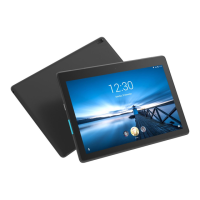
Lenovo Tab E10
User Guide
Lenovo TB-X104F
Lenovo TB-X104F1
Lenovo TB-X104L
Lenovo TB-X104X
All information labeled with * in this guide refers only to the WLAN+LTE model (Lenovo
TB-X104L/Lenovo TB-X104X).

Other manuals for Lenovo Tab E10

Question and Answer IconNeed help?

Do you have a question about the Lenovo Tab E10 and is the answer not in the manual?

Summary

Lenovo Help and Technical Information

Lenovo Help App Features

Details features of the Lenovo Help app for support, including web assistance, forums, Q&A, and system upgrades.

Technical Specifications Overview

Provides detailed technical specifications for different Lenovo Tab E10 models, including CPU and battery.

Home Screen Customization

Guides on personalizing the home screen, adding widgets, and changing wallpapers on the Lenovo Tab E10.

Device Operation Basics

Screen Buttons Functionality

Explains the function of the three main screen buttons: Back, Home, and Recent buttons.

Notifications and Quick Settings

Describes how to view and manage notifications and access quick settings for the device.

Power Management and Force Restart

Force Shutdown and Reboot Procedure

Instructions on how to force a shutdown or reboot the device when it becomes unresponsive.

Advanced Device Features

Split Screen Mode Usage

Guides on how to use and manage split screen mode for multitasking on the Lenovo Tab E10.

Multi-User Account Management

User Account Types and Management

Explains user types (Owner, Guest, New User) and how to create, switch, and delete accounts.

Camera Functions

Taking Photos and Videos

Instructions for using the device's camera to take photos, record videos, and switch between cameras.

Capturing Screenshots

Procedure for taking screenshots by pressing the Power and Volume down buttons simultaneously.

Viewing Photos and Videos

Methods for viewing media stored on the device, via Camera app or Photos app.

Network Connectivity Setup

Setting Up WLAN Network

Steps to connect to a wireless (WLAN) network for internet access.

Mobile Network and Data Usage

Information on setting up mobile network and data usage, requiring a SIM card.

VPN Network Configuration

Instructions for configuring a VPN network for secure communication, requiring screen lock setup.

Setting Up a Personal Hotspot

Guide to sharing the mobile network connection by setting up a personal Wi-Fi hotspot.

Internet Browsing and Saving

Visiting Websites

How to use the Chrome browser to visit websites by typing addresses or searching for keywords.

Saving Webpages and Images

Instructions for saving images by downloading and bookmarking webpages for later access.

Accessibility Settings Adjustment

Setting Text Scaling and Webpage Zoom

How to adjust text scaling and webpage zoom through accessibility settings.

Device-to-Computer Synchronization

Connecting Device to Computer via USB

Steps to connect the device to a computer using a USB cable for data transfer.

Selecting Computer Connection Modes

Options for connecting the device to a PC: MTP, PTP, Charge, and MIDI modes.

Installing Applications (APKs)

Procedure for installing applications from unknown sources via computer transfer.

System Settings and Language

Navigating the Settings Home Screen

How to enter the main settings menu and access the shortcut panel.

Setting the Device Language

Steps to add and set a preferred language for the device's interface.

Safety, Handling, and Warnings

Important Safety and Handling Information

Guidelines for safe handling, usage, and care of the device to prevent damage and injury.

Device Modification and Battery Safety

Information on not disassembling the device or replacing the built-in battery.

Plastic Bag and AC Adapter Precautions

Precautions regarding plastic bags and using approved AC adapters for charging.

Usage Precautions and Disposal

High Volume Usage Hearing Protection

Cautions about listening at high volumes to protect hearing and avoid discomfort.

Vehicle and Bicycle Safety Guidelines

Advice on prioritizing safety and following local laws when using the device in vehicles or on bicycles.

Device Disposal and Environmental Impact

Instructions for proper disposal of the device according to local laws and environmental regulations.

Data and Software Protection Measures

Tips for protecting device data from viruses, malware, and unauthorized access.

Compliance and Troubleshooting

Electronic Emission Notices (FCC;ISED)

Compliance statements for FCC and ISED regulations regarding radio frequency emissions.

Troubleshooting Common Device Issues

Solutions for common problems like insufficient memory, touch screen issues, and power failures.

Recycling, Certifications, and Export

Environmental and Recycling Information

General recycling statements and country-specific recycling information for batteries and WEEE.

ENERGY STAR Model Information

Details on ENERGY STAR certification and its benefits for energy efficiency.

Export Classification Notice

Information on the product's export classification and re-export restrictions.

Troubleshooting Network and Sleep Mode

Resolving Wireless Network Access Issues

Solutions for device connectivity issues, including wireless network access.

Waking Device from Sleep Mode

Instructions for waking the device from sleep mode when it is unresponsive.

Summary

Lenovo Help and Technical Information

Lenovo Help App Features

Details features of the Lenovo Help app for support, including web assistance, forums, Q&A, and system upgrades.

Technical Specifications Overview

Provides detailed technical specifications for different Lenovo Tab E10 models, including CPU and battery.

Home Screen Customization

Guides on personalizing the home screen, adding widgets, and changing wallpapers on the Lenovo Tab E10.

Device Operation Basics

Screen Buttons Functionality

Explains the function of the three main screen buttons: Back, Home, and Recent buttons.

Notifications and Quick Settings

Describes how to view and manage notifications and access quick settings for the device.

Power Management and Force Restart

Force Shutdown and Reboot Procedure

Instructions on how to force a shutdown or reboot the device when it becomes unresponsive.

Advanced Device Features

Split Screen Mode Usage

Guides on how to use and manage split screen mode for multitasking on the Lenovo Tab E10.

Multi-User Account Management

User Account Types and Management

Explains user types (Owner, Guest, New User) and how to create, switch, and delete accounts.

Camera Functions

Taking Photos and Videos

Instructions for using the device's camera to take photos, record videos, and switch between cameras.

Capturing Screenshots

Procedure for taking screenshots by pressing the Power and Volume down buttons simultaneously.

Viewing Photos and Videos

Methods for viewing media stored on the device, via Camera app or Photos app.

Network Connectivity Setup

Setting Up WLAN Network

Steps to connect to a wireless (WLAN) network for internet access.

Mobile Network and Data Usage

Information on setting up mobile network and data usage, requiring a SIM card.

VPN Network Configuration

Instructions for configuring a VPN network for secure communication, requiring screen lock setup.

Setting Up a Personal Hotspot

Guide to sharing the mobile network connection by setting up a personal Wi-Fi hotspot.

Internet Browsing and Saving

Visiting Websites

How to use the Chrome browser to visit websites by typing addresses or searching for keywords.

Saving Webpages and Images

Instructions for saving images by downloading and bookmarking webpages for later access.

Accessibility Settings Adjustment

Setting Text Scaling and Webpage Zoom

How to adjust text scaling and webpage zoom through accessibility settings.

Device-to-Computer Synchronization

Connecting Device to Computer via USB

Steps to connect the device to a computer using a USB cable for data transfer.

Selecting Computer Connection Modes

Options for connecting the device to a PC: MTP, PTP, Charge, and MIDI modes.

Installing Applications (APKs)

Procedure for installing applications from unknown sources via computer transfer.

System Settings and Language

Navigating the Settings Home Screen

How to enter the main settings menu and access the shortcut panel.

Setting the Device Language

Steps to add and set a preferred language for the device's interface.

Safety, Handling, and Warnings

Important Safety and Handling Information

Guidelines for safe handling, usage, and care of the device to prevent damage and injury.

Device Modification and Battery Safety

Information on not disassembling the device or replacing the built-in battery.

Plastic Bag and AC Adapter Precautions

Precautions regarding plastic bags and using approved AC adapters for charging.

Usage Precautions and Disposal

High Volume Usage Hearing Protection

Cautions about listening at high volumes to protect hearing and avoid discomfort.

Vehicle and Bicycle Safety Guidelines

Advice on prioritizing safety and following local laws when using the device in vehicles or on bicycles.

Device Disposal and Environmental Impact

Instructions for proper disposal of the device according to local laws and environmental regulations.

Data and Software Protection Measures

Tips for protecting device data from viruses, malware, and unauthorized access.

Compliance and Troubleshooting

Electronic Emission Notices (FCC;ISED)

Compliance statements for FCC and ISED regulations regarding radio frequency emissions.

Troubleshooting Common Device Issues

Solutions for common problems like insufficient memory, touch screen issues, and power failures.

Recycling, Certifications, and Export

Environmental and Recycling Information

General recycling statements and country-specific recycling information for batteries and WEEE.

ENERGY STAR Model Information

Details on ENERGY STAR certification and its benefits for energy efficiency.

Export Classification Notice

Information on the product's export classification and re-export restrictions.

Troubleshooting Network and Sleep Mode

Resolving Wireless Network Access Issues

Solutions for device connectivity issues, including wireless network access.

Waking Device from Sleep Mode

Instructions for waking the device from sleep mode when it is unresponsive.

Overview

This document serves as a comprehensive user guide for the Lenovo Tab E10, covering various aspects from basic operation to advanced settings and maintenance. It is designed to help users understand and utilize their device effectively, with specific instructions for different models (TB-X104F, TB-X104F1, TB-X104L, TB-X104X).

Function Description

The Lenovo Tab E10 is a versatile tablet designed for everyday use, offering functionalities for communication, entertainment, and productivity. It runs on an Android operating system, providing access to a wide range of applications through Google Play. The device supports various connectivity options, including WLAN and, for specific models (TB-X104L/TB-X104X), LTE, enabling internet access and communication on the go.

Key functions include:

  • Web Browsing: Users can browse the internet using the Chrome app, search for keywords, and manage webpages (add new tabs, close tabs, refresh, bookmark).
  • Camera: The device features a built-in camera for taking photos and recording videos, with options for panorama mode and switching between front and rear cameras.
  • Multi-User Support: The tablet supports multiple user accounts, including Owner, Guest, Standard User, and Child User, allowing for personalized experiences and parental control.
  • Split Screen Mode: This feature enables users to run and view two applications simultaneously, enhancing multitasking capabilities.
  • Data Synchronization: The device can transfer data such as music, pictures, videos, documents, and Android application package (APK) files between the tablet and a computer via a USB cable.
  • Notifications and Quick Settings: A dedicated panel provides notifications for new messages, USB connections, and ongoing activities, while Quick Settings offers quick access to frequently used settings like WLAN.

Usage Features

The Lenovo Tab E10 is designed with user-friendly features to enhance the overall experience.

  • Home Screen Customization: Users can personalize their home screen by adding widgets, changing wallpapers, and organizing apps. The home screen includes a Google Search bar and pre-installed useful apps.
  • Navigation: The device uses on-screen buttons for navigation: Back, Home, and Recent. The Recent button allows users to view and manage recently used applications, including closing individual apps or all running apps.
  • App Management: Users can easily add widgets to the home screen, move apps between screens, and uninstall applications (though some system apps cannot be uninstalled).
  • Network Configuration: The tablet supports setting up WLAN networks, mobile networks (for WLAN+LTE models), and VPN networks. It also allows users to set up a personal hotspot to share their internet connection with other devices.
  • Language Settings: Users can add and manage multiple languages for the device interface.
  • Accessibility Preferences: The device offers accessibility settings to adjust text scaling and webpage zoom for improved readability.
  • Screenshot Capture: Users can capture screenshots by simultaneously pressing and holding the Power and Volume down buttons.
  • Viewing Media: Photos and videos taken with the camera, as well as screenshots, are stored in the device's internal storage and can be viewed through the Photos app or Files Go.
  • Installing APKs: The device allows for the installation of applications from unknown sources, providing flexibility for users to install apps not available on Google Play. This requires enabling "Allow from this source" in the settings.

Maintenance Features

Proper maintenance and adherence to safety guidelines are crucial for the longevity and safe operation of the Lenovo Tab E10. The user guide provides important information regarding handling, charging, and environmental considerations.

  • Device Handling: Users are advised to handle the device with care, avoiding drops, bends, punctures, and exposure to foreign objects or heavy pressure, as sensitive internal components and the glass screen can be damaged. In case of screen damage, users should not touch broken glass and contact Lenovo support.
  • Environmental Conditions: The device should be kept away from hot and high-voltage environments and used within a temperature range of 0°C (32°F) to 40°C (104°F) to prevent damage. It should also not be exposed to water, rain, extreme humidity, sweat, or other liquids.
  • Disassembly and Modification: The device is a sealed unit, and users are warned against disassembling or modifying it, as this will void the warranty. All internal repairs must be performed by Lenovo-authorized personnel.
  • Battery Care: The device has a built-in rechargeable lithium-ion battery. Users should not attempt to replace it due to the risk of explosion if an incorrect type is used. Lenovo Support should be contacted for battery replacement.
  • Charging Practices: Only standard Lenovo power adapters and USB 2.0 or higher data cables should be used for charging. Users should ensure adequate ventilation around the charging device and unplug it if it has been exposed to liquids, shows physical damage, or needs cleaning.
  • High Volume Usage Caution: To protect hearing, users are advised to limit the time spent using headsets or headphones at high volume, avoid turning up the volume to block out noisy surroundings, and turn down the volume if they cannot hear people speaking. If hearing discomfort occurs, users should stop listening and have their hearing checked.
  • Safety in Vehicles: When using the device in a motor vehicle or on a bicycle, users must prioritize safety and adhere to local laws and regulations regarding mobile electronic device usage.
  • Disposal Guidelines: At the end of its useful life, the device should be disposed of according to local laws and regulations, not crushed, incinerated, immersed in water, or discarded as ordinary waste. Information on recycling programs is provided, including country-specific details for Brazil, Japan, and India.
  • Child Safety: The device and its accessories contain small parts that can be a choking hazard and should be kept away from small children. The glass screen can also break if dropped or thrown.
  • Data and Software Protection: Users should avoid deleting unknown files or changing the names of files or directories not created by them, as this can cause software malfunction. Awareness of computer viruses, hackers, spyware, and other malicious activities is emphasized, and users are responsible for installing and updating firewalls, antivirus, and anti-spyware software.
  • Electromagnetic Interference: Electrical appliances such as fans, radios, high-powered speakers, air-conditioners, and microwave ovens should be kept away from the device, as their strong magnetic fields can damage the screen and data.
  • Heat Awareness: Users should be aware that the device may become hot during operation or charging. Prolonged contact with hot sections of the device should be avoided to prevent discomfort or skin burns.
  • Troubleshooting: The guide includes basic troubleshooting tips for common issues such as insufficient memory during app installation, unresponsive touch screen, device not powering on or system crashes, inability to access the internet via WLAN, and failure to wake up from sleep mode. These tips often involve freeing up memory, force restarting the device, or restarting network components.

Lenovo Tab E10 Specifications

General IconGeneral
LED backlightYes
Display diagonal10.1 \
Touch technologyMulti-touch
Touchscreen typeCapacitive
Display brightness350 cd/m²
Display resolution1280 x 800 pixels
Display number of colors16.78 million colors
GyroscopeNo
Ambient light sensor-
Processor cores4
Processor modelAPQ8009
Processor familyQualcomm Snapdragon
Processor frequency1.3 GHz
PlatformAndroid
Operating system languageMultilingual
Operating system installedAndroid 8.1
Internal memory2 GB
Internal memory typeLPDDR3-SDRAM
Storage mediaeMCP
Compatible memory cardsMicroSD (TransFlash)
Internal storage capacity32 GB
Graphics cardAdreno 304
Graphics card familyAdreno
Number of built-in speakers2
Rear camera typeSingle camera
Rear camera resolution (numeric)5 MP
Front camera resolution (numeric)2 MP
Wi-Fi standards802.11b, 802.11g, Wi-Fi 4 (802.11n)
Bluetooth version4.0
Top Wi-Fi standardWi-Fi 4 (802.11n)
Standby time750 h
Battery capacity4850 mAh
Battery life (max)- h
Battery recharge time5.5 h
Browsing time (Wi-Fi)6 h
Continuous video playback time5 h
HDMI ports quantity0
Micro-USB 2.0 ports quantity1
Sustainability certificatesRoHS
Device typeMobile tablet
Form factorSlate
Product colorBlack
Weight and Dimensions IconWeight and Dimensions
Depth8.9 mm
Width247 mm
Height171 mm
Weight530 g

Videos

How to Make Your Lenovo Tab E10 Faster: Speed Up Your Tablet

How to Insert SIM Card to LENOVO Tab E10

How to Check the LENOVO Tab E10 Tablet for New System Updates

How to Connect LENOVO Tab E10 to WiFi?

How to Hard Reset via Recovery Mode on LENOVO Tab E10

How to Skip FRP on LENOVO Tab E10

Related product manuals