Internet
You can browse the web if your device is connected to a wireless network or a cellular network.
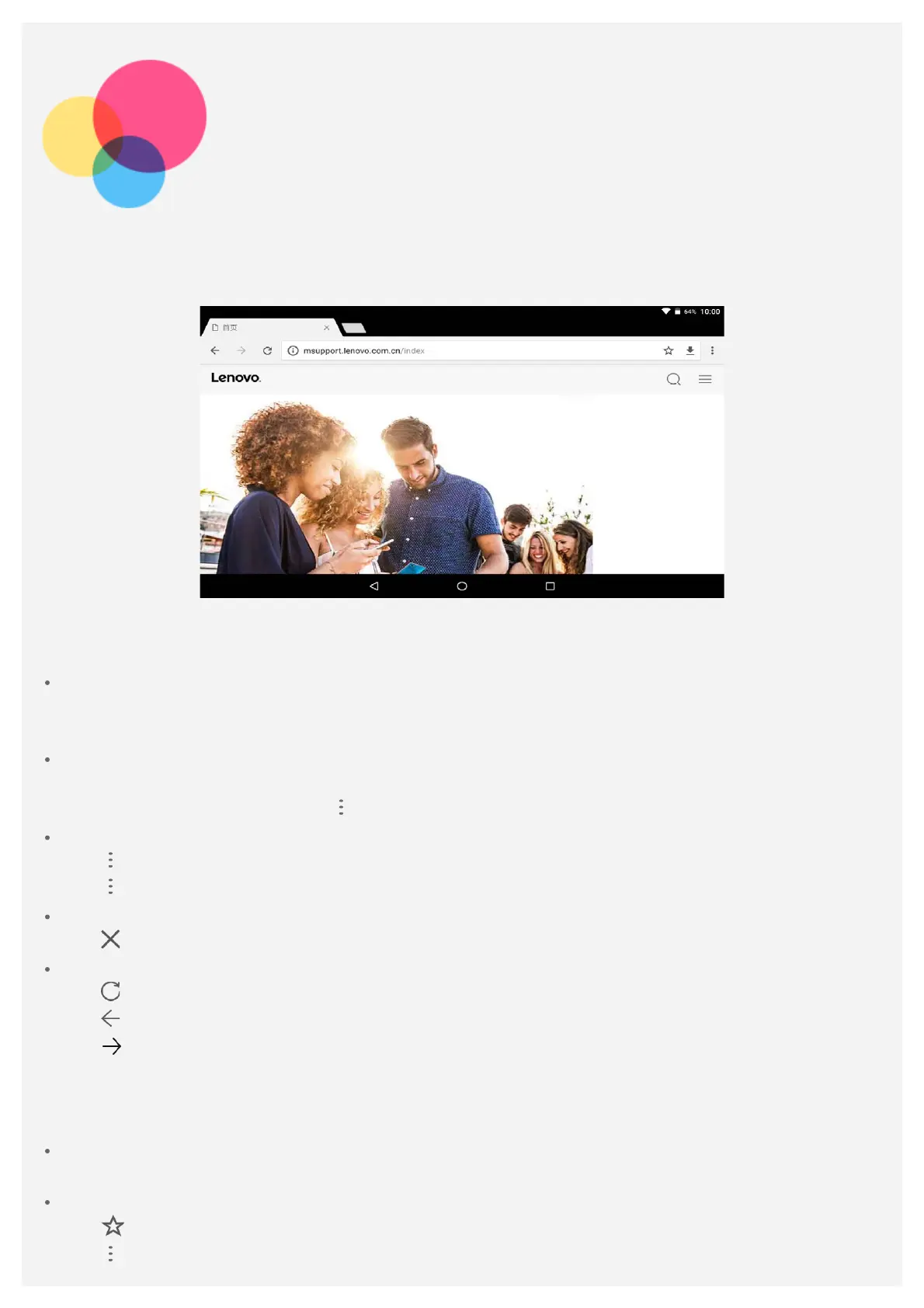
To open the browser app, go to Chrome.
Visiting websites
You can use the Chrome app to visit websites.
Type a web address
You don't need to type the full web address of an "http://" website to access it.
To visit "http://www.lenovo.com", simply type "www.lenovo.com" into the address bar and tap Go.
Search for keywords
You can also type keywords into the address bar to search for webpages.
You can set a search engine in
> Settings > Search engine.
Add a new webpage
Tap
> New tab to add a new webpage tab.
Tap
> New incognito tab to visit a website without leaving any traces of your visit.
Close a webpage
Tap
to close a webpage tab.
Refresh a webpage
Tap
to refresh a webpage.
Tap
to return to the previous webpage.
Tap
to go forward to a recent webpage.
Saving webpages
You can save images and webpages in your device's internal storage.
Save images
Press and hold the image, then tap Download image.
Bookmark webpages
Tap
to add a webpage to Bookmarks.
Tap
> Bookmarks to view bookmarks.


 To Next Page