Need help?
Do you have a question about the Lenovo TB-7304F and is the answer not in the manual?
Provides detailed technical specifications for different Lenovo TAB models.
Details the device's primary interface and customization options.
Explains the function and usage of the device's navigation buttons.
Guides on managing notifications and accessing quick settings.
Provides step-by-step instructions for performing a force shutdown.
Explains the methods to exit the split screen view.
Guides on how to set up new user profiles on the device.
Details the process of changing between different user profiles.
Provides instructions for removing user accounts.
Instructions for capturing photos and recording videos.
Explains how to capture images of the device screen.
Guides on accessing and viewing media files.
Step-by-step guide to connect to Wi-Fi networks.
Instructions for enabling and configuring cellular data.
Guidance on configuring a Virtual Private Network.
Instructions for sharing the device's internet connection.
How to use the browser to navigate web pages.
Methods for saving web content and images.
Options for adjusting text scaling and zoom levels.
Steps to log in or create a new Gmail account.
Guide to sending and receiving emails.
Instructions for searching and locating places on the map.
How to view the device's current geographical position.
Guide on setting up navigation routes.
Steps to connect the tablet to a computer via USB.
Choosing the appropriate USB connection mode.
Instructions for installing applications from unknown sources.
Managing and creating contact information.
Guide to initiating phone calls.
Instructions for sending SMS messages.
Overview of the main settings interface.
How to configure language and input methods.
Covers essential safety, handling, battery, and adapter guidelines.
Includes FCC, IC, EU, and Japanese regulatory statements.
Details on product recycling and environmental impact.
Information on energy efficiency and export classification.
Provides solutions for common device issues.
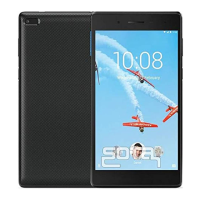
This document is a user guide for the Lenovo TAB 7 Essential, covering models TB-7304F, TB-7304I, and TB-7304X. It provides essential information for operating and maintaining the device, focusing on basic functions, connectivity, and safety.
The Lenovo TAB 7 Essential is a portable tablet designed for various tasks, including browsing the internet, managing contacts, taking photos and videos, and using a variety of applications. It supports wireless network connectivity (WLAN) and, for specific models (TB-7304I and TB-7304X), mobile network connectivity (WCDMA/UMTS/GSM and FDD-LTE/TDD-LTE/WCDMA/Edge/GSM/UMTS/LTE respectively). The device runs on an Android operating system, offering a user-friendly interface with customizable home screens and multi-user support.
The tablet's home screen serves as the central hub, pre-configured with useful apps and widgets. Users can customize the home screen by adding widgets, changing wallpapers, and organizing apps. Apps can be moved between screens or uninstalled (with some system apps being non-removable). Navigation is facilitated by three screen buttons: "Back" to return to the previous page, "Home" to go to the default home screen, and "Recent" to view and manage recently used applications. The "Recent" button allows users to open, close, lock, unlock, or stop running apps.
The Notifications panel provides updates on new messages, USB connections, and ongoing activities like file downloads. The Quick Settings panel offers quick access to frequently used settings, such as the WLAN switch. Users can access notifications by swiping down from the top of the screen, dismiss individual notifications by swiping left or right, or clear all notifications. The Quick Settings panel can be opened by swiping down twice from the top of the screen.
The device supports a split-screen mode, allowing two applications to run simultaneously. This feature can be activated by opening an app and tapping the split-screen icon, then dragging the first app to the edge of the screen until "Drag here to use split screen" appears. Alternatively, users can open an app, press and hold the split-screen icon, and then select a second app. The size of the split screens can be adjusted by sliding the divider. Not all applications support split-screen mode. Exiting split-screen mode can be done by choosing an app that doesn't support it, pressing and holding the split-screen icon, or sliding the divider to the edge of the screen.
The Lenovo TAB 7 Essential supports multiple user accounts, including an "Owner," "Guest," and "New User" (standard and child users). The owner has full control over permissions and accounts. Guest accounts have restricted access, and new users can manage child user accounts. New user accounts can be created through the home screen or settings. Switching between user accounts is possible from the home screen, by swiping down from the top of the screen, or from the lock screen interface. Screen lock setup is required before adding a child user account. User accounts can also be deleted.
The built-in camera allows users to take photos and record videos. Features include switching between front and rear cameras, panorama mode, and HDR (High Dynamic Range) for improved image quality. Various camera settings can be configured.
Screenshots can be taken by simultaneously pressing and holding the Power and Volume down buttons. Photos, videos, and screenshots are stored in the device's internal storage and can be viewed through the Camera app thumbnail, the Photos app, or the File Manager.
The device supports WLAN networks for internet access. For models TB-7304I and TB-7304X, mobile network setup is available, requiring a valid SIM card with data service. VPN (Virtual Private Network) setup is also supported for secure communication, often used in organizational settings. A lock screen pattern, PIN, or password must be set before using a VPN. Personal hotspot functionality allows sharing the internet connection via WLAN, Bluetooth, or USB tethering.
The Chrome app is the default browser for accessing the internet. Users can type web addresses or keywords into the address bar for navigation and search. New tabs, incognito tabs, and webpage sharing are supported. Browsing history can be viewed, and webpages can be refreshed or closed. Accessibility preferences, such as text scaling and webpage zoom, can be adjusted. Images and webpages can be saved to the device's internal storage, and webpages can be bookmarked.
The Gmail app allows users to send and receive emails. Users can sign in with an existing Gmail account or create a new one. The device also supports signing in with email accounts from other providers.
The Maps application requires location access to be enabled in settings. Users can find locations by typing addresses or using voice commands. The app can display the current location and suggest nearby places. Route planning is available, with options for travel modes like car, bus, or on foot.
The device can transfer data (music, pictures, videos, documents, APK files) to and from a computer via a USB cable. When connected, users can select different computer connection modes: Media device (MTP) for media files, Camera (PTP) for photos and videos, Charge this device for charging only, or MIDI for MIDI-enabled apps.
To install applications from unknown sources, users must enable "Unknown sources" in the Security settings. APK files can then be copied from a computer to the device in MTP mode and installed via the File Manager.
The device supports managing contacts and sending messages. Contacts can be created, imported, and exported. For models TB-7304I and TB-7304X, making calls requires a SIM card. Messages can be edited, sent to contacts, and saved as drafts.
The Settings home screen provides access to various device functions. Language and input settings allow users to add and prioritize languages.
Users are advised to handle the device with care, avoiding drops, bends, punctures, and exposure to heavy objects, as sensitive internal components or the glass screen could be damaged. In case of screen damage, users should not touch the broken glass and contact Lenovo support. The device should be kept away from hot or high-voltage environments and operated within a temperature range of 0°C (32°F) to 40°C (104°F). Exposure to water, rain, extreme humidity, sweat, or other liquids should be avoided.
The device is a sealed unit with no end-user serviceable parts. Any internal repairs must be performed by a Lenovo-authorized repair facility or technician to avoid voiding the warranty. Users should not attempt to disassemble or modify the device.
The internal rechargeable lithium-ion battery is not user-replaceable. Replacing it with an incorrect type carries an explosion risk, so factory replacement through Lenovo Support is recommended.
Plastic bags are a suffocation hazard and should be kept away from babies and children.
Users should prevent the device and AC adapter from getting wet and avoid immersing them in water or other liquids. Only approved Lenovo power adapters and standard data cables (USB 2.0 or higher) should be used for charging to prevent abnormal charging speeds and potential equipment damage. Charging devices may become warm, and adequate ventilation is necessary. The charging device should be unplugged if exposed to moisture, shows signs of physical damage, or needs cleaning. Lenovo is not responsible for the performance or safety of products not manufactured or approved by Lenovo.
Extended exposure to loud noise from headsets or headphones can affect hearing. Users are advised to limit high-volume usage, avoid turning up the volume to block out noise, and lower the volume if others speaking nearby cannot be heard. If hearing discomfort occurs, users should stop listening and have their hearing checked.
The mobile device is not a toy and is not recommended for children under 3 years old. For children aged 3 and older, parents should caution them about potential hazards. The device, AC adapter, and small parts should be periodically inspected for damage to ensure safe operation.
Safety should always be prioritized when using the device in a motor vehicle or on a bicycle. Users must comply with local laws and regulations regarding electronic device usage while driving or cycling.
At the end of its useful life, the device should not be crushed, incinerated, immersed in water, or disposed of contrary to local laws and regulations, as some internal parts may explode, leak, or have adverse environmental effects. Information on recycling and environmental practices is available through Lenovo's website. Batteries and electrical and electronic equipment marked with a crossed-out wheeled bin should be treated separately from unsorted municipal waste, using designated collection frameworks for return, recycling, and treatment. Country-specific recycling information is provided, including details for Japan, India, Brazil, Taiwan, the United States, Canada, and the European Union.
Users should avoid deleting unknown files or changing the names of system files or directories, as this could cause device software to malfunction. Accessing network resources can expose the device to viruses, hackers, and spyware. Users are responsible for ensuring adequate protection with firewalls, antivirus, and anti-spyware software. Electrical appliances with strong magnetic fields (e.g., fans, radios, speakers, air conditioners, microwave ovens) should be kept away from the device, as they can damage the screen and data.
The device may become hot when turned on or charging, depending on system activity and battery charge level. Prolonged contact with hot sections of the device, even through clothing, should be avoided to prevent discomfort or skin burns.
The guide offers solutions for common issues:
 General
| Model | Lenovo TB-7304F |
|---|---|
| Category | Tablet |
| Display Size | 7.0 inches |
| Resolution | 1024 x 600 pixels |
| RAM | 1 GB |
| Battery Capacity | 3450 mAh |
| Rear Camera | 2 MP |
| Front Camera | 2 MP |
| Wireless | Wi-Fi 802.11 b/g/n |
| Bluetooth | Bluetooth 4.0 |
| Processor | MediaTek MT8167D |
| Internal Storage | 8 GB |
| Operating System | Android 7.0 Nougat |
| Weight | 254 grams |


 To Next Page