Press to display a shortcut menu.
4. Middle button
Press and hold the dotted middle button while applying pressure to the pointing stick in the vertical or
horizontal direction. Then, you can scroll through the document, Web site, or apps.
Disable the TrackPoint pointing device
The TrackPoint pointing device is active by default. To disable the device:
1. Open the Start menu, and then click Settings ➙ Devices ➙ Mouse.
2. Follow the on-screen instructions to disable TrackPoint.
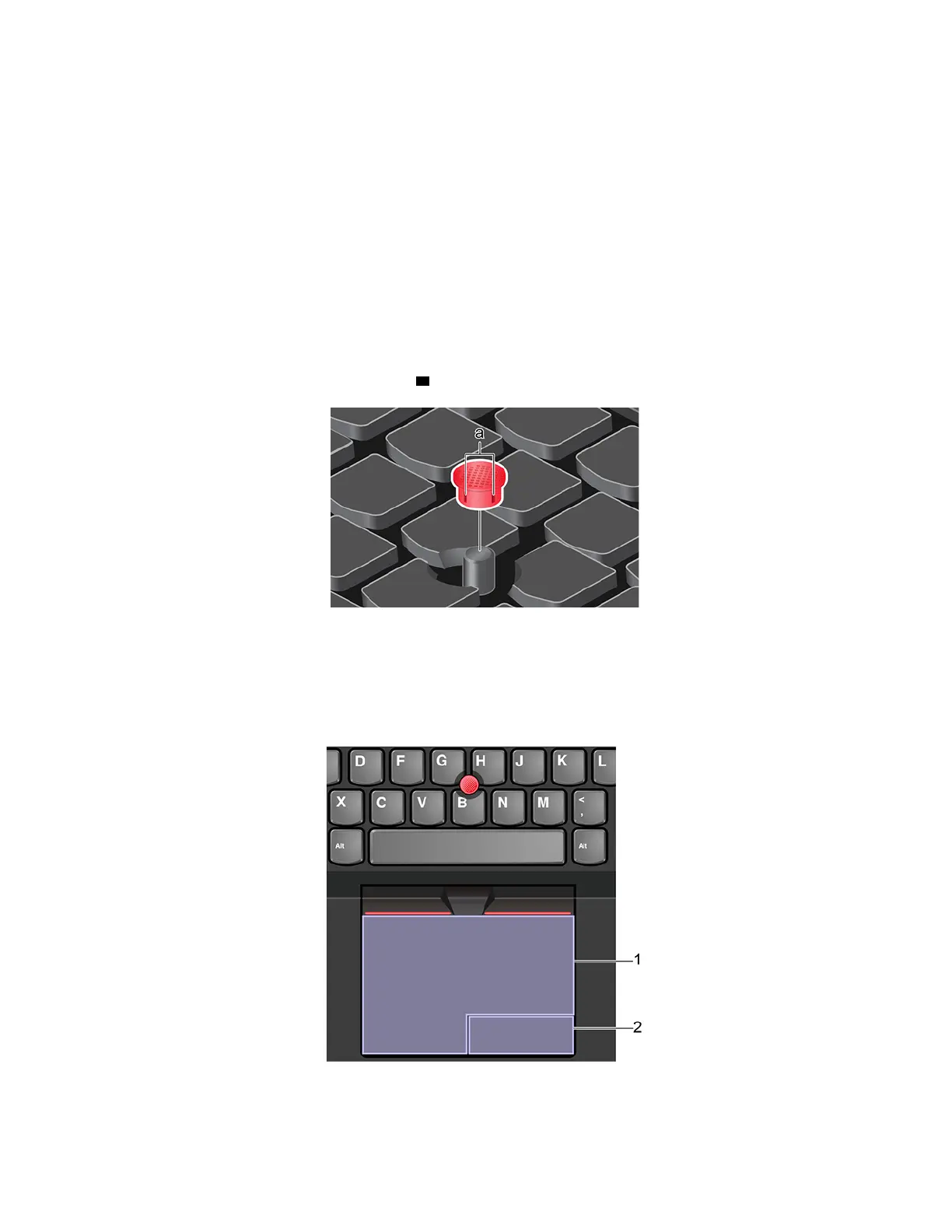
Replace the pointing-stick nonslip cap
Note: Ensure that the new cap has grooves
a .
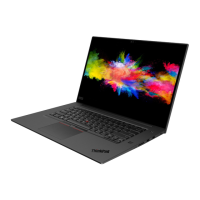
Use the trackpad
The entire trackpad surface is sensitive to finger touch and movement. You can use the trackpad to perform
all the pointing, clicking, and scrolling functions of a traditional mouse.
Use the trackpad
1. Left-click zone
Chapter 2. Get started with your computer 17











 To Next Page