EasyManua.ls Logo

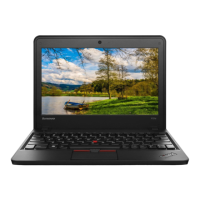
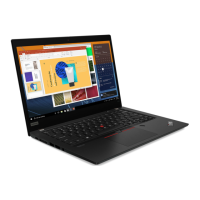
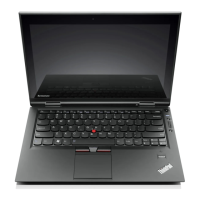
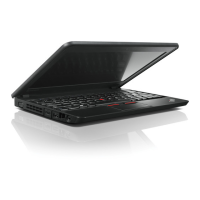
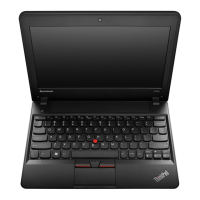
Lenovo ThinkPad X140e - User Manual

Lenovo ThinkPad X140e
156 pages
Print Icon
To Next Page IconTo Next Page
Loading...
UserGuide
ThinkPadX140e

Table of Contents

Other manuals for Lenovo ThinkPad X140e

Questions and Answers

  • M
    Mary BurkeSep 15, 2025
    What does 'Error 2100: Initialization error on HDD0' mean on a Lenovo ThinkPad X140e Laptop?
    • S
      Sara SmithSep 15, 2025
      If your Lenovo Laptop displays 'Error 2100: Initialization error on HDD0 (Main HDD)', it means the hard disk drive is not working. Have the hard disk drive serviced.
  • J
    John RussellAug 25, 2025
    How to stop my Lenovo Laptop screen from blanking?
    • M
      Michelle WarrenAug 25, 2025
      If your Lenovo Laptop screen keeps blanking when you don't want it to, and you're using Windows 7, you can disable system timers like the LCD turn-off timer. Start Power Manager, click the Power plan tab, and then select Maximum Performance from the predefined power plans.
  • E
    Elijah TerryAug 25, 2025
    Why does my Lenovo ThinkPad X140e Laptop screen go blank while it's on?
    • J
      Jeanne CameronAug 26, 2025
      If your Lenovo Laptop screen goes blank while the computer is on, your screen saver or power management settings might be enabled. Try touching the TrackPoint or touch pad, or press any key to exit the screen saver. Alternatively, press the power button to resume from sleep or hibernation.
  • A
    Ann AndrewsAug 26, 2025
    Why won't my Lenovo Laptop charge and says the battery isn't supported?
    • E
      Emma LynchAug 27, 2025
      If your Lenovo Laptop displays the error message: 'The battery installed is not supported by this system and will not charge,' replace the battery with the correct Lenovo battery for this system. If you still see the same error message, contact with Lenovo service to have the computer serviced.
  • K
    kaitlynramirezSep 16, 2025
    What does 'Error 2110: Read error on HDD0 (Main HDD)' mean on my Lenovo ThinkPad X140e Laptop?
    • J
      Jason HornSep 17, 2025
      If your Lenovo Laptop displays 'Error 2110: Read error on HDD0 (Main HDD)', it means the hard disk drive is not working. Have the hard disk drive serviced.
  • J
    janedixonSep 23, 2025
    What do five beeps mean on a Lenovo ThinkPad X140e Laptop?
    • S
      Scott DudleySep 23, 2025
      If you hear five beeps from your Lenovo Laptop, the system board has a problem. Have the computer serviced.
  • A
    Amanda MorenoSep 8, 2025
    How to resolve 'Error 0251: System CMOS Checksum bad' on a Lenovo ThinkPad X140e Laptop?
    • D
      Donald WrightSep 8, 2025
      If your Lenovo Laptop displays 'Error 0251: System CMOS Checksum bad - Default configuration used', the system CMOS might have been corrupted by a program. Run Using the ThinkPad Setup program to reconfigure the settings. If you still see the same error code, have the computer serviced.
  • M
    Matthew BeckerSep 9, 2025
    What does 'Error 0253: EFI Variable Block Data was destroyed' mean on Lenovo Laptop?
    • M
      Mary CooperSep 9, 2025
      If your Lenovo Laptop displays 'Error 0253: EFI Variable Block Data was destroyed', the system EFI Variable Block Data might have been corrupted. Run Using the ThinkPad Setup program to reconfigure the settings. If you still see the same error code, have the computer serviced.
  • A
    Andrea KeithSep 2, 2025
    How to fix 'Error 0182: Bad CRC2' on my Lenovo ThinkPad X140e Laptop?
    • S
      samantha48Sep 2, 2025
      If your Lenovo Laptop displays 'Error 0182: Bad CRC2. Enter Setup and load Setup defaults', it means the checksum of the CRC2 setting in the EEPROM is not correct. Press F1 to enter the ThinkPad Setup program, then press F9 and Enter to load the default settings. Finally, press F10 and Enter to restart the system.
  • C
    Cheryl WagnerAug 31, 2025
    Why does my Lenovo ThinkPad X140e Laptop Gigabit Ethernet connection fail at 1000 Mbps?
    • M
      Michael BullockAug 31, 2025
      If your Lenovo Laptop is a Gigabit Ethernet model experiencing connection failures or errors at 1000 Mbps, use Category 5 wiring and ensure the network cable is securely connected. Also, connect to a 1000 BASE-T hub/switch (not 1000 BASE-X).

Summary

Chapter 1. Product overview

Locating computer controls, connectors, and indicators

Introduces computer hardware features like controls, connectors, and indicators.

Locating important product information

Guides on finding essential product labels like machine type, model, FCC ID, and authenticity.

Specifications

Details the physical specifications of the computer, such as size, heat output, and power source.

Chapter 2. Using your computer

Using the ThinkPad pointing device

Explains how to use the ThinkPad pointing device, including the TrackPoint and touch pad functionalities.

Power management

Covers managing computer power usage, checking battery status, and using AC power adapters.

Connecting to the network

Guides on establishing network connections, including Ethernet and wireless LAN options.

Chapter 4. Security

Using passwords

Details how to set and use passwords to protect the computer from unauthorized access.

Hard disk security

Covers security measures for hard disk drives, including passwords and encryption features.

Notice on deleting data from your hard disk drive or solid-state drive

Provides instructions on securely deleting data before disposing of the computer to prevent data leakage.

Protecting data against viruses

Describes how the preinstalled antivirus program helps detect and eliminate viruses.

Chapter 5. Recovery overview

Recovery overview for the Windows 7 operating system

Details recovery solutions provided by Lenovo for Windows 7, including backup and restore options.

Creating and using a recovery media

Guides users on creating and using recovery media for restoring the computer to factory default settings.

Performing backup and recovery operations

Explains how to perform backup and recovery operations using the Rescue and Recovery program.

Using the Rescue and Recovery workspace

Describes how to use the Rescue and Recovery workspace for recovery operations, even if Windows won't start.

Creating and using a rescue medium

Provides instructions on creating and using a rescue medium to recover from failures preventing access to the workspace.

Solving recovery problems

Offers solutions for problems encountered when accessing the recovery workspace or Windows environment.

Recovery overview for the Windows 8 and Windows 8.1 operating systems

Details recovery solutions for Windows 8/8.1, including refreshing and resetting the computer.

Chapter 6. Replacing devices

Replacing the battery

Offers step-by-step instructions for safely replacing the computer's battery pack.

Replacing the hard disk drive or solid-state drive

Details the procedure for replacing the hard disk or solid-state drive, emphasizing data safety.

Chapter 7. Advanced configuration

Installing a new operating system

Provides instructions for installing a new operating system, such as Windows 7, 8, or 8.1.

Using the ThinkPad Setup program

Guides users on accessing and configuring system settings through the ThinkPad Setup program.

Chapter 8. Preventing problems

General tips for preventing problems

Offers essential maintenance tips to avoid common computer problems and ensure smooth operation.

Chapter 9. Troubleshooting computer problems

Diagnosing problems

Introduces the Lenovo Solution Center for diagnosing and resolving computer issues.

Troubleshooting

Provides guidance on solving common computer problems, including error messages and beep codes.

Computer stops responding

Offers steps to resolve situations where the computer becomes completely unresponsive.

Networking problems

Covers common networking issues, including Ethernet and wireless LAN connectivity problems.

Lenovo ThinkPad X140e Specifications

General IconGeneral
GraphicsAMD Radeon HD 8330
ProcessorAMD A4-5000
Display11.6-inch HD (1366x768) anti-glare
RAMUp to 8GB DDR3
Storage500GB HDD
Operating SystemWindows 7
Wireless802.11b/g/n Wi-Fi
PortsHDMI
SecurityKensington Lock slot
Dimensions11.81 x 8.5 x 0.83 inches

Related product manuals