Chapter 2. 2-3
Adjusting your monitor image
This section describes the control features to adjust your monitor image.
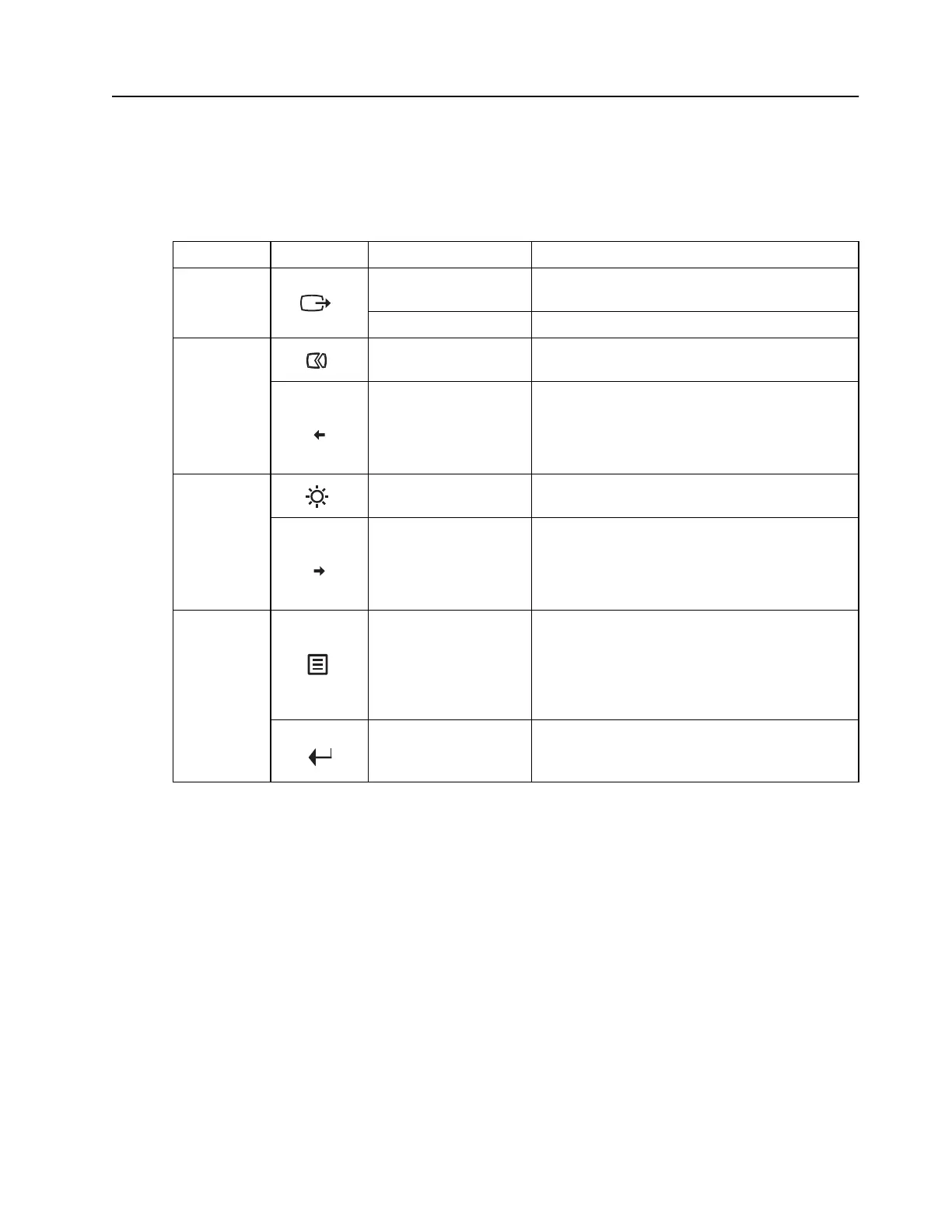
Using the direct access controls
The direct access controls can be used when the On-Screen Display (OSD) is not displayed.
Icon Control Description
1
DDC-CI
Press and hold for 10 seconds to enable or disable the
DDC-CI function
Exit Exit and return to previous level
2
Auto Adjustment
Optimizes image (size, position, phase and clock) (For
analog [VGA] source only)
Decrease/Down
Left browsing key
For decreasing the value on adjustment bar/tune in
Press to move to previous item
3
Brightness Direct access to Brightness adjustment
Increase/Up
Right browsing key
For increasing the value on adjustment bar/tune in
Press to move to next item
4
Menu
To access OSD menu
Press to confirm selection
Press and hold for 10 seconds will lock menu/un-lock
menu
Enter
Press to enter next level on main menu/sub menu status
or enter previous level on adjustment bar



 To Next Page