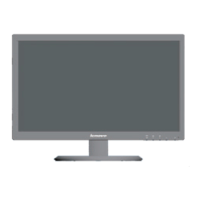
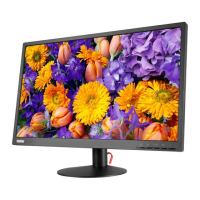
This document is the User Guide for the ThinkVision E2224 Flat Panel Monitor, Machine Type: 60DA. It provides comprehensive information on setting up, adjusting, and maintaining the monitor.
Function Description:
The ThinkVision E2224 is a flat panel monitor designed for general computing use. It serves as a visual output device for computers, displaying images and text. The monitor supports both analog (D-SUB) and digital (DVI) input signals, offering flexibility in connectivity with various computer systems. It is intended for use in a variety of environments, including home and office settings. The monitor's design incorporates user-friendly controls for image adjustment and a cable lock slot for security.
Important Technical Specifications:
The monitor is identified by product numbers 60DA-HAR1-WW. While specific detailed technical specifications like resolution, refresh rate, and panel type are not explicitly listed in the provided excerpts, the guide implies standard monitor functionalities. It supports various display modes, which can be selected and optimized through its On-Screen Display (OSD) controls. The power supply cord requirements are detailed, specifying the use of a certified power supply cord not lighter than ordinary polyvinyl chloride flexible cord according to IEC 60227 (designation H05VV-F 3G 0.75mm2 or H05VVH2-F2 3G0.75mm2), or a flexible cord of synthetic rubber according to IEC 60245 (designation H05RR-F 3G 0.75mm2). This indicates a focus on electrical safety and compliance with international standards.
Usage Features:
The ThinkVision E2224 offers several features to enhance user experience and flexibility:
- Adjustments: The monitor supports tilt adjustments, with a range from -5° to 22°, allowing users to find a comfortable viewing angle.
- Controls: Front-mounted controls provide direct access to monitor settings. These include buttons for power, menu navigation, and image adjustments. The guide details how to use these controls for adjusting the monitor image, including brightness, contrast, and other display parameters.
- On-Screen Display (OSD): A comprehensive OSD menu allows for detailed configuration of the monitor's settings. This includes selecting supported display modes and managing power settings.
- Connectivity: The monitor features D-SUB (analog) and DVI (digital) connectors, enabling connection to a wide range of computers. The setup process involves connecting the appropriate signal cable (analog or DVI) and the power cord.
- Automatic Image Setup: The monitor includes an automatic image setup function, accessible via a dedicated key, to optimize the display image. This feature is recommended after the monitor has warmed up for at least 15 minutes. If the automatic setup does not yield the desired image, manual image setup is also an option.
- Driver Installation: The user guide provides instructions for manually installing the monitor driver on Windows 7, Windows 8/8.1, and Windows 10, ensuring optimal performance and compatibility with the operating system. The driver can be downloaded from the Lenovo website.
- Wall Mounting (Optional): The monitor is designed to be compatible with VESA mounts, allowing for alternative mounting options beyond the included base and stand. Instructions for attaching a VESA mount are referenced within the guide.
- Ergonomics and Accessibility: The guide includes sections on comfort and accessibility, offering tips for arranging the work area, positioning the monitor, and promoting healthy work habits. It also provides general accessibility information.
- Power Management: The document covers understanding power management features, which are crucial for energy efficiency and extending the monitor's lifespan.
Maintenance Features:
The user guide provides essential information for caring for the monitor:
- General Care: It advises against touching the screen area directly, as it is made of glass and susceptible to damage from rough handling or excessive pressure.
- Detaching Base and Stand: Instructions are provided for detaching the monitor base and stand, which is useful for wall mounting or transportation.
- Troubleshooting: A dedicated troubleshooting section helps users diagnose and resolve common issues, such as image problems or connectivity issues.
- Service Information: The guide outlines customer responsibilities and provides information on service parts, ensuring users know how to obtain support if needed.
- Recycling Information: Appendix B includes recycling information, promoting environmentally responsible disposal of the product.
- Registration: Users are encouraged to register their product online, which helps Lenovo provide better service and updates.
- Technical Support: Contact information for online and telephone technical support is provided in Appendix A, offering avenues for assistance with any issues or questions.
The document emphasizes safety throughout, directing users to read the "Safety Information" section before installation and operation. It also includes multilingual safety warnings, highlighting Lenovo's commitment to user safety across different regions.

 Need help?


 To Next Page
 General