EasyManua.ls Logo

Lenovo ThinkVision LT2223zwC - User Manual

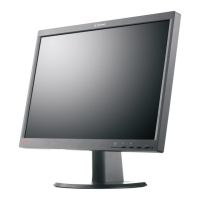
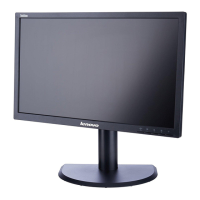
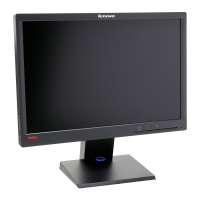
Lenovo ThinkVision LT2223zwC
41 pages
Print Icon
To Next Page IconTo Next Page
Loading...
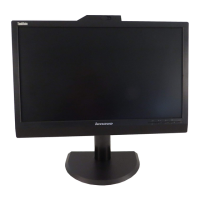
LT2223zwC Flat Panel Monitor
User's Guide

Questions and Answers

  • L
    leonardspencerJul 31, 2025
    What to do if Lenovo ThinkVision LT2223zwC power indicator is not lit?
    • C
      Cindy NelsonJul 31, 2025
      If your Lenovo monitor's power indicator isn't lit and there's no image, ensure the power cord is properly connected and the outlet has power. Switch the monitor on. Also, try using another power cord and electrical outlet to rule out those issues.
  • Y
    yjenningsAug 6, 2025
    How to fix a Lenovo Monitor with a green power light but no image?
    • S
      Samantha AustinAug 6, 2025
      If the power indicator on your Lenovo monitor is green but there's no image, the video signal cable might be loose or disconnected from the system or monitor. Ensure the video cable is properly connected to the system. Also, the monitor's brightness and contrast might be at their lowest settings, so adjust them via the OSD menu.
  • R
    Rose LopezAug 12, 2025
    Why is my Lenovo Monitor image blurry?
    • K
      Kathy JohnsonAug 12, 2025
      If you see fuzzy lines in text or a blurry image, or horizontal or vertical lines through the image on your Lenovo monitor, adjust the resolution settings on your system to match the native resolution for this monitor: 1920x 1080 at 60 Hz. Perform automatic image setup. If automatic image setup does not help, perform manual image setup. When working in the native resolution, you may find additional improvements by adjusting the Dots Per Inch (DPI) setting on your system.
  • D
    David CardenasAug 19, 2025
    How to improve the image quality on a Lenovo Monitor?
    • A
      angelajosephAug 19, 2025
      If the image quality on your Lenovo monitor is unacceptable, ensure the video signal cable is firmly plugged into both the system and the monitor. The color settings may be incorrect, so select another color setting from the OSD menu. Finally, perform automatic image setup.
  • K
    Katherine Johnson MDAug 25, 2025
    What causes discolored pixels on a Lenovo ThinkVision LT2223zwC?
    • D
      Derek SilvaAug 26, 2025
      If one or more pixels appear discolored on your Lenovo monitor, this is a characteristic of the LCD technology and is not an LCD defect. If there are more than five pixels missing, contact the Lenovo Support Center.

Summary

Safety Information

General Safety Guidelines

General safety advice for using the computer and monitor.

Chapter 1. Getting Started

Product Overview

Describes monitor features, adjustments, controls, and connectivity.

Setting Up Your Monitor

Guides on connecting cables and powering on the monitor and computer.

Chapter 2. Adjusting and Using Your Monitor

Adjusting Monitor Image

Explains how to adjust image settings using OSD controls like brightness and contrast.

Chapter 3. Reference Information

Monitor Specifications

Detailed technical specifications of the monitor, including dimensions and inputs.

Troubleshooting

Common problems and suggested solutions for monitor setup and usage.

Appendix A. Service and Support

Lenovo ThinkVision LT2223zwC Specifications

General IconGeneral
Screen Size21.5 inches
Resolution1920 x 1080
Panel TypeIPS
Brightness250 cd/m²
Contrast Ratio1000:1
Response Time5 ms
Dynamic Contrast Ratio3, 000, 000:1
Stand AdjustmentsTilt, Swivel, Height
Aspect Ratio16:9
Color Support16.7 million colors
Refresh Rate60 Hz
VESA Mount100 x 100 mm
Viewable Image Size21.5 inches
ConnectivityVGA, DisplayPort
VESA Mount CompatibleYes
Built-in DevicesWebcam
Webcam Resolution720p
Viewing Angle178° horizontal / 178° vertical
PortsDisplayPort, VGA

Related product manuals