EasyManua.ls Logo

Lenovo ThinkVision LT3053p - User Manual

Lenovo ThinkVision LT3053p
45 pages
Print Icon
To Next Page IconTo Next Page
Loading...
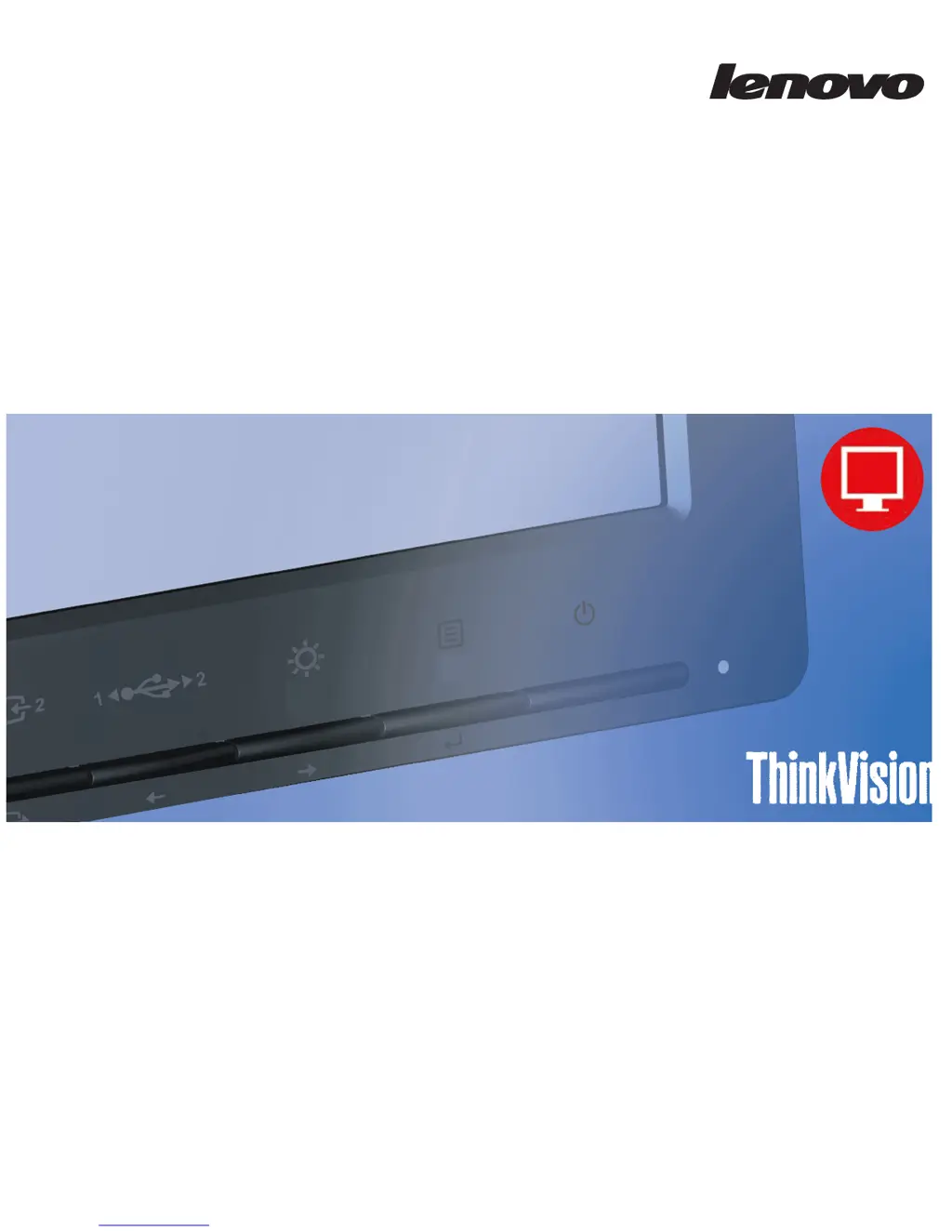
LT3053p Wide Flat Panel Monitor
Users Guide

Questions and Answers

  • L
    Lawrence JonesAug 9, 2025
    What to do if my Lenovo ThinkVision LT3053p power indicator is not lit and there is no image?
    • B
      Bobby NguyenAug 9, 2025
      First, ensure the power cord is properly connected. Then, verify that the outlet has power. Next, power on the monitor. If the issue persists, try using another power cord and electrical outlet.
  • L
    Lori BrownAug 14, 2025
    What to do if my Lenovo ThinkVision LT3053p Monitor power indicator is amber, but there is no image?
    • B
      beth43Aug 14, 2025
      The video signal cable might be loose or disconnected from the system or the Lenovo monitor. Make sure the video cable is properly connected to the system. Also, the monitor brightness and contrast might be at their lowest settings. Adjust these settings on the OSD menu.
  • D
    djacksonAug 19, 2025
    Why is my Lenovo ThinkVision LT3053p screen blank and the power indicator amber?
    • A
      Ashley PerezAug 19, 2025
      The monitor is likely in Standby/Suspend mode. Press any key on the keyboard or move the mouse to restore operation. Also, check the Power Options settings on your computer.
  • M
    Mary McdanielAug 25, 2025
    How to fix fuzzy lines or blurry image on Lenovo ThinkVision LT3053p Monitor?
    • M
      Ms. Samantha HarrisAug 25, 2025
      Adjust the resolution settings on your system to match the native resolution for this Lenovo monitor: 1920 x 1080 at 60 Hz. Additionally, perform automatic image setup. When working in the native resolution, you may find additional improvements by adjusting the Dots Per Inch (DPI) setting on your system.
  • P
    Phillip ReeseAug 29, 2025
    How to fix Lenovo ThinkVision LT3053p when it says "Out of Range"?
    • A
      Amanda HumphreyAug 29, 2025
      The system is set to a display mode not supported by the Lenovo monitor. If replacing an old monitor, reconnect it and adjust the display mode to within the specified range for your new monitor. If using a Windows system, restart the system in safe mode, then select a supported display mode for your computer.
  • E
    Emily HamiltonSep 3, 2025
    Why do some pixels appear discolored on my Lenovo ThinkVision LT3053p Monitor?
    • J
      Jacqueline Estrada DDSSep 3, 2025
      This is a characteristic of the LCD technology and is not an LCD defect. If there are more than five pixels missing, contact the Support Center.

Lenovo ThinkVision LT3053p Specifications

General IconGeneral
BrandLenovo
ModelThinkVision LT3053p
CategoryMonitor
LanguageEnglish

Related product manuals