
 Need help?
Do you have a question about the Lenovo Thunderbolt 3 Essential Dock and is the answer not in the manual?
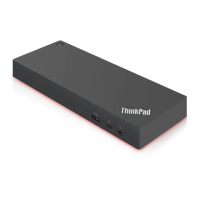
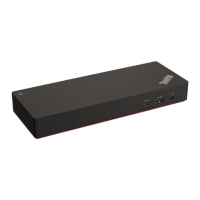
Detailed description of the Lenovo Thunderbolt 3 Essential Dock and its function as an expansion module.
Lists all items included in the box with the Lenovo Thunderbolt 3 Essential Dock for user convenience.
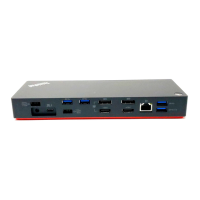
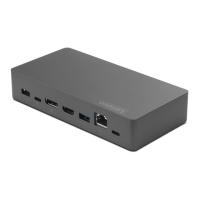
Visual and textual overview of all physical connectors and ports available on the dock.
Information on expected data transfer rates for various USB devices connected to the dock.
Step-by-step instructions for physically connecting the dock to your computer and power source.
Procedure to enable the dock, including potential BIOS configuration for Thunderbolt security.
Guidance on updating device drivers and firmware for optimal performance and compatibility.
Details the maximum video resolutions and refresh rates supported by DisplayPort and HDMI outputs.
Instructions on how to set display modes, orientation, and other properties for connected external monitors.
Details the Ethernet port, its status indicators, and supported network functions like Wake-on-LAN.
Solutions for common problems such as the dock not working, slow charging, or computer not charging.
Troubleshooting steps for blank screens, video playback issues, and flickering external displays.
Information on Lenovo's provision of documentation in accessible formats like tagged PDFs for screen reader compatibility.
Lists registered and unregistered trademarks for Lenovo, Thunderbolt, Microsoft, HDMI, DisplayPort, and USB-C.
The Lenovo Thunderbolt 3 Essential Dock is an expansion module designed to enhance your computer's connectivity by allowing it to interface with multiple peripheral devices. This dock simplifies your workspace by consolidating connections for various devices, such as headsets, monitors, and Universal Serial Bus (USB) devices, through a single Thunderbolt 3 cable to your computer. It is compatible with Microsoft® Windows® 10 operating systems.
The dock serves as a central hub for your computer, offering a wide array of ports to expand its capabilities. It features a power connector to receive power from the accompanying AC power adapter and power cord, which in turn also supplies power to your connected computer. The primary connection to your computer is made via a USB-C™ connector, utilizing the provided Thunderbolt 3 cable.
For video output, the dock includes a DisplayPort® 1.4 connector and an HDMI™ 2.0 connector, enabling you to connect external displays. These video output connectors support various resolutions depending on the type of connection and the DisplayPort version supported by your computer. If connected to a Thunderbolt 3 connector on your computer that supports DisplayPort 1.4, the dock can output up to 3840 x 2160 pixels at 60 Hz for both single and dual external displays. If your computer's Thunderbolt 3 connector supports DisplayPort 1.2, the dock can output up to 3840 x 2160 pixels at 60 Hz for a single display and 3840 x 2160 pixels at 30 Hz for dual displays. When connected to a USB-C connector on your computer that supports DisplayPort 1.2, it can output up to 3840 x 2160 pixels at 30 Hz for a single display and 1920 x 1080 pixels at 60 Hz for dual displays.
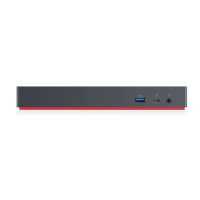
The dock also provides multiple USB ports for connecting various USB-compatible devices. It includes an Always On USB 3.2 connector Gen 1, which can charge USB-compatible devices with an output of up to 5 V and 3 A, regardless of whether the dock is connected to your computer. This port also supports data transfer at USB 3.2 speed, up to 5 Gbps. Additionally, there are two other USB 3.2 connector Gen 1 ports for data transfer at up to 5 Gbps. For higher-speed data transfer, the dock features a USB-C (USB 3.2 Gen 2) connector, capable of transferring data at up to 10 Gbps.
Network connectivity is provided by an Ethernet connector, allowing you to connect your computer to a standard 10 Mbps, 100 Mbps, or 1000 Mbps LAN using an Ethernet cable. This connector features two network status indicators: a green indicator signifies a LAN connection, and a blinking yellow indicator indicates data transmission.
For audio peripherals, the dock includes an audio connector, designed for headphones or headsets with a 3.5-mm (0.14-inch) and 4-pole plug. It is important to ensure that the dock is set as the default audio device on your computer for proper functionality.
Finally, a security-lock slot is integrated into the dock, allowing you to secure it to a desk, table, or other fixture using a compatible security cable lock. This slot supports cable locks that conform to the Kensington MiniSaver® lock standards, utilizing Cleat™ locking technology.
Setting up the dock is straightforward. You connect the dock to AC power using the provided AC power adapter and power cord, and then connect it to your computer using the Thunderbolt 3 cable. Upon first connection, you might need to enable the dock. This can be done by confirming the change when prompted (if you have administrator privileges) or by restarting your computer and accessing the BIOS menu (F1 or Fn+F1). In the BIOS, navigate to Config → Thunderbolt(TM) 3 → Security level and select "No Security" to ensure the dock is fully functional.
Once connected, you can configure your external displays. The dock allows you to set the display mode to extend, mirror/duplicate, or single display. You can also adjust settings such as orientation, brightness, resolution, and color to suit your preferences. Detailed instructions for configuring external displays can typically be found in your computer's User Guide under "Connect to an external display."
The Ethernet connector on the dock supports various network functions depending on your computer model. These functions may include Preboot execution Environment, MAC address Pass Through, Wake on LAN, and Wake on LAN from Dock. To determine which functions are supported by your computer, you can refer to the Lenovo support website and check the "Network function support → Option Compatibility Matrix."
While the device driver for the dock is preinstalled on compatible Lenovo computers and the firmware is embedded, it is recommended to keep them updated. Lenovo advises updating the device driver and firmware whenever a newer version becomes available to ensure optimal performance and compatibility. The latest device driver and firmware can be downloaded from the Lenovo support website.
Troubleshooting common issues is also addressed. If the dock does not work after connection, ensure that all cables (AC power, power cord, Thunderbolt 3 cable) are correctly connected and that the USB-C connector on your computer is functioning properly. If charging speed for connected devices is slow, ensure they are connected to the Always On USB 3.2 connector Gen 1. If your mouse or keyboard cannot wake up your computer when connected to the Always On USB 3.2 connector Gen 1, try connecting them to another USB connector on the dock. If your computer is not charging, verify that the dock is connected to AC power using the provided power adapter.
For video output issues, such as a blank external display, ensure that no more than two external displays are connected, your computer is not in sleep or hibernation mode, the latest device driver is installed, and all components (computer, dock, electrical outlet, external displays) are securely connected. If problems persist, disconnecting all cables, uninstalling and reinstalling the dock device driver, and then reconnecting everything might resolve the issue. If you encounter problems playing protected videos on an external display but not on the computer display, it might be due to a lack of Certified Output Protection Protocol (COPP) support on some computers. In such cases, connecting the external display directly to your computer's video output connector and configuring display settings accordingly is a workaround. If images on external displays flutter, check the display resolution and ensure it is supported by the dock.
 General
| Output interface | 3.5 mm, DisplayPort, HDMI, RJ-45, USB 3.2 Gen 1 (3.1 Gen 1) |
|---|---|
| Thunderbolt 3 ports quantity | 1 |
| USB 3.2 Gen 1 (3.1 Gen 1) Type-A ports quantity | 2 |
| Power supply input voltage | 20 V |
| Power consumption (typical) | 65 W |
| Operating relative humidity (H-H) | 5 - 95 % |
| Package depth | 175 mm |
| Package width | 204 mm |
| Package height | 75 mm |
| Package weight | 1180 g |
| Cables included | AC |
| Purpose | Laptop |
| Internal | No |
| Product color | Gray |
| Windows operating systems supported | Windows 10 |
| Harmonized System (HS) code | 84733020 |
 Weight and Dimensions
| Depth | 80 mm |
|---|---|
| Width | 160 mm |
| Height | 31 mm |
| Weight | 380 g |


 To Next Page