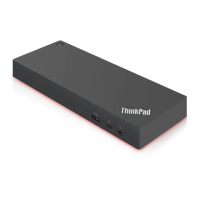
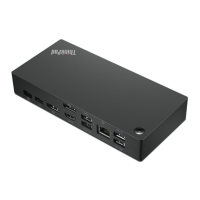
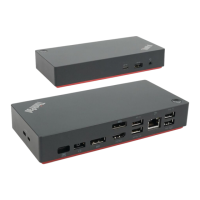
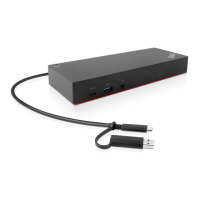
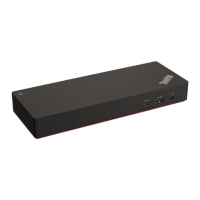
The ThinkPad Universal Thunderbolt 4 Dock and ThinkPad Thunderbolt 4 Workstation Dock are enhanced universal compatible modules designed to expand the capabilities of your computer, primarily those running Microsoft® Windows® 10. These docks facilitate automated and silent updates, ensuring your system remains current and performs optimally.
Function Description
The primary function of these docks is to act as a central hub for connecting your computer to a variety of external devices and networks. This expansion capability allows you to transform your laptop into a full-fledged workstation, enhancing productivity and connectivity.
Key functions include:
- Network Connectivity: The docks enable connection to a local area network (LAN) via an Ethernet connector, supporting standard 10 Mbps, 100 Mbps, or 1000 Mbps networks. This ensures stable and fast internet access, which is crucial for many professional environments. The Ethernet connector also features network status indicators: a green light indicates a LAN connection, while a blinking yellow light signifies data transmission. Depending on your computer, additional network functions like MAC address Pass Through, Wake on LAN, and vPro might be supported.
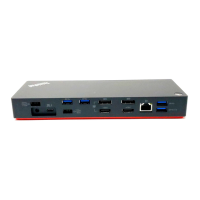
- Video Output: The docks are equipped with multiple video output connectors to support up to four external displays. These include one Thunderbolt 4 connector (supporting DisplayPort 1.4 and Thunderbolt 4), two DisplayPort connectors (supporting DisplayPort 1.4), and one HDMI connector (supporting HDMI 2.1). This extensive video output capability allows for multi-monitor setups, ideal for tasks requiring large screen real estate, such as graphic design, video editing, or data analysis.
- Data Transfer: The docks offer various Universal Serial Bus (USB) connectors for connecting compatible devices and transferring data. These include USB 3.2 connector Gen 2 ports and Thunderbolt 4 connectors, which facilitate high-speed data transfer. The actual transfer rate will vary depending on factors like the host's processing capability, peripheral devices, file attributes, system configuration, and operating environment.
- Charging Capabilities: The docks provide power to your computer when connected to AC power. Additionally, some USB ports, specifically the Always On USB 3.2 connector Gen 2, can charge compatible devices like smartphones with an output voltage and current of up to 5 V and 2.4 A. The Thunderbolt 4 connector also supports charging with an output of up to 5 V and 3 A.
- Audio Connectivity: An audio connector is available for connecting a headset or headphones with a 3.5 mm plug, providing convenient audio input and output for communication or multimedia consumption.
- Security: The docks include security-lock slots that support cable locks conforming to Kensington / Lenovo NanoSaver or MicroSaver lock standards, utilizing Cleat or T-bar locking technology, respectively. This feature helps secure the dock and connected devices, preventing theft in public or shared workspaces.
- Mounting Options: VESA mount holes are provided, allowing the dock to be mounted to a wall or monitor stand using M4 x 10 mm screws. This helps in decluttering the workspace and integrating the dock seamlessly into various setups.
Usage Features
Setting up and using the ThinkPad Universal Thunderbolt 4 Dock or ThinkPad Thunderbolt 4 Workstation Dock is designed to be straightforward:
- Installation: The dock is installed by connecting it to AC power using the accompanying power adapter and power cord, and then connecting it to your computer with the provided Thunderbolt 4 cable. The dock will then supply power to your computer.
- Driver and Firmware Management: The dock driver and firmware are preinstalled on compatible computers, making the dock ready for use upon connection. However, it is recommended to regularly update the dock driver and firmware to ensure optimal performance and access to the latest features. Updates can be downloaded from the Lenovo support website. The driver update takes effect after restarting your computer, while firmware updates require reconnecting the dock.
- Lenovo Dock Manager: For silent firmware updates and device information queries, Lenovo Dock Manager is available. This tool streamlines the maintenance process, ensuring your dock is always running with the most current software.
- Display Configuration: Once external displays are connected, you can easily configure their settings through your computer's display settings. Options include setting the display mode (extend, mirror/duplicate, or single display), orientation, brightness, resolution, and color. This flexibility allows users to tailor their visual workspace to their specific needs.
- Power Button Indication: The dock features a power button that also serves as an indicator. When connected to AC power, the ThinkPad logo LED indicates the dock's status: red for connected to AC power. When the dock is connected to AC power but not your computer, the power button LED indicates the dock's status: amber for on, and off for off.
- Computer Status Indication: When the dock is connected to both your computer and AC power, the ThinkPad logo LED indicates the computer's status: solid white for on, blinking white slowly (1 second on/off) for in sleep mode, and off for off or in hibernation mode.
- Firmware Update Status Indication: During firmware updates, the ThinkPad logo LED blinks rapidly (0.5 second on/off) to indicate that an update is in progress. Once the update is completed, the LED turns off.
Maintenance Features
Maintaining the ThinkPad Universal Thunderbolt 4 Dock and ThinkPad Thunderbolt 4 Workstation Dock involves a few key practices to ensure longevity and optimal performance:
- Driver and Firmware Updates: Regularly checking for and installing the latest dock driver and firmware from the Lenovo support website is crucial. These updates often include performance enhancements, bug fixes, and compatibility improvements.
- Troubleshooting: The user guide provides comprehensive troubleshooting steps for common issues. For instance, if the dock is not working, it advises checking power connections, ensuring the dock driver is installed, and verifying the functionality of your computer's USB-C or Thunderbolt connector.
- Addressing Wireless Interference: If you experience interruptions with wireless keyboards or mice (2.4 GHz), the guide suggests connecting the wireless device receiver to specific USB 3.2 Gen 2 connectors on the dock (front panel or right-most rear panel) to minimize interference.
- Resolving Display Issues: For blank external displays, the guide recommends checking power to the display, ensuring the computer is not in standby or hibernation, verifying secure connections, and confirming driver installation. If problems persist, reinstalling the dock driver and reconnecting all cables is advised. For issues with external DisplayPort or HDMI displays after connecting a Thunderbolt display, a specific connection sequence is recommended. Fluttering images on external displays can often be resolved by ensuring secure display cable connections or by disconnecting and reconnecting the cable.
- Audio Output Configuration: If sound is not coming from a headset connected to the dock, the guide provides steps to set the dock as the default audio device in Windows playback and recording settings.
- Adobe Flash Player Updates: For issues with flash content playback when dragging windows to external displays, updating Adobe Flash Player is suggested.
- Physical Care: While not explicitly detailed as maintenance, ensuring secure cable connections and proper mounting (if applicable) contributes to the dock's stability and prevents accidental disconnections or damage. Retaining proof of purchase and packing material is also important for warranty service, indicating the need to handle the product with care.
By following these guidelines, users can ensure their ThinkPad Universal Thunderbolt 4 Dock or ThinkPad Thunderbolt 4 Workstation Dock remains a reliable and efficient component of their computing setup.

 Need help?
 General

 To Next Page