2 : USER SETTING
CAUTION
CAUTION
Press the [*] [#] key, please use the administrator password for verification. After entering the main
menu, the user can press the corresponding number key to select the operation according to the
menu number.
The user places his finger in the fingerprint recognition area, and when prompted, he enters the
fingerprint again, and the user registers the fingerprint with the same finger. The voice prompts
"Operation successful".
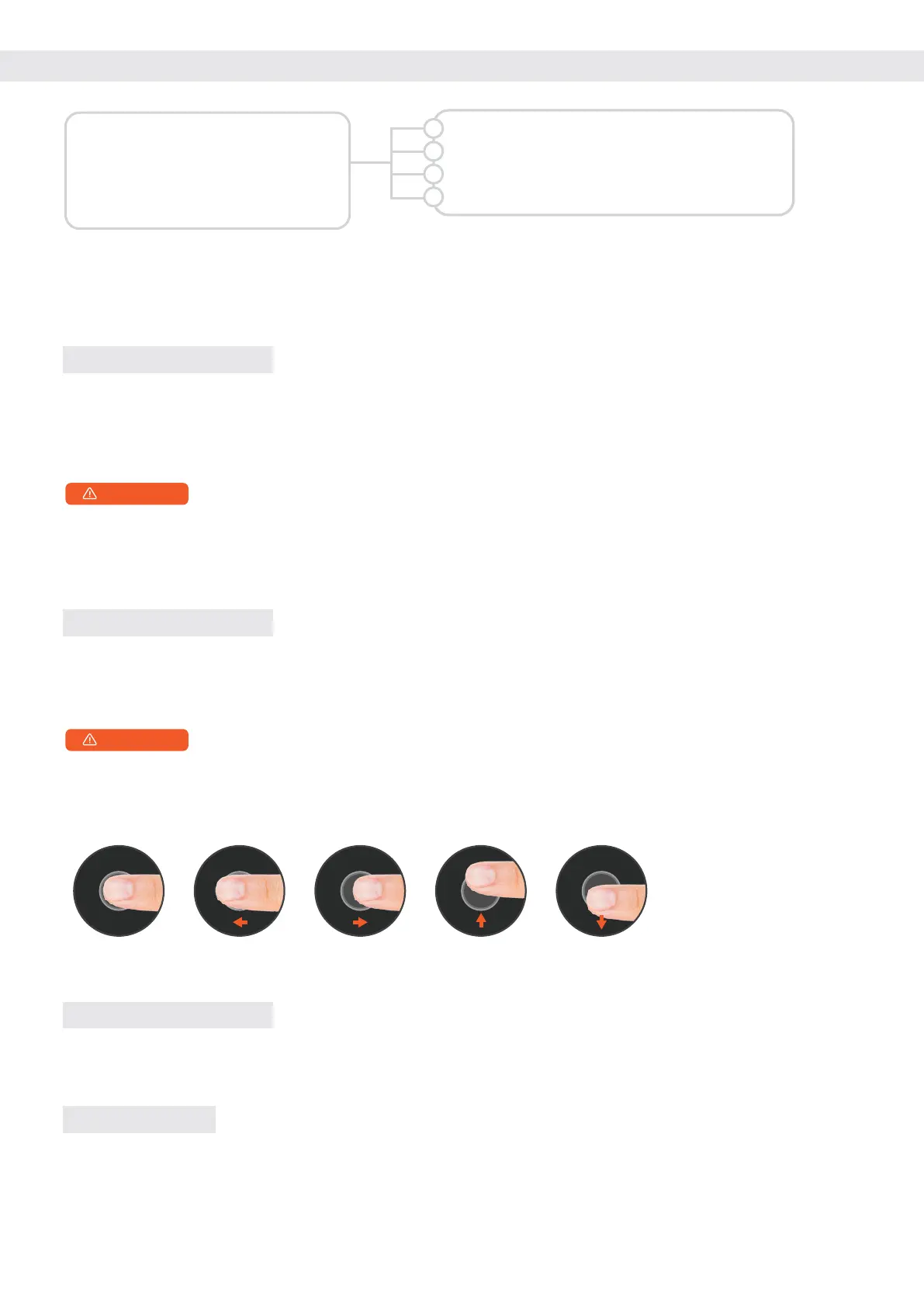
a. To enter a fingerprint, the user needs to record the fingerprint 5 times continuously.
b. When collecting fingerprints, try to collect as many times as possible from different locations on
the same finger, so that the subsequent verification of fingerprints is easier to be recognized.
2.2 : ADD FINGERPRINT
Follow the voice prompts to enter the front face, right part of face, left part of face, bottom part of
face and top part of face in the face recognition area, and wait until you hear the voice prompt
“Operation successful”, which means the user’s face is added successfully.
2.4 : ADD FACE
The user enters the password, press the [#] key to confirm, enter the password again when prompt-
ed, the user enters the same password, and press the [#] key to confirm. It also supports the dummy
password function. The user can add random numbers before and after the correct password to
achieve password input and verify unlocking.
For verification, it can include up to 20 digits dummy password, only one set of password can be
included which can not be repeated
2.1 : ADD PASSWORD
The user places the card close to the card sensing area, and the voice prompts "Operation successful".
2.3 : ADD RFID CARD
1. Password Management
2. Fingerprint Management
3. Card Management
4. Face Management
5. Wireless Pairing
6. System Setting
Follow the prompts to select the ones you want
to add Password, Fingerprint, Card, or Face
1
2
3
4


 To Next Page
 Loading...