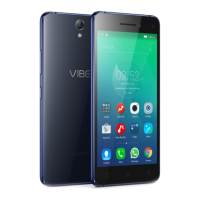
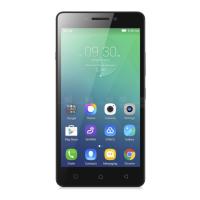
Need help?
Do you have a question about the Lenovo VIBE K5 Note and is the answer not in the manual?
App for support, Q&A, upgrades, and hardware tests.
Lists technical specifications about wireless communication.
Add, move, or delete home screens using the Screen Manager.
Add widgets, apps, create folders, and uninstall apps.
How to set a new wallpaper for your phone's home screen.
Explains the functions of the Multitask, Home, and Back buttons.
How to manually lock and unlock the phone screen.
Accessing notifications and quick settings for phone management.
Options for connecting phone to computer via USB (MTP, PTP, Charge, ADB).
How to open and close the Quick Settings panel.
Steps for dialing, answering, rejecting, and silencing calls.
Features like Add call, Hold, Mute, Record, Dialpad, Speaker.
Steps to create, search, and edit contacts.
How to import from storage and export to primary storage.
How to send, search, and delete text and multimedia messages.
Taking photos, recording videos, choosing modes, flash, and HDR.
How to capture the screen and view saved screenshots.
Viewing, sharing, and deleting photos and videos.
Connecting to WLAN, managing mobile data.
Sharing your phone's internet connection via WLAN hotspot.
Navigating websites, refreshing pages, and saving images.
Adding bookmarks and clearing browser history.
Configuring date, time, language, and input methods.
Setting screen lock options and default ringtones.
Enabling unknown sources and performing a factory data reset.
General handling, charging, and repair warnings.
Details on using AC adapter and USB for charging.
Warnings about using the phone while driving and keeping it from children.
Precautions for explosive areas and radio frequency interference.
Advice on pacemaker interference and proper cleaning procedures.
Recommendations for safe operating temperatures to prevent damage.
Advice on avoiding viruses, malware, and magnetic field damage.
This document serves as a user guide for the Lenovo VIBE K5 Note, specifically models Lenovo A7020a40 and Lenovo A7020a48. It provides essential information on how to operate, maintain, and troubleshoot the device.
The guide begins with "Basics," instructing users to review the Quick Start Guide, Regulatory Notice, and Appendix, all available on the Lenovo support website. It introduces the "Lenovo Companion" app, a helpful tool for accessing Lenovo's web assistance, forums, Q&A, system upgrades, hardware function tests, warranty status checks, service requests, and repair status. The app requires data network access for some features and is not available in all countries for others. Users can obtain the app by searching Google Play or scanning a provided QR code with a Lenovo Android device.
The "Home screen" section describes the starting point for using the phone, noting that it comes pre-configured with useful apps and widgets. It explains how to manage home screens, including adding, moving, or deleting them using the Screen Manager. Users can add a new screen by tapping the plus icon, move a screen by pressing and holding its thumbnail and dragging it, delete an empty screen by tapping the "X" icon, and set a default screen by tapping the checkmark icon. The "edit mode" allows for adding or moving widgets and apps, creating app folders, and uninstalling apps. To enter edit mode, users press and hold an empty area on the home screen. Widgets can be added by tapping "WIDGETS," sliding through options, and dragging the desired widget. Apps and widgets can be moved by pressing and holding them until they enlarge slightly, then dragging them to a new location. App folders are created by dragging one app icon onto another. Apps can be removed by dragging them to the "X" icon at the top of the screen. The guide also details how to change the wallpaper by pressing and holding an empty area on the home screen and tapping "WALLPAPERS," then choosing from the gallery or selecting a pre-installed wallpaper.
"Screen buttons" outlines the functions of the three main buttons on the phone. The "Multitask button" (press and hold) displays menu options and shows running apps. From this view, users can open an app, lock or unlock an app, stop a single app, or stop all apps except locked ones. The "Home button" returns to the default home screen, and the "Back button" navigates to the previous page or exits the current app.
The "Screen lock" feature is explained, noting that pressing the On/Off button manually locks the screen. Pressing it again displays the lock screen, which can be unlocked by swiping up from the bottom. "Swipe" is the default method, and instructions for changing the screen lock are found in "Settings."
"Notifications and Quick Settings" describes how to access and manage notifications and frequently used settings. The Notification panel displays missed calls, new messages, and ongoing activities. Quick Settings provides access to switches like WLAN. Users can view notifications by swiping down from the top with one finger, close the panel by swiping up, dismiss a notification by swiping left or right, and dismiss all notifications by tapping the icon at the bottom. Quick Settings can be opened by swiping down twice with one finger or once with two fingers, and closed by swiping up.
"USB connection" explains how the phone interacts with a computer when connected via a USB cable. The Notification panel will show "Connected as a media device," allowing users to select from several options: "Media device (MTP)" for transferring media files (photos, videos, ringtones), "Camera (PTP)" for transferring only photos and videos, "Charge only" for faster charging and reduced power consumption, and "USB debugging mode (ADB)" for enabling debugging tools like Idea Tool.
The "Calls" section covers making and receiving calls. Users can dial numbers manually through the Phone app's Dialer panel, call from the Call Log tab, or call a contact from the Contacts tab. To receive calls, users can drag to answer or drag to reject. Calls can be silenced by pressing the volume buttons, the On/Off button, or by placing the phone face down. During a call, options include "Add call," "Hold/Unhold," "Mute," "Record," "Dialpad/Hide," and "Speaker." The call log allows users to view received, missed, and outgoing calls, and entries can be pressed and held to access options like adding to contacts.
"Contacts" details how to manage contact information. Users can create new contacts by opening the Contacts app, tapping the plus icon, entering information, and tapping "Save." Searching for contacts involves scrolling the list or using the search icon. Contacts can be edited by tapping the contact, then the edit icon, making changes, and saving. Deleting a contact involves pressing and holding it, then tapping "Delete contact." The guide also explains how to import contacts from storage and export contacts to primary storage via the "Import/Export" option in the Contacts app menu.
"Messaging" describes sending and receiving text and multimedia messages. To send a message, open the Messaging app, tap the plus icon, enter recipient(s), type the message, and tap send. Multimedia messages can be sent by tapping the plus icon to attach media objects. Messages can be searched by tapping the search icon and entering contact names or phone numbers. Deleting messages involves viewing a conversation thread, pressing and holding a message until it's selected, and then tapping the delete icon. Multiple messages can be selected and deleted simultaneously.
"Camera" covers basic photo and video functions. Users can choose camera modes, take photos, record videos, view photos/videos in the Photos app, select flash modes, use HDR (High Dynamic Range), and switch between front and rear cameras. "Taking a screenshot" involves pressing and holding the On/Off button and the volume down button simultaneously. Screenshots are stored in the phone's internal storage, accessible via the Photos app's Screenshots album or the File Browser app (Storage > Internal Storage > Pictures > Screenshots folder).
"Photos" explains viewing, sharing, and deleting photos and videos. Users can open the Photos app, tap an item to view it full screen, swipe left/right for next/previous items, pinch to zoom, and tap to play videos. Sharing involves tapping the share icon and selecting a channel like Messaging or Bluetooth. Multiple items can be shared by pressing and holding to select them, then tapping the share icon. Deleting a single item involves tapping the menu icon (three dots) and selecting "Delete device copy." Multiple items can be deleted similarly by selecting them and then choosing "Delete device copy."
"Network" provides instructions for WLAN and data connections. To connect to WLAN, go to Settings > WLAN, turn on the switch, and tap a hotspot. Secure links require login credentials. For data connection, go to Settings > Data usage, and turn on "Mobile data." A valid SIM card with data service is required. "Setting up a hotspot" allows sharing an Internet connection. Go to Settings > More... > Personal hotspot, and turn on "Portable WLAN hotspot." WLAN configuration can be viewed/changed via "Set up WLAN hotspot," and the Network SSID and password can be shared with others.
"Chrome" details web browsing. Users can open the Chrome app, enter a website address or search keywords in the address box, and tap go. When viewing a page, options include refreshing, returning to the previous page, going forward to a recent page, and saving images by pressing and holding them. Bookmarks can be added by pressing and holding the Multitask button, tapping the star icon, editing details, and saving. Bookmarks are accessed via the star icon in the Chrome app. Browser history can be cleared by pressing and holding the menu icon (three dots), tapping "History," and then "CLEAR BROWSING DATA...."
"Settings" covers various device configurations. "Setting the date and time" allows users to use network time, manually set date/time, use network time zone, manually set time zone, switch between 24-hour/12-hour formats, and choose date display format. "Setting the language" involves going to Settings > Language & input > Language and selecting the desired display language. "Setting the input method" is done via Settings > Language & input > Default. "Setting a screen lock" is configured in Settings > Lock Screen. "Enabling app installation" from unknown sources requires going to Settings > Security and checking "Unknown sources." "Setting the ringtone" and adjusting volumes is done in Settings > Ringtones and volumes. "Performing a factory reset" is found in Settings > Backup & reset > Factory data reset, followed by tapping "Reset phone."
The "Appendix" contains important safety and handling information. It advises handling the Lenovo Phone with care, avoiding drops, bends, punctures, and heavy objects, as sensitive internal components can be damaged. Users are warned against getting the phone or adapter wet. Repairing the device should only be done by Lenovo-authorized facilities, as it is a sealed unit with no end-user serviceable parts, and attempting repairs voids the warranty. The glass screen is fragile, and if broken, users should not touch it but contact Lenovo support.
"Charging" methods are outlined, including using an AC adapter or a USB connection to a computer. Charging devices may become warm, and adequate ventilation is necessary. Users should unplug the charger if it's exposed to moisture, shows physical damage, or needs cleaning.
"Distraction" warns users to prioritize safety when using the phone in a motor vehicle or on a bicycle, adhering to local laws. "Choking hazard" advises keeping the phone and accessories away from small children due to small parts and the risk of glass breakage. "Explosive atmospheres" prohibits charging or using the phone in potentially explosive environments. "Radio frequency interference" instructs users to observe signs restricting mobile phone use (e.g., in healthcare facilities) and to turn off the phone or use Airplane Mode when prohibited. "Medical devices" warns that the phone emits electromagnetic fields that may interfere with pacemakers or other medical devices, recommending a 15 cm (6 inches) separation and consulting a physician if interference is suspected.
"Important handling info" includes "Cleaning" instructions: disconnect cables, turn off the phone, use a soft, lint-free cloth, avoid moisture in openings, and do not use cleaning products or compressed air. "Operating temperature" specifies the safe temperature range for using the phone (-10°C to 35°C) and warns about heat generation during use or charging, advising against prolonged skin contact with hot sections. "Protecting your data and software" cautions against deleting unknown files or changing system directories, as this can cause software malfunction. It also highlights the risk of computer viruses, hackers, and spyware when accessing network resources, emphasizing the user's responsibility for adequate protection (firewalls, antivirus, anti-spyware software). Finally, it advises keeping electrical appliances away from the phone due to strong magnetic fields that can damage the screen and data.
 General
| Processor | Mediatek MT6755 Helio P10 |
|---|---|
| RAM | 3GB / 4GB |
| Internal Storage | 32GB |
| Rear Camera | 13 MP |
| Front Camera | 8 MP |
| Battery | 3500 mAh |
| Dimensions | 152 x 75.7 x 8.5 mm |
| Weight | 165 g |
| SIM | Dual SIM (Micro-SIM, dual stand-by) |
| Display | 5.5 inch IPS LCD |
| Operating System | Android 6.0 (Marshmallow) |
| Colors | Silver, Gold |

 To Next Page