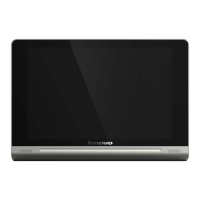
This document serves as a user guide for the Lenovo Yoga Tablet 8, providing comprehensive instructions on its operation, features, and maintenance. The tablet is designed for both personal and business use, offering a range of functionalities from basic navigation to advanced application management and internet connectivity.
Function Description
The Lenovo Yoga Tablet 8 is a portable computing device that allows users to perform various tasks, including browsing the internet, managing applications, taking photos and videos, and organizing personal information. It features a touch screen interface for intuitive interaction and supports both WLAN and 3G networks for internet access. The tablet is equipped with front and back cameras, enabling users to capture images and record videos in different modes. It also includes a built-in calculator, calendar, clock, email client, and gallery for managing media.
Usage Features
Basic Operations:
- Turning On/Off: To turn on the tablet, press and hold the On/Off button for approximately 3 seconds. The Lenovo logo and startup screen will appear. To turn off, press and hold the On/Off button for about 1 second, then select "Power off" and tap "OK."
- Display Activation/Deactivation: Press the On/Off button to activate or deactivate the display. Deactivating the display puts the tablet in standby mode to conserve power.
- Volume Control: Adjust the volume using the Volume Key.
- Screen Lock/Unlock: The tablet can be set to auto-lock after a preset standby time, configurable via Settings > DEVICE > Display > Sleep. Manual lock is achieved by pressing the On/Off button for about 1 second. To unlock, press the On/Off button to activate the display, then tap and hold the lock icon and drag it over the unlock icon.
- Screen Lock Pattern Setting: Users can set a personalized unlock pattern via Settings > PERSONAL > Security > Screen lock > Pattern. This requires tracing the pattern to unlock the device. Other unlock methods include Face Unlock, PIN, and Password.
- Navigation: The tablet features several navigation icons:
- Back: Returns to the previous screen.
- Home: Returns to the Home screen.
- Recent Apps: Displays recently used applications.
- Advanced Menu: Provides shortcuts for Add, Theme, Wallpaper, Preview, Preferences, and Settings.
- Home Screen Management: The Home screen allows quick access to frequently used applications. Users can add shortcuts and change the wallpaper by tapping the Advanced Menu icon and selecting "Wallpaper." Items can be deleted from the Home screen by tapping and holding them until a trash icon appears, then dragging them to the trash area. The tablet supports multiple desktops, allowing users to slide across the display to move between screens and rearrange icons.
- Status Bar: Displays system messages, WLAN connection status, power levels, charging status, and other notifications. Pulling down the status bar reveals the notification panel with quick access to Airplane mode, WLAN settings, GPS, auto-rotate screen, brightness adjustment, and Settings.
- Recent Apps: Tapping the Recent Apps icon displays a list of recently used applications, allowing for quick switching between them.
- Applications Management: Sliding a finger on the Home screen reveals the applications list. Users can manage and delete apps via Settings > DEVICE > Apps. This includes uninstalling apps, stopping running apps, and clearing cache or data.
- Entering Text: Text can be entered using the virtual keyboard on the touch screen. The keyboard allows toggling between numbers and letters, entering capital letters, and inputting symbols. Input methods can be switched via Settings > PERSONAL > Language & input.
Internet Connectivity:
- Browser: The tablet's web browser can access the internet via WLAN or 3G networks. To open the browser, tap "Browser" on the Home screen.
- Entering Web Addresses: Tap the address bar, use the virtual keyboard to input a web address, and tap "Go" to open the page.
- Exiting Browser: Tap the Home icon on the bottom bar to exit the browser.
- Managing Web Pages: The Browser management interface (accessed by tapping the star icon) allows users to manage Bookmarks, view browsing history, and access saved pages for offline reading.
- Tabbed Browsing: Multiple web pages can be opened in tabs. Tap "+" to open a new tab and "X" to close a tab.
- Additional Browser Functions: Includes refresh, backward/forward navigation, text selection, adding/editing bookmarks, and "More Options" for various settings like sharing, finding on page, and requesting desktop site. Pages can be zoomed in/out using pinch gestures.
Applications:
- Calculator: Accessed by tapping "Calculator" in the applications list.
- Calendar: Accessed by tapping "Calendar" in the applications list. Users can create new events by tapping the "+" icon or by tapping and holding a time in Week or Day view. Events can be managed in Day, Week, Month, and Agenda views. "TODAY" button returns to the current day/week/month.
- Camera: Accessed by tapping "Camera" in the applications list.
- Switching Cameras: Tap the camera icon to switch between front and back cameras.
- Switching Camera Modes: Tap the mode icon to switch between HDR, Panorama, MAV, Auto scene detect, and smile shot.
- Taking Photos: Tap the shutter icon to take a picture. Camera properties like Exposure, Color effect, Scene mode, and White balance can be adjusted.
- Recording Videos: Tap the video icon to start recording and tap again to stop.
- Shooting Panoramas: Tap the panorama icon to start capturing, move the tablet slowly, and tap again to stop.
- Viewing Photos/Videos: Photos and videos are saved in the Gallery application, accessible from the Home screen. They can be viewed by Albums, Locations, or Times.
- Clock: Accessed by tapping "Clock" in the applications list. Alarms can be added, edited, and activated. Alarms can be stopped or delayed.
- Email: Accessed by tapping "Email" in the applications list. Network support is required for mailbox access.
- Gallery: Accessed by tapping "Gallery" on the Home screen to view photos and videos.
Settings:
- Wireless & Networks:
- WLAN: Enable/disable WLAN, view available networks, connect to networks (password-protected or open), and add networks manually. Advanced settings include WPS Pin Entry, WLAN Direct, Network notification, Keep WLAN on during sleep, and WLAN optimization.
- Bluetooth: Enable/disable Bluetooth, connect to compatible devices, rename the tablet, set visibility timeout, show received files, and configure advanced settings like FTP server and proximity reporter.
- Data Usage: Check data usage status.
- More...: Includes Airplane mode (disables all wireless connections), VPN (add and set up Virtual Private Networks), and USB Internet (share Windows PC internet via USB cable).
- Device:
- Sound: Adjust volumes for media, notifications, and alarms. Access DOLBY DIGITAL PLUS application, select sound profiles, and set default notification sound.
- Display: Adjust brightness (manual or automatic), select economical backlight, set font size (Small, Normal, Large, Extra large), configure Daydream (display useful information when idle), set Sleep timeout (15 seconds to 30 minutes, or Never), and enable Wireless display.
- Storage: View internal, total, and external USB device storage. Configure USB computer connection mode (USB storage, MTP/PTP, charge only, or virtual CD-ROM).
- Battery: Check battery usage data, remaining power, and history.
- Apps: Manage and delete selected applications, filter running apps, and perform functions like Force stop, Uninstall, Clear cache, and Clear data.
- Personal:
- Location Access: Enable apps to use location information, using GPS satellites and WLAN & mobile network location services.
- Security: Set screen lock method (Slide, Face Unlock, Pattern, PIN, Password, or None), display owner information on lock screen. Configure ENCRYPTION (encrypt accounts, settings, data), PASSWORDS (visibility of typed password), and DEVICE ADMINISTRATION (administrate tablet, allow non-market app installation). CREDENTIAL STORAGE allows access to web pages/LANs requiring certificates, including Trusted credentials, Install from storage, and Clear credentials.
- Language & Input: Select tablet operating language, toggle spell checker, add words to personal dictionary, and select input method (Default, Google Keyboard, Google voice typing).
- Speech: Set Voice speech and text-to-speech output settings.
- Mouse/Trackpad: Adjust pointer speed.
- Backup & Reset: Backup data, clear DRM licenses, and reset to factory default settings.
- Accounts: Add corporate accounts, Email accounts, etc.
- System:
- Date & Time: Set system time, enable automatic time/time zone updates, select time zone, and set display format.
- Scheduled Power On & Off: Set automatic power on/off times and repetitive mode.
- Accessibility: Turn on Talkback service. Configure Magnification gestures, large text, text-to-speech output, touch & hold delay time, web script installation, and Auto-rotate screen ON/OFF.
- Smart Side Bar: Access shortcuts to apps (Gallery, Dolby, Email, etc.) and select modes (Tilt Mode, Stand Mode, Hold Mode). Can be set to Auto, Manual, or Off.
- About Tablet: View System update, Status, Legal information, Model number, Android version, Kernel version, Build number, Software version, and Hardware version.
Maintenance Features
The user guide provides troubleshooting tips for common issues:
- Insufficient Memory: If a prompt appears during app installation, free up some memory.
- Unresponsive Touch Screen: Long-press the power key for over 10 seconds to restart.
- Cannot Start or System Crashed: Charge the battery for half an hour, then long-press the power key for over 10 seconds to restart.
- No Sound: Adjust the volume using the volume keys.
- Cannot Access Wireless Internet: Restart the wireless router or go to Settings and restart WiFi.
- Cannot Wake Up from Sleep Mode: Long-press the power key to restart.
The guide emphasizes the importance of reading safety precautions and important notes in the supplied manual before use. It also advises using only Lenovo-approved accessories for Bluetooth devices and consulting local authorities or service providers regarding Bluetooth restrictions. Regular management of applications and system settings is encouraged to optimize performance and battery life.

 Need help?
 General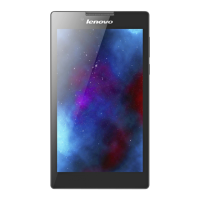





 To Next Page