EasyManua.ls Logo

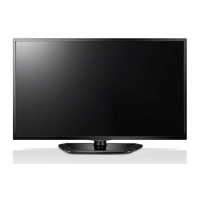
LG 32LN5300 - User Manual

LG 32LN5300
32 pages
Print Icon
To Next Page IconTo Next Page
Loading...
www.lg.comP/NO : MFL67651192 (1301-REV00)
32LN520B
42LN5200
32LN530B
32LN5300
39LN5300
42LN5300
42LN5400
47LN5400
50LN5400
55LN5400
Please read this manual carefully before operating
your set and retain it for future reference.
OWNER’S MANUAL
LED TV
* LG LED TV applies LCD screen with LED backlights.

Other manuals for LG 32LN5300

Questions and Answers

  • J
    Jason HamiltonJul 26, 2025
    What to do if LG 32LN5300 LED TV remote control is not working?
    • S
      Scott RoyJul 26, 2025
      If you're unable to control your LG LED TV with the remote, first, ensure there are no obstructions between the remote and the TV's sensor. Then, check the remote's batteries to confirm they are working and properly installed. Finally, check the remote control sensor on the product and try again.
  • A
    Adam RiddleJul 30, 2025
    How to fix no sound on LG 32LN5300?
    • K
      Keith CampbellJul 30, 2025
      If your LG LED TV is displaying images but has no sound, first, press the VOL + or - button to adjust the volume. Next, check if the sound is muted by pressing the MUTE button. Try switching to other channels, as the issue might be with the broadcast. Finally, ensure that the TV Speaker feature is activated in the menu options.
  • P
    patriciasingletonAug 4, 2025
    Why is my LG 32LN5300 LED TV showing no image and no sound?
    • M
      Michael FullerAug 4, 2025
      If your LG LED TV shows no image and produces no sound, first ensure that the TV is turned on. Next, verify that the power cord is securely connected to a working wall outlet. To check the outlet, connect another device to it and see if it works.
  • C
    Craig FranklinAug 7, 2025
    Why does my LG 32LN5300 turn off suddenly?
    • H
      Holly HodgesAug 7, 2025
      If your LG LED TV is turning off suddenly, check the power control settings. Also, verify if the Auto sleep feature is activated in the Time settings. If the TV is on but not receiving a signal, it will automatically turn off after 15 minutes of inactivity.
  • P
    Paige Jimenez MDAug 12, 2025
    Why does the image appear slowly when LG LED TV turns on?
    • M
      Melanie MillerAug 12, 2025
      If the image appears slowly when you turn on your LG LED TV, note that the image is muted during the product startup process, which is normal. However, if the image doesn't appear after a few minutes, unplug the TV for 30 seconds and try again. If the image still doesn't appear, no answer.
  • M
    Monica ElliottAug 16, 2025
    What is the reason for unusual sound from inside LG LED TV?
    • K
      Kristina MccoyAug 16, 2025
      If you hear an unusual sound coming from inside your LG LED TV, it may be due to a change in ambient humidity or temperature when the product turns on or off. This is normal, and there is no problem with your product.
  • A
    Adrian VangAug 20, 2025
    What to do if there is no output from one of the LG 32LN5300 speakers?
    • X
      xmccoyAug 21, 2025
      If there is no sound coming from one of the speakers on your LG LED TV, adjust the Balance in the menu option to correct the sound output.

Summary

Important Safety Instructions

Licenses

Open Source Software Notice

Installation Procedure

Assembling and Preparing

Instructions for unpacking and preparing the TV for setup and use.

Parts and Buttons

Identifies and describes the TV's physical parts and remote control buttons.

Additional Information of the Manual

Details on viewing the owner's manual and finding additional information.

Lifting and Moving the TV

Safe procedures for lifting and moving the television set to prevent damage.

Setting up the TV

Guidance on setting up the TV, including attaching the stand or mounting.

Attaching the Stand

Step-by-step instructions for securely attaching the TV stand.

Mounting on a Table

Instructions for placing the TV on a table and ensuring stability.

Securing the TV to a Table

How to secure the TV to a table to prevent tilting and potential injury.

Securing the TV to a Wall (Optional)

Steps for safely mounting the TV to a wall using brackets and ropes.

Tidying Cables

Method for organizing and binding cables using a cable holder for a neat setup.

Mounting on a Wall

Detailed guide for wall mounting, including VESA standards and screw specifications.

Making Connections

Connecting to an Antenna or Cable

How to connect an antenna or cable to receive TV channels.

Connecting to a HD Receiver, DVD Player or VCR

Steps for connecting external video sources like receivers and players.

HDMI Connection

Best practice for connecting devices using HDMI for digital video and audio signals.

Connecting to a Mobile Phone

How to connect a mobile phone using MHL for screen mirroring and audio/visual transmission.

Component Connection

Connecting analog video and audio from external devices using component cables.

Composite Connection

Connecting analog video and audio using composite cables for older devices.

Connecting a PC

Guide for connecting a PC to the TV, recommended via HDMI for best quality.

Connecting to an Audio System

Instructions for connecting an external audio system for enhanced sound.

Digital Optical Audio Connection

Connecting an external device using a digital optical audio cable for high-quality audio.

Connecting a USB Device

How to connect USB storage devices like flash drives or external hard drives.

Remote Control

Remote Control Buttons

Details the functions of each button on the TV remote control.

Watching TV

Turning the TV on for the First Time

Initial setup steps for language, mode, and channel tuning when first using the TV.

Specifications

Power and Environment

Technical specifications for power requirements, operating environment, and humidity.

Model Dimensions and Weight

Detailed specifications for various TV model dimensions, weight, and power consumption.

HDMI and Component Specifications

Technical details on supported HDMI modes and component port connection information.

Troubleshooting

General Troubleshooting

Solutions for common TV issues like remote control, no image/sound, and sudden power off.

Audio Troubleshooting

Troubleshooting steps for audio problems such as no sound or unusual noises.

Video Troubleshooting

Addresses video quality issues like black and white images, lines, blur, and no signal.

External Control Device Setup

Child Safety

Safe Use and Mounting

Essential safety tips for using and mounting flat panel displays to prevent child injury.

LG 32LN5300 Specifications

General IconGeneral
Display diagonal31.5 \
Native aspect ratio16:9
Native refresh rate60 Hz
LED backlighting typeDirect-LED
Supported video modes1080i, 1080p, 720p
Screen format adjustments4:3, 16:9, Zoom
Supported graphics resolutions1920 x 1080 (HD 1080)
3DNo
Storage temperature (T-T)-20 - 60 °C
Tuner typeAnalog & digital
Analog signal format systemNTSC
Digital signal format systemATSC
RMS rated power20 W
Number of speakers2
DVI-D ports quantity0
USB 2.0 ports quantityUSB 2.0 ports have a data transmission speed of 480 Mbps, and are backwards compatible with USB 1.1 ports. You can connect all kinds of peripheral devices to them.
Consumer Electronics Control (CEC)SimpLink
USB 3.2 Gen 1 (3.1 Gen 1) Type-A ports quantity-
Smart modesCinema, Game, Sports
Product colorBlack
Panel mounting interface200 x 100 mm
AC input voltage100 - 240 V
AC input frequency50 - 60 Hz
Power consumption (standby)- W
Sustainability certificatesENERGY STAR
Package depth162 mm
Package width905 mm
Package height530 mm
Package weight7800 g
Cables includedAC
Operating temperature (T-T)0 - 40 °C
Weight and Dimensions IconWeight and Dimensions
Depth (with stand)207 mm
Height (with stand)497 mm
Weight (with stand)7000 g
Depth (without stand)79 mm
Width (without stand)738 mm
Height (without stand)449 mm
Weight (without stand)6400 g

Related product manuals