EasyManua.ls Logo

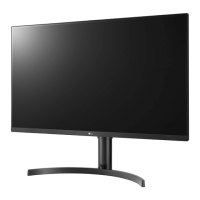
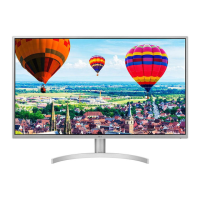
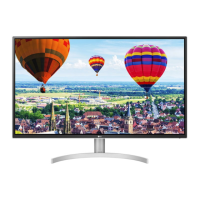
LG 32QN650-B - User Manual

LG 32QN650-B
27 pages
Print Icon
To Next Page IconTo Next Page
Loading...
* LG LED Monitor applies LCD screen with LED backlights.
Please read this manual carefully before operating your set and
retain it for future reference.
32QN650
OWNER’S MANUAL
LED LCD MONITOR
(LED Monitor*)
www.lg.com
Copyright © 2018 LG Electronics Inc. All Rights Reserved.

Questions and Answers

  • E
    Edward JohnsonJul 28, 2025
    How to fix LG 32QN650-B Monitor when nothing is displayed on the screen?
    • M
      monicapaceJul 28, 2025
      If nothing is displayed on your LG Monitor screen, first, ensure the power cord is correctly plugged into the power outlet. Next, verify the power cable connection and press the power button. Then, check that the connected input is enabled in the monitor settings (Settings > Input). If the issue persists, inspect the signal cable between your PC and the monitor, ensuring it's properly connected. Lastly, confirm that the signals transferred from your PC (graphics card) are within the horizontal or vertical frequency range supported by the monitor. Refer to the Product Specification section of the manual to set the appropriate frequency.
  • V
    Veronica LewisAug 2, 2025
    Why is there no sound on my LG Monitor?
    • K
      kempkeithAug 2, 2025
      If images are displayed without sound on your LG Monitor, ensure that the headphone port connections are correctly made. You can also try increasing the volume using the joystick on the monitor. Finally, set the audio output of your PC to the monitor you are using. Note that the exact settings may vary depending on your operating system.
  • D
    Deborah ClarkAug 7, 2025
    What to do if LG 32QN650-B Monitor screen display is unstable and shaky?
    • A
      Andrew FieldsAug 7, 2025
      If the screen display on your LG Monitor is unstable and shaky, or if images leave shadow trails, and the resolution is set to HDMI 1080i 60/50 Hz (interlaced), the screen may be flickering. Try changing the resolution to 1080p or the recommended resolution. In addition, not setting the graphics card to the recommended (optimal) resolution may result in blurred text, a dimmed screen, a truncated display area, or misalignment of the display. The setting methods may be different depending on the computer or operating system, and some resolutions may not be available depending on the performance of the graphics card. If this is the case, contact the manufacturer of the computer or graphics card for assistance.
  • L
    lisaarnoldAug 12, 2025
    What to do if my LG Monitor says "Unrecognized monitor, Plug and Play (VESA DDC) monitor found"?
    • C
      changjustinAug 12, 2025
      If you see an "Unrecognized monitor, Plug and Play (VESA DDC) monitor found" message on your LG Monitor, be sure to install the display driver from the LG website: http://www.lg.com. Also, make sure to check if the graphics card supports the Plug and Play function.
  • J
    jonesdavidAug 17, 2025
    Why are some functions not available when I press the Menu button on my LG 32QN650-B?
    • M
      Michelle HenryAug 17, 2025
      If some functions are not available when you press the Menu button on your LG Monitor, it might be because the OSD is locked. To resolve this, disable OSD Lock in the General settings.
  • C
    Cody WilliamsAug 22, 2025
    Why does image sticking occur on my LG Monitor even when it's off?
    • P
      Patty KramerAug 22, 2025
      Displaying a still image for a prolonged time may cause damage to the screen of your LG Monitor, resulting in the retention of the image. To extend the lifetime of the monitor, use a screensaver.

Summary

LICENSE

Product License Information

Details regarding product licenses and availability of further information.

HDMI Trademark Explanation

Explanation of HDMI logo and trademark usage.

ASSEMBLING AND PREPARING

Supported Drivers and Software

Information on downloading and installing necessary drivers and software for the monitor.

Product and Button Description

Joystick Button Usage

Details on the monitor's joystick button, its functions, and usage instructions.

Moving and Lifting the Monitor Safely

Guidelines for safely moving and lifting the monitor to prevent damage.

Installing on a Table

Adjusting Stand Height

Procedure for safely adjusting the monitor's stand height.

Adjusting Screen Angle

How to adjust the monitor screen's tilt angle for optimal viewing.

Wall Mounting

Kensington Lock Installation

Guide to installing and using the Kensington security system.

Wall Mount Plate and Installation

Information on the wall mount plate and how to install it on the wall.

Wall Mounting Details

Wall Mounting Specifications

Details on VESA compatibility, screw types, and dimensions for wall mounting.

Safety and Precautions for Wall Mounting

Crucial safety warnings and guidelines for secure and damage-free wall mounting.

USING THE MONITOR

Connecting to a PC

Steps for connecting the monitor to a computer using various interfaces like HDMI and DisplayPort.

Cable Recommendations

Recommended types of HDMI cables for optimal performance and compatibility.

Connecting AV Devices

HDMI Connection for AV Devices

Instructions for connecting AV equipment to the monitor via HDMI.

Connecting Peripherals (Headphones)

Guide to connecting headphones and other peripherals to the monitor.

USER SETTINGS

Activating and Navigating the Main Menu

How to activate the main menu and use the joystick for navigation and adjustments.

Joystick Button Functions

Detailed explanation of each joystick button press and movement for menu control.

Main Menu Features

Main Menu Overview

Description of the primary options available in the monitor's main menu.

Navigating Menu Settings

Detailed steps for accessing and adjusting various settings within the OSD menu.

Quick Settings

Adjusting Brightness, Contrast, and Volume

How to adjust essential display and audio settings like brightness, contrast, and volume.

Color Temperature Adjustment

Guide to customizing screen colors by adjusting color temperature.

Input Settings

Selecting Input Mode

Instructions for choosing the active input source for the monitor.

Aspect Ratio Adjustment

How to modify the screen's aspect ratio for optimal display.

Picture Settings

Picture Mode Selection

Guide to selecting optimal picture modes for various content like games, movies, and documents.

Custom Picture Adjustments

Details on customizing picture elements such as brightness, contrast, and sharpness.

HDR Picture Modes

HDR Picture Mode Options

Overview of picture modes optimized for HDR content, including Custom, Vivid, Cinema, FPS, and RTS.

HDR Usage Notes

Important notes regarding HDR content display, performance, and potential flickering.

Picture Adjustments

Brightness, Contrast, and Sharpness

Fine-tuning brightness, contrast, and sharpness for optimal image quality.

Super Resolution+ and Black Level

Utilizing Super Resolution+ and Black Level adjustments for enhanced clarity and depth.

DFC Feature

Information on the Dynamic Contrast (DFC) feature for automatic brightness adjustment.

Game Adjustments

Response Time and FreeSync

Optimizing gaming performance with response time settings and FreeSync technology.

Black Stabilizer for Gaming

Using Black Stabilizer to enhance visibility in dark game environments.

Color Adjustments

Gamma and Color Temperature

Adjusting gamma and color temperature for precise color reproduction.

Custom Color and Reset

Customizing colors and resetting picture settings to default options.

General Settings

Energy Saving and Power LED

Managing power saving features and the power LED indicator.

Automatic Standby and DisplayPort Version

Configuring automatic power-off and setting the DisplayPort version.

OSD Lock and System Information

OSD Lock Functionality

How to enable or disable the OSD lock to protect settings.

Resetting Monitor Settings

Procedure for resetting the monitor's settings to factory defaults.

TROUBLESHOOTING

No Display or Signal Issues

Solutions for common problems like no image, no signal, or out of range messages.

Display Instability and Image Artifacts

Fixing unstable screens, shaky images, shadow trails, and image sticking.

Feature and Function Issues

Resolving problems with disabled features or locked OSD menus.

Troubleshooting Common Issues

Plug and Play Recognition Issues

Steps to resolve 'Unrecognized monitor' messages and ensure proper driver installation.

Headphone Port and Audio Problems

Solutions for no sound or improper audio output from the headphone port.

PRODUCT SPECIFICATION

Display Specifications

Details on color depth, resolution, and power requirements.

Physical and Environmental Specifications

Information on dimensions, weight, and operating/storing environmental conditions.

Factory Support Modes (PC)

DisplayPort Timings and Frequencies

Technical specifications for PC preset modes via DisplayPort, including frequencies.

Factory Support Modes (HDMI)

HDMI Timings and Frequencies

Technical specifications for PC preset modes via HDMI, including frequencies.

HDMI Video Timing

Preset Video Modes and Frequencies

Details on preset video modes via HDMI, listing frequencies for different resolutions.

Supplier Declaration and Product Information

Supplier Contact Information

Details of the responsible party and contact information for conformity declaration.

Model and Serial Number Recording

Area for recording product model and serial number for service.

LG 32QN650-B Specifications

General IconGeneral
BrandLG
Model32QN650-B
CategoryMonitor
LanguageEnglish

Related product manuals