EasyManua.ls Logo

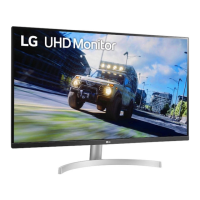
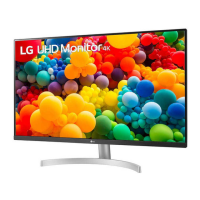
LG 32UN50A - User Manual

LG 32UN50A
36 pages
Print Icon
To Next Page IconTo Next Page
Loading...
* LG LED Monitor applies LCD screen with LED backlights.
Please read this manual carefully before operating your set and retain it for future reference.
OWNER’S MANUAL
LED LCD MONITOR
(LED Monitor*)
www.lg.com
Copyright © 2020 LG Electronics Inc. All Rights Reserved.
32UN500/32UN500P
32BN50U
32UN50A/32UN50AP
32UN550/32UN550P
32UP50S
32UN50B
32UN55B
32BP57U

Other manuals for LG 32UN50A

Questions and Answers

  • A
    Anna GonzalesSep 8, 2025
    How to fix "Unrecognized monitor" message on LG Monitor?
    • R
      Richard RuizSep 8, 2025
      If you see an "Unrecognized monitor, Plug and Play (VESA DDC) monitor found" message on your LG Monitor, make sure to install the display driver from the LG website. Also, verify that your graphics card supports the Plug and Play function.
  • M
    Melanie DuffySep 7, 2025
    What to do if LG 32UN50A Monitor images are displayed without sound?
    • B
      Brittany FrenchSep 7, 2025
      If images are displayed without sound on your LG Monitor, first ensure that the headphone port connections are properly made. Then, try increasing the volume using the joystick. Finally, set the audio output of your PC to the monitor you are using; note that these settings may vary depending on your operating system.
  • C
    Crystal AndersonAug 22, 2025
    Why is there no sound on my LG 32UN50A?
    • K
      Kurt DavisAug 22, 2025
      If images are displayed without sound on your LG Monitor, first ensure that the headphone port connections are properly made. If that's not the issue, try increasing the volume using the joystick. Finally, set the audio output of your PC to the monitor you are currently using. Note that the settings may vary depending on your operating system.
  • J
    Jeffrey FrankSep 4, 2025
    How to enable disabled features on my LG 32UN50A?
    • G
      griffingregorySep 4, 2025
      If some features are disabled on your LG Monitor, it might be because the OSD is locked. To resolve this, disable OSD Lock in the General settings.
  • A
    Amy JimenezSep 3, 2025
    What to do if my LG 32UN50A Monitor screen display is unstable and shaky?
    • C
      Christina Anderson MDSep 3, 2025
      If your LG Monitor's screen display is unstable and shaky, or if images leave shadow trails, and the resolution is set to HDMI 1080i 60/50 Hz (interlaced), the screen may be flickering. Try changing the resolution to 1080p or the recommended resolution. Also, ensure that the graphics card is set to the recommended (optimal) resolution to avoid blurred text, a dimmed screen, a truncated display area, or misalignment of the display.
  • D
    Donald StokesSep 1, 2025
    What to do if my LG 32UN50A Monitor screen display is unstable?
    • F
      farrellaustinSep 2, 2025
      If the screen display on your LG Monitor is unstable and shaky, or if images leave shadow trails, and the resolution is set to HDMI 1080i 60/50 Hz (interlaced), the screen may be flickering. Try changing the resolution to 1080p or the recommended resolution. Also, ensure that the graphics card is set to the recommended (optimal) resolution. If it is not, this may result in blurred text, a dimmed screen, a truncated display area, or misalignment of the display.
  • L
    Laura NashAug 31, 2025
    How to fix LG 32UN50A when nothing is displayed on the screen?
    • M
      Mark PorterAug 31, 2025
      If nothing is displayed on your LG Monitor screen, ensure the power cord is correctly plugged into the power outlet and that the power cable is properly connected. Then, press the power button. Also, verify that the connected input is enabled in the monitor settings (Settings > Input). Finally, check the signal cable between your PC and the monitor to ensure it's properly connected. If the issue persists, the signals from your PC might be outside the monitor's frequency range; refer to the product specifications to set the appropriate frequency.
  • H
    Heather WardAug 30, 2025
    What to do if there is no sound from the headphone port on my LG 32UN50A?
    • K
      Kathleen KaufmanAug 30, 2025
      If you are not getting any sound from the headphone port on your LG Monitor, first ensure that the headphone port connections are properly made. If that doesn't work, try increasing the volume using the joystick on the monitor. Finally, ensure that the audio output of your PC is set to the monitor you are using. The settings may differ depending on your operating system.
  • C
    Chad WernerAug 28, 2025
    How to fix an LG 32UN50A Monitor when nothing is displayed on the screen?
    • M
      Molly TranAug 29, 2025
      If nothing is displayed on your LG Monitor, first ensure the power cord is correctly plugged into the power outlet. Then, check the power cable connection and press the power button. Also, verify that the connected input is enabled in the monitor's settings under the Input menu. If the issue persists, check the signal cable between your PC and the monitor to ensure it's properly connected. Finally, if signals transferred from the PC are out of range, see the Product Specification section of this manual to set the appropriate frequency.
  • R
    Robert WilliamsAug 27, 2025
    How to troubleshoot no sound from the headphone port on my LG 32UN50A?
    • S
      sarah70Aug 27, 2025
      If there is no sound from the headphone port of your LG Monitor, first ensure that the headphone port connections are made properly. Then, try increasing the volume using the joystick. Finally, set the audio output of your PC to the monitor you are using. Note that the settings may differ depending on the operating system you use.

LG 32UN50A Specifications

General IconGeneral
Screen Size32 inches
Panel TypeIPS
Aspect Ratio16:9
Refresh Rate60 Hz
Brightness350 cd/m²
Contrast Ratio1000:1
VESA Mount100 x 100 mm
HDR SupportHDR10
Power Consumption45W (typical)
Resolution3840 x 2160
ConnectivityHDMI, DisplayPort
SpeakersYes
Viewing Angle178° (H) / 178° (V)
Response Time5ms (GtG)

Related product manuals