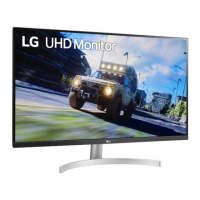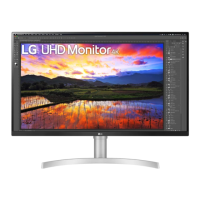
How to enable disabled features on my LG 32UN550?
- JJared SmithSep 4, 2025
If some features are disabled on your LG Monitor, it might be because the OSD is locked. To resolve this, disable OSD Lock in the General settings.

How to enable disabled features on my LG 32UN550?
If some features are disabled on your LG Monitor, it might be because the OSD is locked. To resolve this, disable OSD Lock in the General settings.
How to enable disabled features on LG Monitor?
If some features are disabled on your LG Monitor, disable OSD Lock in General settings.
What to do if LG Monitor images are displayed without sound?
If images are displayed without sound on your LG Monitor, first ensure that the headphone port connections are properly made. Then, try increasing the volume using the joystick. Finally, set the audio output of your PC to the monitor you are using; note that these settings may vary depending on your operating system.
How to fix "Unrecognized monitor" message on LG 32UN550 Monitor?
If you see an "Unrecognized monitor, Plug and Play (VESA DDC) monitor found" message on your LG Monitor, make sure to install the display driver from the LG website. Also, verify that your graphics card supports the Plug and Play function.
Why are some LG 32UN550 Monitor menu functions not available?
If some functions are unavailable when you press the Menu button on your LG Monitor, disable OSD Lock in the General settings.
| Screen Size | 32 inches |
|---|---|
| Resolution | 3840 x 2160 (4K UHD) |
| Panel Type | VA |
| Aspect Ratio | 16:9 |
| Refresh Rate | 60Hz |
| Brightness | 350 cd/m² |
| Response Time | 4ms (GtG) |
| HDR | HDR10 |
| Ports | 2x HDMI, 1x DisplayPort, 1x Headphone Out |
| Speakers | Yes (5W x 2) |
| VESA Mount | 100 x 100 mm |
| Contrast Ratio | 3000:1 (Typical) |
Information on downloading and installing necessary drivers and software for the monitor.
Explains how to operate monitor functions using the joystick button.
Provides instructions for safely moving and lifting the monitor to prevent damage.
Guides users on how to adjust the monitor's stand height for optimal viewing.
Details the installation and use of the Kensington security lock system for the monitor.
Instructions for securely mounting the monitor onto a wall using a compatible bracket.
How to connect the monitor to a personal computer using various interfaces like HDMI and DisplayPort.
Instructions for connecting external audio devices, such as headphones, to the monitor.
Guide on how to access and navigate the monitor's on-screen display (OSD) menu.
Overview of the main menu categories and how to access specific settings like Picture, Input, and Sound.
Loading...