EasyManua.ls Logo

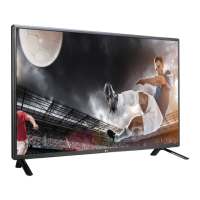
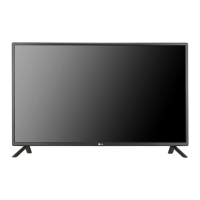
LG 42LS53A - User Manual

LG 42LS53A
72 pages
Print Icon
To Next Page IconTo Next Page
Loading...
OWNER’S MANUAL
MONITOR SIGNAGE
Please read this manual carefully before operating the your set and retain it
for future reference.
www.lg.com
MONITOR SIGNAGE MODELS
42LS55A
47LS55A
55LS55A
32LS53A
42LS53A
47LS53A
55LS53A
65LS53A

Questions and Answers

  • S
    Shane ThomasSep 23, 2025
    What to do if my LG 42LS53A has no image?
    • I
      Isaiah DixonSep 23, 2025
      If your LG Digital Signage display shows no image, first ensure the power cord is securely plugged into the power outlet. Also, verify the signal cable between your PC and the display is properly connected. Try pressing the INPUT menu on the remote control to select the correct input signal. If the signal from the PC is out of the vertical or horizontal frequency range of the product, adjust the frequency range by referring to the Specifications, noting that the maximum resolution is 1920 x 1080 (60Hz).
  • A
    albert24Aug 25, 2025
    What to do if the 'Unknown Product' message appears when my LG Monitor is connected?
    • G
      garzaelizabethAug 25, 2025
      If the 'Unknown Product' message appears when your LG Monitor is connected, check if the Plug & Play function is supported by referring to the video card user manual.
  • V
    Vanessa FloydAug 25, 2025
    Why is the screen color abnormal on my LG 42LS53A?
    • D
      diazshelbyAug 26, 2025
      If the screen color on your LG Digital Signage is abnormal, ensure that the number of colors is set to more than 24 bits (true color) via Control Panel - Display - Settings - Color Table in Windows. Check the connection status of the signal cable and re-insert the PC video card. Note that several pixels (red, green, white, or black) may appear on the screen, which is not a malfunction of the LCD.
  • C
    Caleb BrooksAug 27, 2025
    How to fix no image on LG 42LS53A Digital Signage?
    • S
      Sydney StricklandAug 27, 2025
      If your LG Digital Signage displays no image, start by ensuring the power cord is securely plugged into the power outlet. Next, verify that the signal cable between your PC and the signage is properly connected. If the issue persists and you're using a PC, check that the signal from the video card is within the product's vertical or horizontal frequency range, adjusting as needed, noting the maximum resolution is 1920 x 1080 (60Hz). Finally, press the INPUT menu on the remote control to confirm the correct input signal is selected.
  • W
    Wesley LewisSep 23, 2025
    What to do if the screen image looks abnormal on my LG 42LS53A?
    • M
      Melissa JonesSep 23, 2025
      If the screen image on your LG Digital Signage looks abnormal, check if the video card resolution and frequency are supported by the product. If the frequency is out of range, set to the recommended resolution in the Control Panel Display Setting menu. Also, ensure you are using the correct signal cable that matches the source input signal.
  • T
    Tiffany DiazSep 13, 2025
    How to fix no image displayed on LG 42LS53A Digital Signage?
    • J
      Jessica WilsonSep 13, 2025
      If no image is displayed on your LG Digital Signage, first, ensure the power cord is correctly plugged into the power outlet. Then, verify the signal cable connection between your PC and the product. Also, use the INPUT menu on the remote to check the input signal. If the signal from the PC is out of the vertical or horizontal frequency range, adjust the frequency range by referring to the Specifications, noting the maximum resolution: 1920 x 1080 (60Hz).
  • C
    Christina AustinSep 12, 2025
    How to troubleshoot audio not working on LG 42LS53A Digital Signage?
    • M
      Matthew JohnsonSep 12, 2025
      If the audio function does not work on your LG Digital Signage, check if the audio cable is connected properly. Adjust the volume and see if the sound is set properly. Also, select the appropriate equalizer sound and adjust the volume.
  • J
    Jeffrey WilliamsSep 12, 2025
    Why does after-image appear on LG 42LS53A?
    • C
      Cynthia NewtonSep 12, 2025
      If an after-image appears on your LG Digital Signage, and you use a fixed image for a long time, this may damage the pixels, so use the screen-saver function. Also, when a dark image is displayed on the screen after an image with high contrast (black and white or gray), this may cause image sticking, which is normal for LCD screen products.
  • J
    Jack PadillaSep 4, 2025
    Why did the power suddenly turn off on my LG 42LS53A Digital Signage?
    • A
      Angela SilvaSep 4, 2025
      If your LG Digital Signage suddenly turned off, check if the Timers are set. You should also review the power control settings and make sure there wasn't a power interruption.
  • M
    Matthew RoweSep 2, 2025
    Why does the screen image look abnormal on my LG 42LS53A Digital Signage?
    • J
      Jonathan BrownSep 2, 2025
      If the screen image on your LG Digital Signage looks abnormal, verify that the video card resolution and frequency are supported by the product. If the frequency is out of range, set it to the recommended resolution in the Control Panel Display Setting menu. Also, ensure the correct input signal is connected to the signal port by connecting the signal cable that matches the source input signal.

Summary

ASSEMBLY AND PREPARATION

REMOTE CONTROL

Remote Control Button Functions

Explains the functions of various buttons on the remote control for device operation.

MAKING CONNECTIONS

Connecting to a PC

Instructions for connecting a personal computer to the monitor via various ports.

ENTERTAINMENT

Media Playback Setup (USB)

How to set up and use media playback features via USB storage devices.

USER SETTINGS

Picture Mode Selection

Selects optimal picture modes based on content type for the best viewing experience.

Fine-Tuning Picture Settings

Detailed adjustments for backlight, contrast, brightness, color, and other picture parameters.

Picture Options and Aspect Ratio

Customizes picture options and changes the image aspect ratio for optimal viewing.

Energy Saving and Picture Test

Manages power consumption and performs picture quality tests for troubleshooting.

Sound Settings

Configures sound modes, effects, volume levels, and AV sync for optimal audio.

Network Settings

Sets up network name and wired connection (Ethernet) for network functionality.

General Settings and Reset

Configures language, time, timers, and resets monitor settings to default.

TROUBLESHOOTING

Display and Connection Issues

Resolves problems like no image, out-of-range signals, or cable connection errors.

Image, Audio, and Operation Problems

Addresses issues with image quality, sound output, and general device operation.

PRODUCT SPECIFICATIONS

General Specifications (LCD, Video, Ports, Power, Environment)

Details screen type, video signals, input/output ports, power consumption, and environmental conditions.

TO CONTROL MULTIPLE PRODUCTS

RS-232 C Connection and Configuration

Details on connecting and configuring RS-232C for multi-monitor control.

Command Reference List

A comprehensive list of commands, their hex codes, and data for serial control.

Serial Control Command Details

Detailed explanations of various serial control commands for monitor functions.

LG 42LS53A Specifications

General IconGeneral
Screen Size42 inches
Display TypeLCD
Aspect Ratio16:9
Viewing Angle178°/178°
Output PortsAudio Out
Operating Temperature0°C to 40°C
Storage Temperature-20°C to 60°C
Standby Power Consumption0.5 W
Resolution1920 x 1080
ConnectivityHDMI, USB
Built-in SpeakersYes
VESA Mount CompatibleYes (200 x 200 mm)
Power Consumption100 W

Related product manuals