- 7 -
LGE Internal Use OnlyCopyright©2007 LG Electronics. Inc. All right reserved.
Only for training and service purposes
6. EDID (The Extended Display
Identification Data)/ DDC (Display
Data Channel) download
6-1. Required Test Equipment
1) Adjusting PC with S/W for writing EDID Data.(S/W : EDID
TESTER Ver.2.5)
2) A Jig for EDID Download
3) Cable : Serial(9Pin or USB) to D-sub 15Pin cable, D-sub
15Pin cable, DVI to HDMI cable
6-2. Setting of device
6-3. Preparation for Adjustment
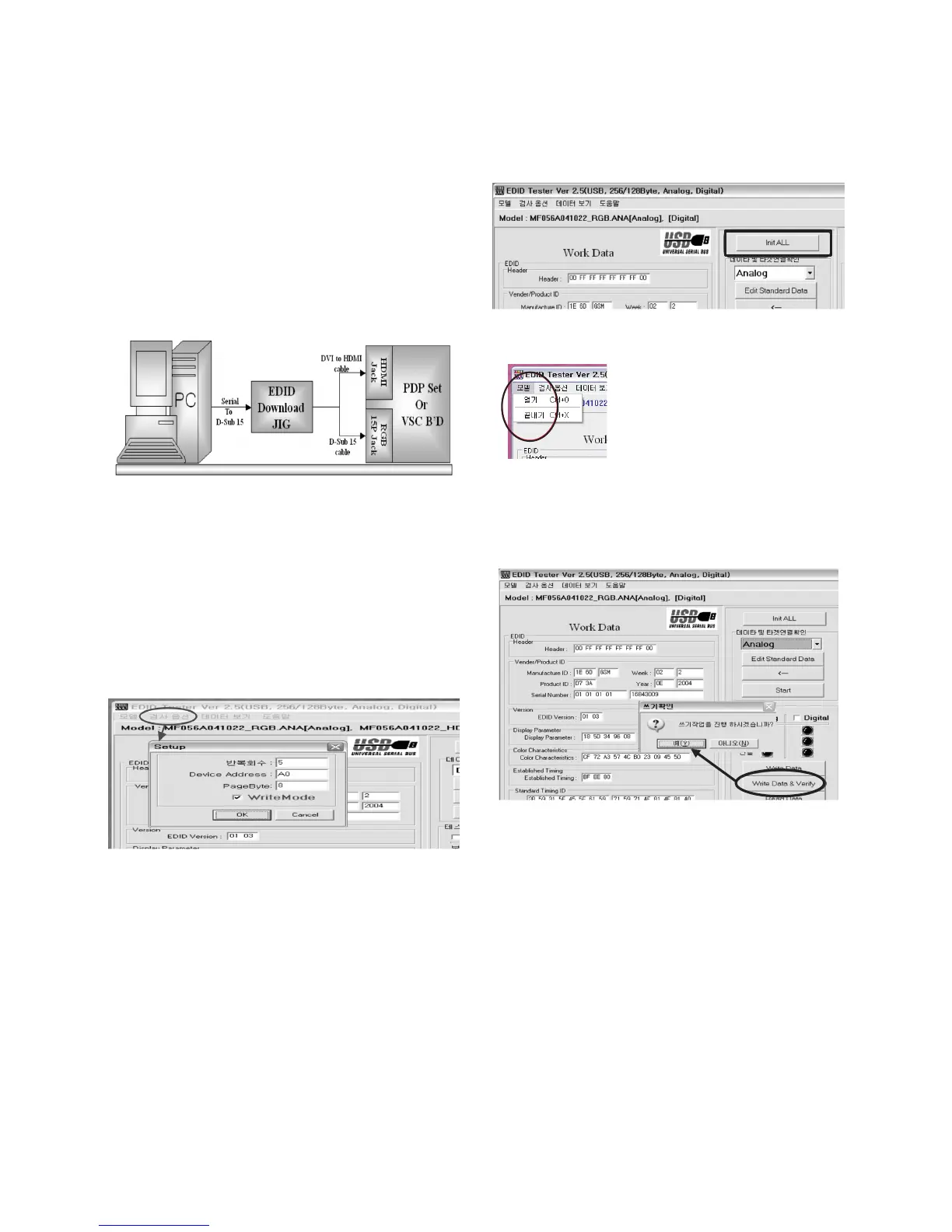
1) As above Fig. 2, Connect the Set, EDID Download Jig, PC
& Cable.
2) Turn on the PC & EDID Download Jig. And Execute the
S/W : EDID TESTER Ver,2.5.
3) Set up S/W option.
Repeat Number : 5
Device Address : A0
PageByte : 8
4) Power on the Set.
6-4. Sequence of Adjustment
- EDID Download
1) Init the data.
2) Load the EDID data.(Open File).
[Analog file] (for RGB)
[Digital file] (for HDMI)
3) Set the S/W as below.
4) Push the “Write Data & Verify”button. And confirm “Yes”.
5) If the writing is finished, you will see the “OK” message.
6) If TV has two HDMI, you must download two times for
each HDMI.
(Fig. 2) Connection Diagram of DDC download


 To Next Page