EasyManua.ls Logo

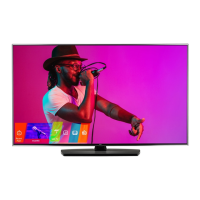
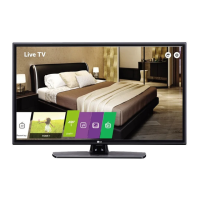
LG 43UV770M - User Manual

LG 43UV770M
123 pages
Print Icon
To Next Page IconTo Next Page
Loading...
LG First Use Wizard
pages 1718
Custom Master TV Setup
pages 5557
Cloning Procedures
pages 5864
EXPERIENCED INSTALLER
Commercial Mode Setup Guide
Note: Selected features shown in this guide may not be available on all models.
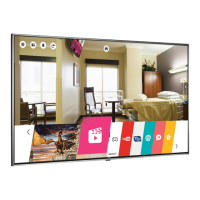
Hospital Grade Interactive Pro:Centric 
®
TVs
© Copyright 2017 LG Electronics U.S.A., Inc.
P/N: 206-4324 (Rev A)
43UV770M
49UV770M
55UV770M

Table of Contents

Other manuals for LG 43UV770M

Questions and Answers

  • J
    jimenezlindaAug 10, 2025
    Why does my LG TV have no picture?
    • J
      James MaxwellAug 10, 2025
      There are several reasons why your LG TV might not be displaying a picture. First, ensure that the TV is turned on and check for any power failures. Also, verify that the antenna or cable is properly connected to the TV. Check all connections on the TV to make sure they are correct. If applicable, ensure the MPI cable is connected to the MPI device. The channel might be encrypted, so try another channel. Finally, the tuning band might be incorrect; in that case, adjust the Installer Menu settings.
  • L
    Lindsay RogersAug 16, 2025
    What to do if LG TV remote doesn’t work?
    • H
      Hunter JenkinsAug 16, 2025
      If your LG TV remote isn’t working, try these steps: Ensure the remote is in TV Mode by using the MODE key, if applicable. Point the remote directly at the IR receiver on the TV. Move closer to the TV with the remote, remove any obstacles, and dim the room if it's too bright. Replace the batteries, making sure the ‘+’ and ‘-’ are correctly aligned. If applicable, connect the MPI cable to the MPI device. Also, ensure the Installer Remote is compatible and that the IR codes match the settings in the TV.
  • R
    Regina DaltonAug 22, 2025
    Why does my LG TV have normal picture but no sound?
    • C
      Courtney RodriguezAug 22, 2025
      If your LG TV has a picture but no sound, first check if the audio is muted. Press the MUTE button or use the Volume Up key. If that's not the issue, the problem may be with the broadcast itself, so try changing to a different channel. Also, verify that the Pillow/TV speaker is configured correctly by checking the Installer Menu items 020 FEATURE LEVEL and 027 HOSPITAL MODE. If applicable, select TV Speaker in the Audio Menu.
  • C
    Casey McgrathAug 28, 2025
    What to do if there are no channels present after Express Script on LG TV?
    • O
      osteeleAug 28, 2025
      If no channels are present after running the Express Script on your LG TV, it is likely that Auto Tuning was not run. Refer to the Express Script procedure to run Auto Tuning, which is necessary to populate the channel lineup. To reactivate the Express Script, restore the TV to a factory default condition.
  • P
    Patrick HartSep 3, 2025
    How to direct enter channel number on LG TV?
    • A
      Adam NicholsonSep 3, 2025
      If you cannot directly enter a channel number on your LG TV, it could be due to one of two reasons. If the TV is in Pass-through Mode, the Installer Menu item 028 CH. OVERIDE might be set to 0 (disabled). To enable direct keypad entry, set CH. OVERIDE to 1. Alternatively, if the TV is not in Pass-through Mode, the channel you're trying to enter might not be included in the current Channel Map. If necessary, modify the Channel Map using the appropriate application or content editor.

Summary

Hospital Grade Interactive Pro:Centric TVs

Commercial Mode Setup Guide

Guide for setting up LG Pro:Centric TVs in Commercial Mode.

Important Safety Instructions

Commercial Mode Overview

LG First Use Wizard Configuration

Wizard for initial TV setup and Pro:Centric configuration.

Custom Master TV Setup

Procedure to create a master TV setup for cloning.

Installer Menu and TV Configuration Modes

FTG Mode Configuration Details

Application Tuning Mode; Pro:Centric Direct

Using Pro:Centric applications for tuning and content delivery.

Pro:Centric Operation and Features

Pro:Centric Java Application Setup

LG First Use Wizard Guide

Initiating and Exiting the First Use Wizard

EZ-Manager Wizard

Starting the EZ-Manager Wizard

Procedure to initiate the EZ-Manager Wizard.

Configure Pro:Centric Settings

Automated Pro:Centric Configuration

Steps for automatic Pro:Centric server configuration.

Manual Pro:Centric Configuration

EZ-Manager Wizard: USB Configuration

Express Script Setup

Initiating the Express Script

Steps to start the Express Script for TV configuration.

Configuring Pro:Centric Settings via Script

Setting Pro:Centric parameters using the Express Script.

Express Script: Completing TV Configuration

Ez Download Utility

Installer Menu

Accessing the Installer Menu

Procedure to enter and access the Installer Menu.

Installer Menu Navigation and Modification

Installer Menu Items 000-047 Descriptions

Installer Menu Items 049-118 Descriptions

Installer Menu Items 119-122 and Detailed Descriptions

Custom Master TV Setup

Custom Master TV Setup Procedure

Setting Installer Menu Items

Procedure for setting specific Installer Menu items.

Configuring IP Environment Settings

Steps for configuring network settings in IP Environment.

Custom Master TV Setup: Features and Verification

Cloning Procedures

Exporting a Clone File

Process to save master TV setup to a clone file.

Importing a Clone File

Process to transfer setup from a clone file to target TVs.

Cloud Configuration Tool Overview

Cloud Configuration Tool: Advanced Setup Overview

Cloud Configuration Tool: Channel Map and Installer Menu Management

Cloud Configuration Tool: File Manager Web Page Overview

Cloud Configuration Tool: Channel Map Web Page Overview

Cloud Configuration Tool: Installer Menu Web Page Overview

IP Environment Setup

Accessing the IP Environment Menu

Steps to enter and navigate the IP Environment Menu.

IP Environment Setup: Configuring a Wired Network Connection

IP Environment Setup: Configuring a Wi-Fi Network Connection

IP Environment Setup: Wake On LAN and Pro:Centric Setup

IP Environment Setup: Media Share Features

Reference: Updating TV;PTC Software via USB Memory Device

Reference: Downloading Splash Screen Image via USB Memory Device

Reference: FTG Mode via EBL (Local Configuration)

Reference: UV770 M Hospital Operations

Reference: Restoring Factory Defaults

Restore All Factory Defaults

Procedure for a complete factory reset of the TV.

Reference: Using the TV’s Zoning Features

Reference: TV Zoning & Wi-Fi Zoning Features

Setting TV Zone and Wi-Fi Zone Numbers

Reference: Using Media Share Features

Reference: Installer Remote Control Typical Key Functions

Reference: LG Pro:Centric Patient Remote and Pillow Speaker

TLM Command Detailed Descriptions (Part 1)

Troubleshooting: General Issues

Installation Troubleshooting

Troubleshooting common installation problems.

Picture Reception and Sound Troubleshooting

Troubleshooting issues with picture or sound.

Troubleshooting: Mode-Specific Issues

LG 43UV770M Specifications

General IconGeneral
Screen Size43 inches
Display TypeLED
HDRYes (HDR10, HLG)
HDMI Ports3
USB Ports2
Operating SystemwebOS
Refresh Rate60Hz
Wi-FiYes
BluetoothYes
Resolution4K UHD (3840 x 2160)
Smart TVYes
Audio Output20W

Related product manuals