Operating20
Operating
3
Searching for a folder and an
MP3/WMA file
1. Press PRESET/FOLDER W/S on the remote
control repeatedly until a desired folder appears.
2. Press dM on the remote control or T on the
unit to play it. The first file of the folder will be
played.
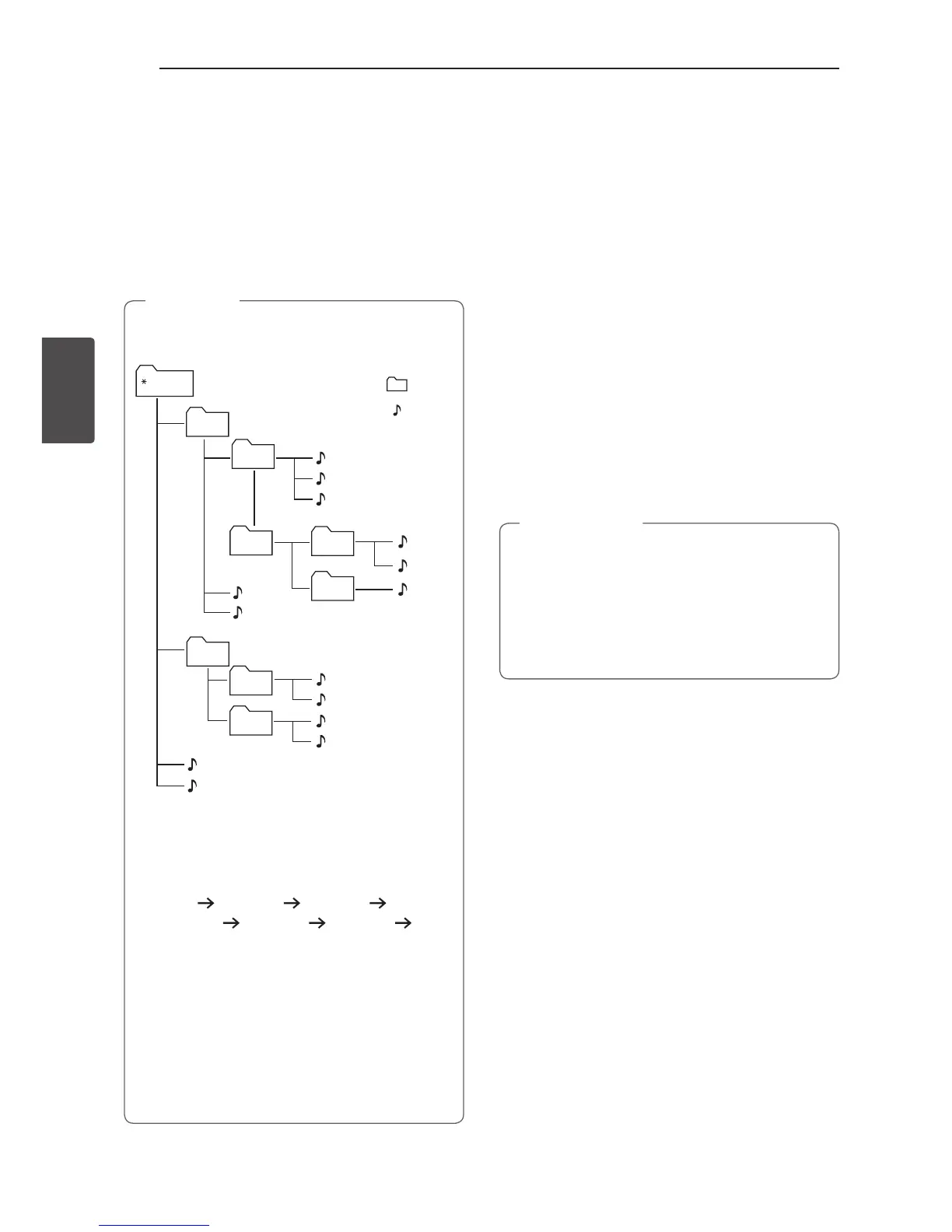
y CD/USB Folders/Files are recognized as
below.
FOLDER1
ROOT
FOLDER3
FOLDER4
FOLDER2
FOLDER7
FOLDER8
FOLDER5
FOLDER6
FILE 5
FILE 6
FILE 7
FILE 8
FILE 9
FILE 10
FILE 3
FILE 4
FILE 11
FILE 12
FILE 13
FILE 14
FILE 1
FILE 2
FOLDER
FILE
y If there is no le in a folder, the folder will not
appear.
y Folders will be presented as the following
order;
ROOT
FOLDER1 FOLDER3
FOLDER7
FOLDER8 FOLDER5
FOLDER6
y File will be played from $ le No.1 to $ le
No.14 one by one.
y Files and folders will be presented in order
recorded and may be presented differently
according to the record circumstances.
y *ROOT : The rst screen you can see when a
computer recognize the CD/USB is “ROOT”.
,
Note
Deleting a file/folder or format
You can delete le, folder on your USB or format the
USB.
1. Select USB function by pressing F.
2. - Deletes le : Select the le you want to delete
and select “DEL FILE” by pressing DELETE on
the remote control.
- Deletes folder : Select the folder you want to
delete and select “DEL DIR” by pressing DELETE
on the remote control.
- Formats USB : Select “FORMAT” by pressing
DELETE on the remote control to format the
USB device.
If you want to exit the current mode, Press Z on
the remote control or I on the unit.
3. To delete file/folder or format, press dM on the
remote control or T on the unit.
y Do not extract the USB device during
operation. (play, delete, etc.)
y Regular back up is recommended to prevent
data loss.
y The delete function may not be supported
according to the USB status. (lock, etc.)
>
Caution



 To Next Page