EasyManua.ls Logo

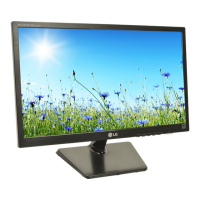
LG E2242T-BN - User Manual

LG E2242T-BN
31 pages
Print Icon
To Next Page IconTo Next Page
Loading...
www.lg.com
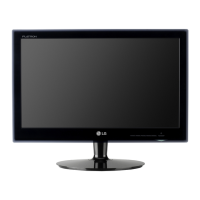
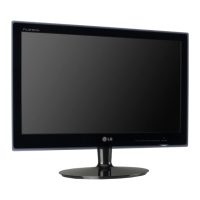
OWNER’S MANUAL
LED LCD MONITOR
E1942S E2042T
E2042S E2242T
E2242S E2342T
E2442T
Please read this manual carefully before operating
your set and retain it for future reference.
LED LCD MONITOR MODEL
ENGLISH

Other manuals for LG E2242T-BN

Questions and Answers

  • N
    Nicole VincentAug 8, 2025
    What to do if no image appears on my LG monitor?
    • T
      Tommy FisherAug 8, 2025
      If your LG monitor displays no image, ensure the power cord is correctly connected to the outlet and that the monitor is powered on. Check the brightness and contrast settings. If the monitor is in power saving mode, try moving the mouse or pressing a key. Also, ensure your PC is turned on. If the PC signal is out of range, check the 'Specifications' section of the manual and configure your display again. Note that the monitor goes to DPM mode when on 'No-Signal' for 5 minutes.
  • A
    Ashley RamseyAug 13, 2025
    Why is my LG monitor screen blinking?
    • J
      Jackson BrownAug 13, 2025
      If your LG monitor screen is blinking, check if the screen is set to interlace mode. If it is, change it to the recommended resolution.
  • A
    Alexandra VillarrealAug 18, 2025
    Why is my LG E2242T-BN Monitor display image incorrect?
    • A
      Amy DanielsAug 18, 2025
      If the display image on your LG monitor is incorrect, try pressing the AUTO button to automatically adjust the display to the ideal setting. Also, check your display settings in Control Panel and adjust the resolution to the recommended one. Ensure that the color setting is higher than 24 bits (true color).
  • W
    watsonbeverlyAug 25, 2025
    Why is the screen color mono or abnormal on my LG E2242T-BN?
    • K
      karenbennettAug 25, 2025
      If the screen color on your LG monitor is mono or abnormal, ensure the signal cable is properly connected, tightening it with a screwdriver if necessary. Also, verify that the video card is correctly inserted in its slot. Check the color settings in the Control Panel and set it to higher than 24 bits (true color).
  • K
    knortonAug 28, 2025
    What to do if I see an "Unrecognized monitor, Plug&Play (VESA DDC) monitor found" message on my LG monitor?
    • S
      Sarah VargasAug 28, 2025
      If you see an "Unrecognized monitor, Plug&Play (VESA DDC) monitor found" message on your LG monitor, install the display driver from the CD or diskette that came with your display. Also, make sure your video card supports the Plug&Play function.
  • J
    Jason MunozSep 2, 2025
    How to unlock OSD on LG E2242T-BN?
    • J
      Jonathan GarciaSep 2, 2025
      To unlock the OSD controls on your LG monitor, push the MENU button for several seconds until the message 'OSD UNLOCKED' appears.

Summary

Assembling and Preparing

Unpacking

Details the items included in the product box.

Parts and Buttons

Identifies physical components and control buttons on the monitor.

Setting Up the Monitor

Instructions for attaching and detaching the stand base.

Mounting on a Table

Guidance for positioning the monitor on a flat surface.

Mounting on a Wall

Procedures and considerations for wall-mounting the monitor.

Customizing Settings

OSD Menu Navigation

Guide to accessing and navigating the On-Screen Display menus.

Troubleshooting

No Image Appears

Solutions for issues where the screen remains blank.

Display Image Incorrect

Troubleshooting steps for incorrect display positioning or artifacts.

Unrecognized Monitor

Guidance for when the system doesn't recognize the monitor.

LG E2242T-BN Specifications

General IconGeneral
Screen Size21.5 inches
Resolution1920 x 1080
Panel TypeTN
Brightness250 cd/m²
Contrast Ratio1000:1
Response Time5 ms
ConnectivityVGA, DVI-D
Aspect Ratio16:9
Contrast Ratio (Dynamic)5, 000, 000:1
Input PortsVGA, DVI-D
Viewing Angle170° (H) / 160° (V)

Related product manuals