EasyManua.ls Logo

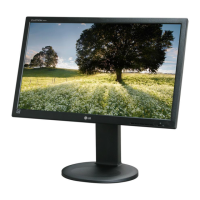
LG IPS237L-BN - User Manual

LG IPS237L-BN
28 pages
Print Icon
To Next Page IconTo Next Page
Loading...
www.lg.com
OWNER’S MANUAL
IPS LED MONITOR
IPS237L
IPS277L
Please read this manual carefully before operating
your set and retain it for future reference.
IPS LED MONITOR MODEL
ENGLISH

Questions and Answers

  • B
    Brian CamposJul 29, 2025
    How to fix an LG Monitor when no image appears?
    • A
      Alexander FisherJul 29, 2025
      If no image appears on your LG Monitor, first ensure the power cord is properly connected to the power outlet and that you have pressed the Power button. If the power indicator is red, adjust the brightness and contrast. If the power indicator is flickering, the display might be in power saving mode; try moving the mouse or pressing a key on the keyboard. Also, ensure that your PC is turned on. If the signal from the PC is out of the monitor's frequency range, consult the 'Specifications' section of the manual to reconfigure your display settings. The monitor enters DPM mode if it remains on "No-Signal" for 5 minutes.
  • S
    samuelgarnerAug 2, 2025
    Why does my LG IPS237L-BN Monitor screen blink?
    • J
      Jeffrey LeeAug 2, 2025
      If your LG Monitor screen blinks, check if the screen is set to interlace mode. If it is, change it to the recommended resolution.
  • D
    douglasmartinezAug 6, 2025
    Why is the LG IPS237L-BN screen color mono or abnormal?
    • J
      Jesus MartinAug 6, 2025
      If the screen color on your LG Monitor is mono or abnormal, first check if the signal cable is properly connected, tightening it with a screwdriver if necessary. Ensure the video card is properly inserted in its slot. Also, verify that the color setting is set higher than 24 bits (true color) in Control Panel ? Settings.
  • T
    tiffany50Aug 11, 2025
    What to do if the LG IPS237L-BN display image is incorrect?
    • T
      Tara BellAug 11, 2025
      If the display image on your LG Monitor is incorrect, try pressing the AUTO button to automatically adjust the image to the ideal setting. Also, check Control Panel ? Display ? Settings and adjust the display to the recommended resolution. Ensure that your color settings are higher than 24 bits (true color).
  • R
    rickey93Aug 15, 2025
    What does it mean when my LG IPS237L-BN says "Unrecognized monitor, Plug&Play (VESA DDC) monitor found"?
    • P
      Paula JensenAug 15, 2025
      If you see an "Unrecognized monitor, Plug&Play (VESA DDC) monitor found" message on your LG Monitor, install the display driver from the CD (or diskette) that came with your display. Also, make sure to check if the video card supports the Plug&Play function.
  • E
    Elizabeth RobertsAug 20, 2025
    What to do if no image appears on LG IPS237L-BN when connecting a mobile phone?
    • R
      Rebecca RamseyAug 20, 2025
      If no image appears on your LG Monitor when connecting a mobile phone, first check if the mobile phone supports MHL. Then, try updating the mobile phone's software to the latest version. Finally, verify that the MHL cable is correctly connected to both the mobile phone and the HDMI2/MHL port.
  • K
    Kevin McintyreAug 23, 2025
    How to unlock OSD on LG IPS237L-BN Monitor when it says "OSD LOCKED"?
    • A
      Ashley WhiteAug 25, 2025
      If you see an "OSD LOCKED" message on your LG Monitor, it means the current control settings are secured. To unlock the OSD controls, push the MENU button for several seconds until the message “OSD UNLOCKED” appears.

Summary

ASSEMBLING AND PREPARING

Unpacking

Contents of the product box and initial check.

Parts and buttons

Identification of monitor components and control buttons.

Setting up the Monitor set

Instructions for initial monitor setup and placement.

Detaching the Stand Base

Procedures for safely removing the monitor's stand base.

Mounting on a table

Procedures for placing and securing the monitor on a table surface.

Using the cable holder

Guidance on utilizing the integrated cable management feature.

Kensington Security System

Instructions for installing and using the optional security cable.

USING THE MONITOR SET

PC Connectivity

Explains D-SUB and HDMI connections for PCs.

Mobile Phone Connectivity

Details on connecting mobile phones via MHL.

Self Image Setting Function

Automatically adjusts display settings for optimal picture quality.

CUSTOMIZING SETTINGS

Navigating Menu Settings

Overview of accessing and navigating the monitor's on-screen display menu.

Detailed Menu Options

Explanation of various settings accessible through the menu system.

Picture Adjustment Settings

Adjusting sharpness, black level, overscan, and response time for optimal image quality.

Color Adjustment Settings

Customizing gamma, color temperature, hue, and saturation for desired color output.

Display Configuration

Settings for horizontal/vertical positioning, clock, and phase for display stability.

Audio Volume Control

Adjusting the audio output volume for HDMI input.

System Preferences

Configuring language, power indicator, automatic standby, and button sounds.

MY KEY Function Assignment

Setting up a custom shortcut key for frequently used functions.

Advanced Function Settings

Accessing energy saving, dual display, dual web, and color finder features.

TROUBLESHOOTING

No Image Issues

Solutions for situations where the display shows no image or signal.

Mobile Phone Connectivity Problems

Troubleshooting MHL connection issues with mobile phones.

OSD Locked Message

Resolving the "OSD LOCKED" error and unlocking controls.

Incorrect Display Image

Addressing issues like incorrect positioning, lines, or noise in the display.

Screen Color and Flickering Issues

Fixing abnormal colors, blinking screens, or flickering resolutions.

Monitor Recognition Errors

Resolving "Unrecognized monitor" messages and driver issues.

SPECIFICATIONS

IPS237 L Model Specifications

Detailed technical specifications for the IPS237L monitor model.

IPS277 L Model Specifications

Detailed technical specifications for the IPS277L monitor model.

Resolution and Timing Standards

Lists preset display modes, resolutions, and timing for HDMI/MHL inputs.

Indicator Status Guide

Explains the LED color codes for different monitor operating modes.

PROPER POSTURE

LG IPS237L-BN Specifications

General IconGeneral
Screen Size23 inches
Panel TypeIPS
Resolution1920 x 1080
Aspect Ratio16:9
Brightness250 cd/m²
Contrast Ratio1000:1
Response Time5 ms
ConnectivityDVI-D, HDMI, VGA
Viewing Angle178° (H) / 178° (V)
Color Depth16.7 million colors
Color Gamut72% NTSC
Power Consumption30W (typical), 0.5W (standby)

Related product manuals