Need help?
Do you have a question about the LG IPS234VA and is the answer not in the manual?
Details items included in the product box and how to check for completeness.
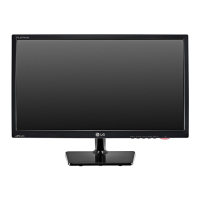
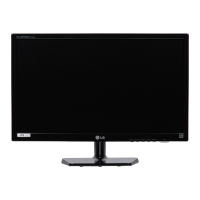
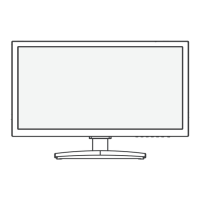
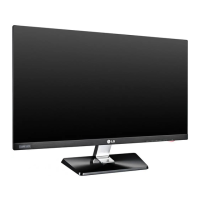
Identifies and describes the monitor's physical components and control buttons.
Provides instructions for attaching and detaching the monitor's stand base.
Provides steps for placing the monitor upright on a table and ensuring proper ventilation.
Explains how to use the cable holder for organizing cables.
Guides on using the optional security system for theft prevention.
Details procedures and VESA compatibility for mounting the monitor on a wall.
Explains how to connect the monitor to a computer for display output.
Details the analog video connection using a D-SUB cable.
Describes the digital video connection using a DVI-D cable.
Outlines the digital video and audio connection via HDMI cable.
Explains automatic display optimization for input signals.
Describes using the AUTO button to improve display clarity and fix issues.
Guides on accessing and navigating the On-Screen Display (OSD) menus using monitor buttons.
Details adjustments for screen clarity like sharpness, black level, and overscan.
Explains how to customize color temperature, hue, saturation, and reset color settings.
Covers adjustments for screen position (horizontal/vertical) and timing.
Explains volume control, language, power indicator, and white balance adjustments.
This document is an Owner's Manual for an LG IPS LED Monitor, specifically covering models IPS224V and IPS234V. It provides comprehensive instructions for assembling, operating, customizing, and troubleshooting the monitor, ensuring users can set up and maintain their device effectively.
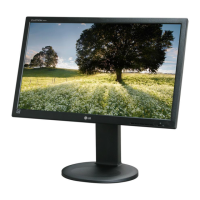
The LG IPS LED Monitor is designed to display video and audio signals from various sources, including personal computers (PCs) and A/V equipment. It supports multiple input types, including D-SUB (analog), DVI-D (digital), and HDMI (digital video and audio). The monitor is equipped with an IPS (In-Plane Switching) panel, which typically offers wider viewing angles and better color reproduction compared to traditional TN panels. The LED backlighting contributes to energy efficiency and a slim design.
The monitor functions as a visual output device, allowing users to view content from their connected devices with customizable display settings. It incorporates Plug & Play functionality, meaning a connected PC should automatically recognize the monitor without extensive manual configuration. The "Self Image Setting" function, primarily supported in Analog Mode, automatically adjusts display settings for optimal viewing when the monitor is first connected or powered on. Additionally, an "AUTO" function button is available to improve resolution and address issues like blurry screens, blurred letters, screen flicker, or tilted screens, particularly useful after changing screen resolution or when using analog input.
The manual details a straightforward assembly process, beginning with unpacking and identifying all components, including the stand body, stand base, power cord, AC-DC adapter, and various signal cables (D-SUB, DVI-D). Users are instructed to place the monitor face down on a soft, cushioned surface to prevent damage during stand attachment. The stand body and stand base are attached using screws, which should be tightened with a coin. For detaching the stand, the process is reversed.
The monitor can be mounted on a table or a wall. For table mounting, users are advised to leave a minimum of 10 cm space from the wall for proper ventilation. Wall mounting requires a VESA-compatible wall mount bracket and specific screws (M4, 10 mm length, 0.7 mm pitch). The manual emphasizes using authorized LG wall mounts and adhering to VESA standards to prevent damage or injury. It also warns against overtightening screws and installing the monitor on a ceiling or slanted wall.
The monitor offers versatile connectivity options:
A cable holder is integrated into the stand design to help organize and secure cables, contributing to a neater setup.
The monitor is powered via an AC-DC adapter and power cord connected to a wall outlet. The power button on the bottom switch panel turns the monitor on or off. A power indicator light shows the monitor's status: red when running properly (On Mode) and blinking red in Sleep Mode.
For security, the monitor includes a Kensington security system connector on the back. Users can connect a Kensington security cable between the monitor and a table to deter theft. This system is optional, and the cable is sold separately.
The monitor features an On-Screen Display (OSD) menu accessible via buttons on the bottom panel. The OSD allows users to customize various display settings:
The OSD controls can be locked to prevent accidental changes by pressing and holding the MENU button for several seconds. The "OSD LOCKED" message will appear. To unlock, press and hold the MENU button again until "OSD UNLOCKED" appears.
The manual includes a section on proper posture for using the monitor, emphasizing ergonomic considerations for user comfort and health.
A dedicated section provides guidance on common issues and their solutions, helping users resolve problems without needing external support.
The manual advises against pressing the screen with fingers for extended periods to prevent temporary distortion. It also recommends avoiding displaying fixed images for long durations to prevent image burn, suggesting the use of a screensaver.
When moving the monitor to another location, users are cautioned to unplug the power cord first to prevent electric shock.
Users are strongly advised to use only approved accessories to ensure product safety and lifespan. Damages or injuries resulting from the use of unapproved accessories are not covered by the warranty.
The manual notes that product specifications or contents may be changed without prior notice due to upgrades of product functions. Accessories supplied may vary by model.
The monitor is designed for a specific operating environment. Users are encouraged to customize settings like power indicator and white balance to suit their preferences. The manual also mentions that some red, green, or blue spots may appear on the screen, and flickering may occur when the monitor is turned on while cold; these are considered normal.
 General
| Screen Size | 23 inches |
|---|---|
| Panel Type | IPS |
| Resolution | 1920 x 1080 |
| Aspect Ratio | 16:9 |
| Brightness | 250 cd/m² |
| Contrast Ratio | 1000:1 |
| Dynamic Contrast Ratio | 5, 000, 000:1 |
| Response Time | 5 ms |
| Viewing Angles | 178° horizontal / 178° vertical |
| Connectivity | D-Sub, DVI-D |


 To Next Page