33SMART FUNCTIONS
ENGLISH
SMART FUNCTIONS
LG ThinQ Application
LG ThinQ Application Features
This feature is only available on models with the
or logo.
The LG ThinQ application allows you to
communicate with the appliance using a
smartphone.
Communicate with the appliance from a
smartphone using the convenient smart features.
Smart Diagnosis
• If you experience a problem while using the
appliance, this smart diagnosis feature will help
you diagnose the problem.
Settings
• Allows you to set various options on the
appliance and in the application.
NOTE
• If you change your wireless router, internet
service provider, or password, delete the
registered appliance from the LG ThinQ
application and register it again.
• The application is subject to change for
appliance improvement purposes without
notice to users.
• Functions may vary by model.
Before Using LG ThinQ
Application
1 Check the distance between the appliance
and the wireless router (Wi-Fi network).
• If the distance between the appliance and
the wireless router is too far, the signal
strength becomes weak. It may take a long
time to register or installation may fail.
2 Turn off the Mobile data or Cellular Data on
your smartphone.
3 Connect your smartphone to the wireless
router.
NOTE
• To verify the Wi-Fi connection, check that the
icon on the control panel is lit.
• The appliance supports 2.4 GHz Wi-Fi
networks only. To check your network frequency,
contact your Internet service provider or refer to
your wireless router manual.
• LG ThinQ is not responsible for any network
connection problems or any faults, malfunctions,
or errors caused by network connection.
• If the appliance is having trouble connecting to
the Wi-Fi network, it may be too far from the
router. Purchase a Wi-Fi repeater (range
extender) to improve the Wi-Fi signal strength.
• The Wi-Fi connection may not connect or may
be interrupted because of the home network
environment.
• The network connection may not work properly
depending on the Internet service provider.
• The surrounding wireless environment can
make the wireless network service run slowly.
• The appliance cannot be registered due to
problems with the wireless signal transmission.
Unplug the appliance and wait about a minute
before trying again.
• If the firewall on your wireless router is enabled,
disable the firewall or add an exception to it.
• The wireless network name (SSID) should be
a combination of English letters and numbers.
(Do not use special characters.)
• Smartphone user interface (UI) may vary
depending on the mobile operating system (OS)
and the manufacturer.
• If the security protocol of the router is set to
WEP, you may fail to set up the network. Please
change it to other security protocols (WPA2 is
recommended) and register the product again.
Installing the LG ThinQ
Application
Search for the LG ThinQ application from the
Google Play Store or Apple App Store on a smart
phone.
• Follow instructions to download and install the
application.
Connecting to Wi-Fi
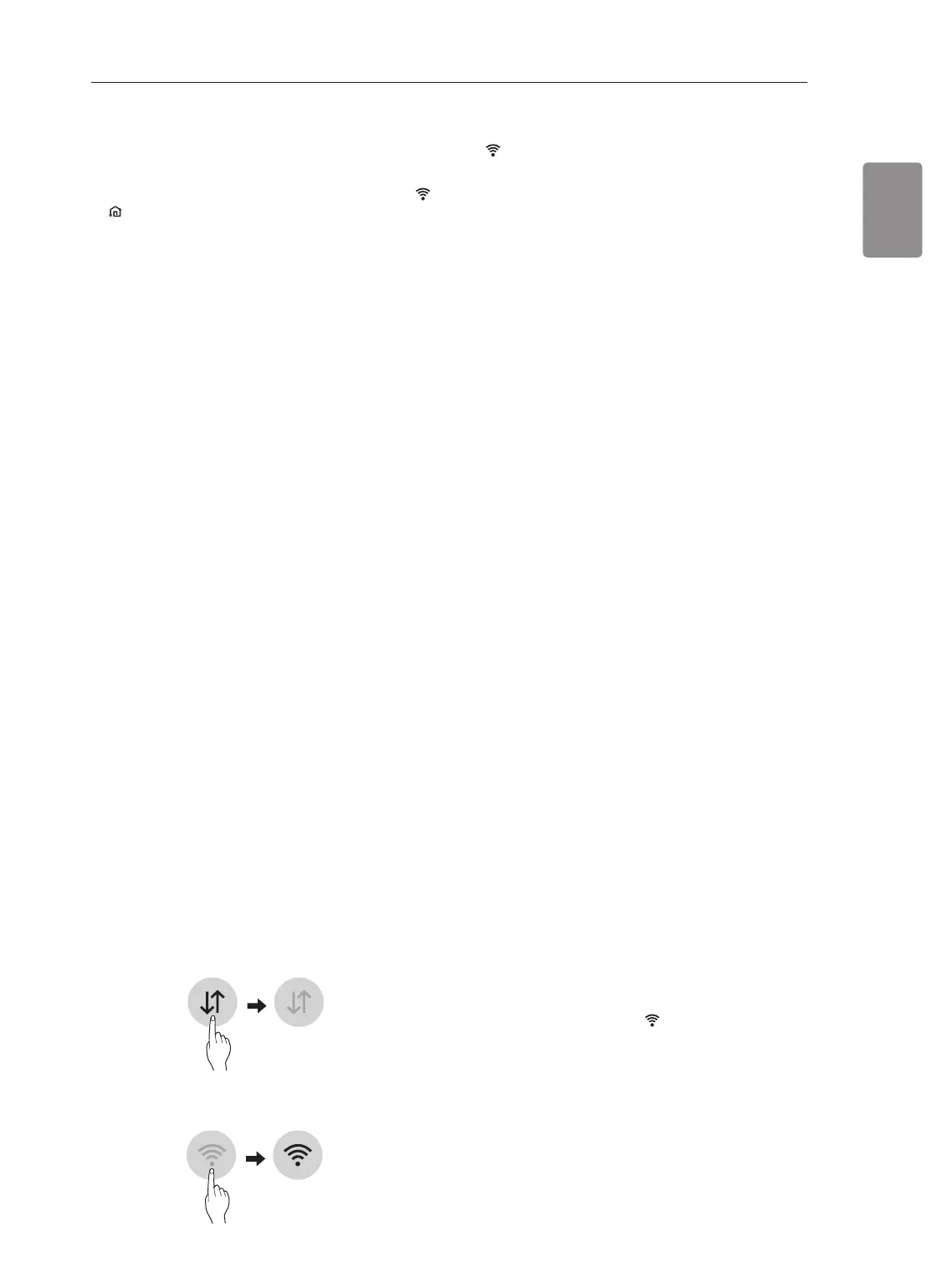
The Wi-Fi button, when used with the LG ThinQ
application, allows the appliance to connect to a
home Wi-Fi network. The icon shows the status
of the appliance’s network connection. The icon
illuminates when the appliance is connected to
the Wi-Fi network.
Initial Appliance Registration
• Run the LG ThinQ application and follow the
instructions in the application to register the
appliance.


 To Next Page