MS- E10 User Guide
Due to our policy of continuous product innovation, some specifications may change without notification.
©LG Electronics U.S.A., Inc., Englewood Cliffs, NJ. All rights reserved. “LG” is a registered trademark of LG Corp. 22
Before starting the commissioning process, note the following points:
•
Throughout the wizard’s dialogs, use the buttons Back and Next, as needed, to retrace (or skip) steps. Also, the
Cancel button exits the wizard after your confirmation—no operations are performed as a result.
•
Before committing to the final sequence of steps, the wizard provides a summary for you to review.
Starting the Commissioning Wizard
The Commissioning Wizard runs a series of steps to guide you through all the needed information.
Prerequisites:
In Workbench on your PC, open a platform connection to the MS-E10 device.
Step 1: In the Nav tree, right-click Platform →Commissioning Wizard.
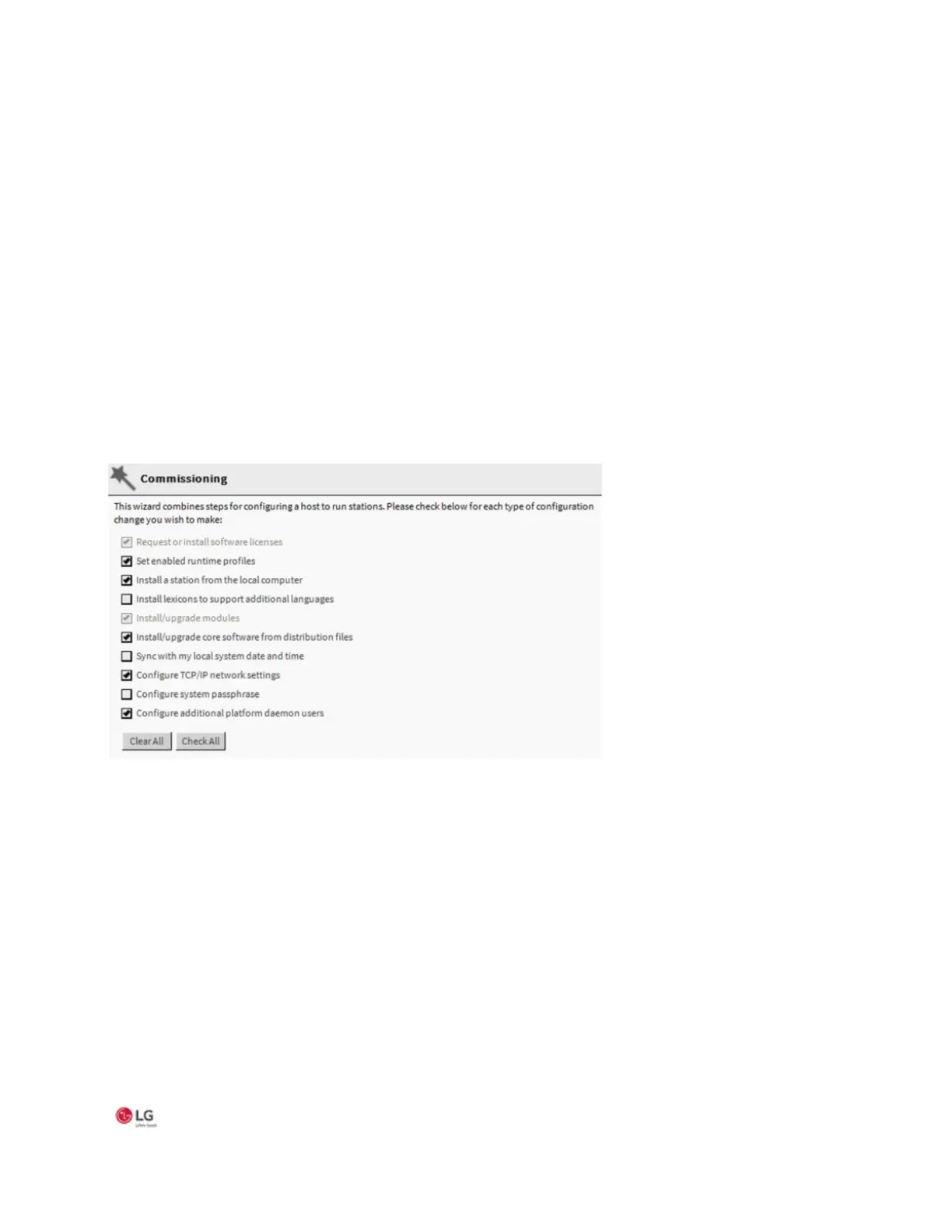
The dialog box Commissioning for “<IP address>” displays with default selections for a new MS-E10 device).
Figure 9: Commissioning dialog box
By default, all steps are preselected except lexicon installation. Steps are executed in the order listed.
Note:
In Niagara 4.6 and later, if the Workbench FIPS Option to Show FIPS Options is set to “true” certain FIPS options become visible
in this window. If selected, FIPS-strength password requirements are enforced.


 To Next Page