MS- E10 User Guide
Due to our policy of continuous product innovation, some specifications may change without notification.
©LG Electronics U.S.A., Inc., Englewood Cliffs, NJ. All rights reserved. “LG” is a registered trademark of LG Corp. 65
About the Edge system shell mode
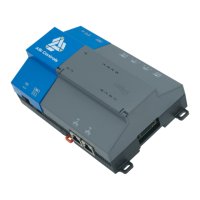
To put the MS-E10 device into the debug system shell mode, plug-in the USB-to-MicroUSB cable. This makes the system shell
available at the controller’s Debug port, at a pre-defined serial rate: 115200, 8, N, 1.
Using a terminal emulation program, such as PuTTY, you can login with platform credentials and access the system shell menu.
After changing platform IP address parameters, a reboot command from the menu is necessary, and you remove the USB cable.
The MS-E10 device reboots using the changed IP address parameters.
Apart from physical access to the controller, you need the following items:
•
A working USB port on your PC.
• VCOM or similar PC software (such as PuTTY) enabling the USB port to emulate a serial port
• A cable to connect your PC’s USB port to the MS-E10 device’s Debug port.
Connecting to the debug system shell
The following procedure provides steps to use the system shell. Examples provided use the PuTTY terminal emulation program.
Prerequisites:
• Physical access to the MS-E10 device controller
• Universal USB-to-MicroUSB connector cable
Step 1 Connect the USB cable between the controller’s Debug port and the USB port you are using on your PC.
Step 2 On your PC, start your terminal emulation software. For example to start PuTTY from the Windows Start menu, this is
typically Programs > PuTTY → PuTTY.
Step 3 In the tree in the PuTTY Configuration dialog, expand Connection and click Serial.
Step 4 Set the “Serial line to connect to” for your PC’s (USB) COM port to use. For example, COM3.
• You can examine Ports in Windows Device Manager to determine which serial port is in use on the PC.
Step 5 Set the “Configure the serial line” fields as follows:
• Speed (baud): 115200
• Data bits: 8
•
Stop bits:
1
•
Parity: None
•
Flow control: None
Step 6 In the tree in the PuTTY Configuration dialog, click Session and then click/select the “Connection type” as Serial.
• (Optional) You can save this configuration to reuse (load) in future PuTTY to MS-E10 device serial sessions.
To do this, type in a connection name in the “Saved Sessions” field (for example, “MS-E10 device”), and click
Save.
When you start PuTTY again to serially connect to the device, select this name and click Load.
Step 7 At the bottom of the PuTTY Configuration dialog, click Enter.
Step 8 At the login prompt, enter a platform user name, and at the password prompt, the platform password.
a. If prompted for system passphrase, enter the platform’s system passphrase. If login is successful, the MS-E10
System Shell menu appears:


 To Next Page