Need help?
Do you have a question about the LG Risio 2 and is the answer not in the manual?
Identifies front-facing camera, earpiece, sensors, and top buttons.
Details the touch screen, home key, and recent apps key for navigation.
Locates headset port, microphones, charging port, rear camera, and power/volume buttons.
Guide to inserting the nano-SIM and optional microSD card into the device.
Explains basic touch interactions like tap, drag, and slide for navigating the interface.
Describes how to access and manage alerts and notifications on the device.
Details adding apps, widgets, and wallpapers to personalize the home screen.
Explains moving, deleting, creating, and renaming folders and icons.
Instructions on dialing numbers, using call logs, and contacts to place calls.
How to manage multiple incoming calls while already on a call.
Steps to access and listen to voicemail messages.
Guide to composing and sending SMS messages to contacts.
Steps for sending MMS messages with images or other files.
Instructions for configuring email accounts on the device.
How to compose, send, and attach files to email messages.
Access billing, payments, and usage information for Cricket services.
Manage voicemail messages with a visual interface for quick access.
Information on streaming music, downloading favorites, and creating playlists.
Steps to open the Play Store and log in with a Google account.
How to find, search, and install applications from the Play Store.
Instructions for taking pictures and recording videos using the camera.
How to access gallery, view photos, and share captured content.
Guide to creating notes, adding photos, and setting reminders within QuickMemo+.
Instructions to create a tap pattern for unlocking the phone securely.
How to wake the phone screen by double-tapping it.
Find detailed support, specifications, and user manuals online or by phone.
Information on purchasing official accessories for the device.
The LG Risio 2 is a smartphone designed for clear and simple use, operating on the Cricket Wireless network. This guide provides a quick start to its features and setup.
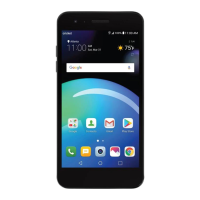
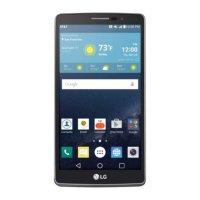
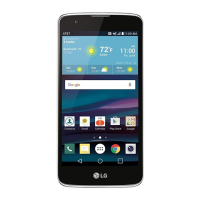
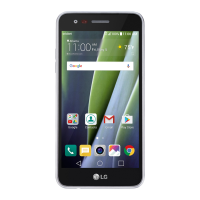
The LG Risio 2 features a standard smartphone design with several key components. On the front, it includes a proximity sensor, earpiece, microphone, and a front-facing camera. The main display is a touch screen that serves as the primary interface for interaction. Below the screen, there are three navigation keys: a Back key, a Home key (which can be pressed and held for Google Now™), and a Recent apps key (which can be long-pressed for settings). The bottom edge of the device houses a headset port, another microphone, and a charging/data port.
The rear of the phone includes a rear camera, a flash, and a power/lock key. On the side, there's a volume up/down key. The device color may vary.
To set up the LG Risio 2, first, carefully remove the back cover by pulling from the bottom left-hand side. Insert the nano-SIM card into its designated slot with the gold-colored contacts facing down. Optionally, a microSD card can be inserted into the microSD slot, also with gold-colored contacts facing down. After inserting the cards, replace the back cover, ensuring it clicks into place, and then charge the phone.
The touch screen is operated by lightly touching it with a fingertip. Users can tap, drag, or slide their finger up, down, left, and right to perform various functions. The Back key returns to the previous screen, while the Home key returns to the main home screen. The Recent apps key displays a list of recently used applications.
The Notifications panel provides a quick summary of alerts, including new messages, emails, calls, and software updates. It can be accessed by swiping down from the top of any home screen. Individual notifications can be cleared by swiping left or right on the alert, or all notifications can be removed by tapping "CLEAR."
Home screens can be customized with apps, widgets, and wallpapers. To access customization options, tap and hold a blank part of the home screen, then select Widgets, Wallpapers, Home screen settings, or Uninstalled Apps. Items can be added by swiping through options and tapping or dragging them to the home screen.
Widgets, shortcuts, or folders can be moved by tapping and holding them, then dragging them to a new location. To delete an item, tap and hold it, then drag it to "Remove." Folders can be created by tapping and holding an icon and dragging it on top of another. To rename a folder, tap it, then tap the folder name field to bring up the keyboard.
To make a call, tap the Phone icon from the home screen. Users can choose to dial a number manually, use call logs to retry or return recent calls, select a saved contact from the address book, or find contacts through groups. The device supports call waiting, allowing users to take two calls at once. If a new call comes in while on an existing call, a tone will be heard. Tapping "Answer" and swiping in any direction will receive the new call, placing the current call on hold. Both calls will be listed on screen, and tapping a call in the list makes it active. To check voicemail, tap the Phone icon from the home screen, then tap "Voicemail" from the Dial tab.
To send a text message, tap the Messaging icon from the home screen, then tap "Compose" to start a new message. In the "To" field, enter a number or contact name, or tap "Contacts" to select from the address book. Enter the message in the "Enter message" field and tap "Send." To send a picture message, follow the steps for sending a text message, then tap "Attach." Select "Image" to choose a picture or another file to attach, then tap "Send." Users are reminded not to text and drive.
To set up email, tap the Email icon from the home screen, select an email provider, and enter the email address and password, then tap "NEXT." Once synced, tap "DONE." To create and send an email, tap the Email icon, then "Compose." In the "To" field, enter an email address or name, or tap "Contacts" to select from the address book. Enter a subject and message. To attach files, tap "ATTACH" and follow the on-screen instructions. Finally, tap "SEND." For corporate email setup, contact the IT administrator.
The LG Risio 2 integrates with several Cricket services:
To access Google Play, tap the Play Store icon from the home screen. Users can log in with an existing Google™ account or create a new one. To navigate Google Play, tap a category to browse popular apps, games, movies, and music. The search bar at the top of the screen allows searching for specific games or apps. To install an app, tap it and follow the on-screen instructions. An alert will appear in the Notifications panel once installed, and the app can be opened from there or the home screen. Note that a payment method needs to be set up in the My account folder in Play Store settings for purchasing apps.
To take a picture, tap the Camera icon from the home screen, then tap "Menu." Camera settings (timer, grid, resolution) can be adjusted by tapping "Settings." Zooming is done by pinching/spreading two fingers on the screen. Tap "Shutter" or press the Volume up/down key to take a photo. Pictures can be viewed by tapping the Gallery icon. To take a video, tap "Camcorder" in camera mode to start recording automatically. Tap "Stop recording" to end. Recording can be paused and resumed, and photos can be captured during recording. To share a picture or video, tap the Gallery thumbnail, then tap the screen, and then "Share." Sharing options include messaging, email, and Bluetooth®.
QuickMemo+ allows users to create memos. From the home screen, tap "Tools," then "QuickMemo+." Tap "+" to add a new memo, or the camera icon to take a photo to add text or draw on. Tap "Done" to save the memo. To add a time or location reminder, tap a memo, then "Add reminder."
Set Up Knock Code: This feature allows unlocking the phone with a tap pattern. From the home screen, long-press the Recent apps key, then tap "Lock screen settings." Tap "Select screen lock," then "Knock Code." Tap "NEXT," set the unlock pattern on the quadrants, tap "NEXT," re-enter the pattern, and tap "CONFIRM." Tap "NEXT," enter a backup PIN, tap "NEXT," confirm it, and tap "OK." Select notification types for the Lock screen and tap "OK." Wake Up Screen with Knock On: While the phone is in sleep mode, tap the screen twice with a finger to wake it up. Once awake, users can view notifications, access apps on the lock screen, or unlock the phone.
The manual does not explicitly detail maintenance features beyond the initial setup and charging instructions. However, general smartphone maintenance practices like software updates (mentioned in notifications) and proper handling would apply. The device is designed to meet FCC Radio Frequency Exposure Guidelines.
Detailed support information, device specifications, and the full user manual are available online at www.cricketwireless.com/support/devices. Customer Care can be reached by calling 1-855-246-2461 or by dialing 611 from the phone. Cricket offers a full line of accessories, which can be found at www.cricketwireless.com/shop/accessories or at a local Cricket retailer. All features and specifications are subject to change without notice. Screen shots are simulated.
 General
| Brand | LG |
|---|---|
| Model | Risio 2 |
| Category | Cell Phone |
| Language | English |

 To Next Page