EasyManua.ls Logo

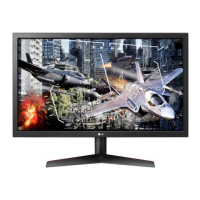
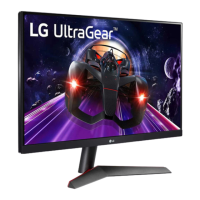
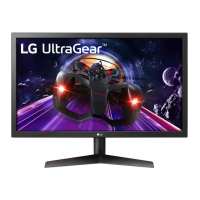
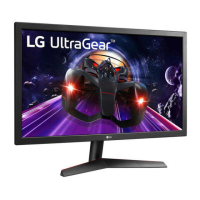
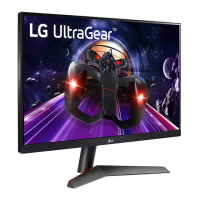
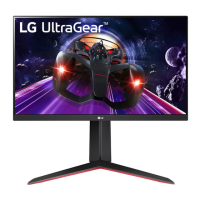
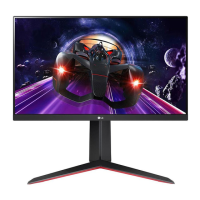
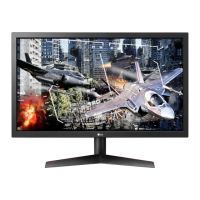
LG UltraGear 24GN50W - User Manual

LG UltraGear 24GN50W
37 pages
Print Icon
To Next Page IconTo Next Page
Loading...
* LG LED Monitor applies LCD screen with LED
backlights.
Please read this manual carefully before operating
your set and retain it for future reference.
24GL600F
24GN50W
24GN53A
www.lg.com
Copyright © 2018 LG Electronics Inc. All Rights Reserved.
OWNER’S MANUAL
(LED Monitor*)

Other manuals for LG UltraGear 24GN50W

Questions and Answers

  • A
    arielwhiteSep 12, 2025
    What to do if my LG UltraGear 24GN50W screen retains an image?
    • S
      Stacy ReevesSep 12, 2025
      If your LG Monitor screen retains an image, it's likely due to displaying a still image for an extended period. To prevent this and extend the monitor's lifespan, use a screensaver.
  • T
    tjonesAug 23, 2025
    Why is my LG monitor screen display unstable and shaky, and why do images leave shadow trails?
    • S
      sabrinahendersonAug 23, 2025
      If your LG monitor's screen display is unstable, shaky, or images leave shadow trails, it might be due to the selected resolution. If the resolution is HDMI 1080i 60/50 Hz (interlaced), the screen may flicker. Try changing the resolution to 1080p or the recommended resolution.
  • T
    Tim BrennanAug 25, 2025
    How to fix no sound from the headphone port on my LG UltraGear 24GN50W Monitor?
    • M
      michaelavilaAug 25, 2025
      If there is no sound from the headphone port on your LG monitor, first ensure that the headphone port connections are properly made. Try increasing the volume using the joystick. Also, set the audio output of your PC to the monitor you are using by going to Control Panel > Hardware and Sound > Sound and setting the Monitor as the default device (on Microsoft Windows).
  • W
    wparkerAug 27, 2025
    How to get sound from the headphone port on my LG Monitor?
    • M
      Matthew RodriguezAug 28, 2025
      If there is no sound from the headphone port on your LG Monitor, first ensure that the headphone port connections are made properly. Then, try increasing the volume using the joystick. Finally, set the audio output of the PC to the monitor you are using. On Microsoft Windows, go to Control Panel > Hardware and Sound > Sound and set the Monitor as the default device.
  • A
    Andrew MaciasAug 29, 2025
    Why is nothing displayed on my LG UltraGear 24GN50W screen?
    • N
      Norma ElliottAug 29, 2025
      There could be several reasons why your LG Monitor screen is blank: * Ensure the power cord is securely plugged into the outlet. * Verify the power cable connection and press the power button. * Confirm the correct input is enabled via Menu > Input. * If the monitor is in sleep mode, move the mouse or press a key. Also, check that your computer is on. * If the signal from the PC is outside the monitor's frequency range, refer to the Product Specification section of the manual to set the appropriate frequency. * Check and reconnect the signal cable between the PC and the monitor. * Install the display driver from the LG website and ensure your graphics card supports Plug and Play.
  • B
    Brian MilesSep 1, 2025
    What to do if there is no sound from the headphone port on my LG UltraGear 24GN50W Monitor?
    • G
      geoffrey24Sep 1, 2025
      If you're not getting any sound from the headphone port on your LG Monitor: * Ensure that the headphone port connections are properly made. * Try increasing the volume using the joystick on the monitor. * Set the audio output of your PC to the monitor. In Microsoft Windows, go to Control Panel > Hardware and Sound > Sound and set the Monitor as the default device.
  • D
    Denise LeeNov 25, 2025
    What to do if nothing is displayed on my LG Monitor?
    • C
      Cathy JonesNov 25, 2025
      If nothing is displayed on your LG Monitor, ensure the power cord is correctly plugged into the power outlet. Also, check the power cable connection and press the power button. Verify that the connected input is enabled in the monitor's settings (Settings > Input). If the monitor is in sleep mode, move the mouse or press any key on the keyboard. Confirm that your computer is turned on. If the signal cable between the PC and the monitor is missing or disconnected, check the cable and reconnect it. Be sure to install the display driver from the LG website. Make sure to check if the graphics card supports Plug and Play function. If the screen is not currently set to the recommended resolution because signals transferred from the PC (graphics card) are out of the recommended horizontal or vert...
  • N
    ndownsDec 1, 2025
    How to fix an LG Monitor when nothing is displayed on the screen?
    • T
      Tony StevensDec 1, 2025
      If nothing is displayed on your LG Monitor screen, there are several things to check: * Ensure the power cord is correctly plugged into the power outlet. * Verify the power cable connection and press the power button. * Confirm that the connected input is enabled by going to Menu > Input. * If the monitor is in sleep mode, move the mouse or press any key on the keyboard. Also, check if the computer is turned on. * If you see nothing, it could be due to signals from the PC (graphics card) being outside the monitor's recommended frequency range. Refer to the Product Specification section of the manual to set the appropriate frequency. * If the signal cable between the PC and the monitor is missing or disconnected, check the cable and reconnect it. * Make sure to install the di...
  • L
    Laura JacksonSep 12, 2025
    How to fix unstable and shaky screen display on LG UltraGear 24GN50W?
    • R
      Robert RobinsonSep 12, 2025
      If your LG Monitor's screen display is unstable, shaky, or images leave shadow trails, it may be due to the resolution being set to HDMI 1080i 60/50 Hz (interlaced). Change the resolution to 1080p or the recommended resolution to resolve this issue.
  • M
    mirandathorntonSep 7, 2025
    Why does the screen retain an image on my LG UltraGear 24GN50W Monitor?
    • F
      fostersarahSep 8, 2025
      Displaying a still image for a prolonged time may cause damage to the screen, resulting in the retention of the image on your LG Monitor. To extend the lifetime of the monitor, use a screensaver.

Summary

ASSEMBLING AND PREPARING

How to Use the Joystick Button

Instructions on operating the monitor functions using the joystick button.

Moving and Lifting the Monitor

Guidelines for safely moving and lifting the monitor to prevent damage.

Installing on a Table

Instructions for setting up the monitor on a table, including ventilation requirements.

Adjusting the Angle

Steps to adjust the screen's viewing angle for comfort.

Installing the Wall Mount Plate

Instructions for attaching a wall mount plate to the monitor.

Installing on the Wall

Instructions for mounting the monitor on a wall, including ventilation.

USING THE MONITOR

USER SETTINGS

Game Adjust Settings

Settings for optimizing gaming performance like motion blur reduction and FreeSync.

TROUBLESHOOTING

Screen Display Issues

Troubleshooting steps for issues when the screen displays nothing or shows errors.

PRODUCT SPECIFICATION

LG UltraGear 24GN50W Specifications

General IconGeneral
BrandLG
ModelUltraGear 24GN50W
CategoryMonitor
LanguageEnglish

Related product manuals