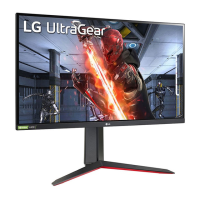
This document is the owner's manual for the LG UltraGear™ Gaming Monitor, specifically models 27GN950 and 27GN95B. It provides comprehensive information on assembling, operating, and maintaining the LED monitor.
Function Description
The LG UltraGear™ Gaming Monitor is an LED monitor designed for gaming, offering high-resolution display and various features to enhance the gaming experience. It supports multiple input sources, including HDMI and DisplayPort, and includes USB connectivity for peripherals. The monitor features a joystick button for easy navigation of the On Screen Display (OSD) menu and a lighting button to control the monitor's backlighting.
Important Technical Specifications
- Color Depth: 10-bit color is supported.
- Max Resolution:
- 3840 x 2160 @ 60 Hz (HDMI)
- 3840 x 2160 @ 160 Hz (DisplayPort) ([Overclock]: [On])
- Recommended Resolution:
- 3840 x 2160 @ 60 Hz (HDMI)
- 3840 x 2160 @ 144 Hz (DisplayPort)
- AC/DC Adapter:
- Model: ADS-110CL-19-3 190110G (Manufacturer: SHENZHEN HONOR ELECTRONIC)
- Input: 100-240 V~50/60 Hz 1.5 A
- Output: 19V ⎓ 5.79 A
- Model: ADS-120QL-19A-3 190110E (Manufacturer: SHENZHEN HONOR ELECTRONIC)
- Input: 100-240 V~50/60 Hz 1.6 A
- Output: 19V ⎓ 5.79 A
- Environmental Conditions:
- Operating Conditions:
- Temperature: 0 °C to 40 °C
- Humidity: Less than 80%
- Storing Conditions:
- Temperature: -20 °C to 60 °C
- Humidity: Less than 85%
- Dimensions (Monitor Size - Width x Height x Depth):
- With Stand: 609.2 x 570.6 x 291.2 mm
- Without Stand: 609.2 x 352.9 x 53.7 mm
- Weight (Without Packaging):
- With Stand: 7.7 kg
- Without Stand: 5.6 kg
- Power Sources:
- Power Rating: 19V ⎓ 5.0 A
- Power Consumption:
- Operating Mode: 65 W (Typical)*
- Sleep Mode: ≤ 0.5 W ([Deep Sleep Mode]: [On])**
- Off Mode: ≤ 0.3 W
- *The Operating Mode of Power Consumption is measured with LGE test standard (Full White pattern, Maximum resolution). The Power Consumption level can be different by operating condition and monitor setting.
- The monitor goes to the sleep mode in a couple of minutes (Max. 5 minutes).
- Supported Modes (Preset Mode, HDMI/DisplayPort): The manual lists various resolutions, horizontal frequencies, vertical frequencies, and polarity (H/V) combinations, including:
- 640 x 480 @ 59.94 Hz
- 800 x 600 @ 60.317 Hz
- 1024 x 768 @ 60 Hz
- 1920 x 1080 @ 60 Hz
- 2560 x 1440 @ 120 Hz (HDMI only, [FreeSync Premium Pro]: [On])
- 3840 x 2160 @ 30 Hz (HDMI only)
- 3840 x 2160 @ 60 Hz
- 3840 x 2160 @ 95 Hz (DisplayPort 1.4 (DSC*) / DisplayPort 1.4)
- 3840 x 2160 @ 120 Hz (DisplayPort 1.4)
- 3840 x 2160 @ 144 Hz (DisplayPort 1.4 (DSC*))
- 3840 x 2160 @ 160 Hz (DisplayPort 1.4 (DSC*), [Overclock]: [On])
- *DSC: Display Stream Compression. To display 144 Hz or over, ensure the graphics card supports DSC.
- HDMI Timing (Video): The manual also provides a table of HDMI timing specifications for various resolutions (480P, 576P, 720P, 1080P, 2160P) and their corresponding horizontal and vertical frequencies.
Usage Features
- Joystick Button: A single joystick button located on the bottom of the monitor serves multiple functions:
- Power On/Off: Press once to turn on, press and hold for more than 5 seconds to turn off.
- Volume Control: Move left/right to adjust volume.
- Screen Brightness: Move up/down to control brightness.
- Main Menu Activation: Press the joystick button to access the main menu.
- Lighting Button: Controls the backlighting on the monitor.
- Turning On/Off: Press once to turn on/off. Press and hold to turn on/off.
- Changing Colors: Pressing the lighting button enables changing the lights to eight different colors.
- Lighting Function Status: The lighting function for the back of the monitor is available even when the monitor is in power saving mode or when its screen is off. Settings can be adjusted under [Settings] > [General] > [Lighting Option] > [Keep Lighting Status].
- Energy Consumption: Lighting LED is not for illumination purposes. Users are advised to be aware that changes in this setting component may increase energy consumption.
- Stand Adjustments:
- Height Adjustment: The stand allows for a maximum height adjustment of 110.0 mm. Users are cautioned to use both hands and avoid placing hands on the stand body to prevent injury.
- Angle Adjustment: The screen angle can be adjusted from -5° to 15° for comfortable viewing.
- Pivot Feature: The monitor can be rotated 90° clockwise.
- To use this feature, raise the monitor to its maximum height first, then adjust the angle.
- Warning: Do not rotate the monitor too fast or with excessive force. Ensure the head does not come into contact with the stand and scratch it. Be careful to avoid injury from jamming fingers between the head and the stand.
- Note: Auto Pivot feature of the display is not supported. The screen can be rotated easily using the screen pivot shortcut key provided with Windows operating system. Some Windows versions and graphics card drivers may use different settings for the screen pivot key or may not support the pivot key at all.
- Kensington Lock: The monitor includes a slot for a Kensington security system cable to secure it to a table. This is an optional accessory.
- Wall Mounting: The monitor supports VESA-standard wall mount plates (100 x 100 mm) using M4 x L10 screws (4 screws). It is recommended to install the monitor at least 100 mm away from the wall for sufficient ventilation.
- Connecting to a PC:
- Plug and Play: The monitor supports Plug and Play, allowing automatic device recognition without manual driver installation.
- HDMI Connection: Transmits digital video and audio signals. Users are advised to use certified HDMI cables (High Speed HDMI®/™ or High Speed HDMI®/™ with Ethernet) to avoid compatibility issues or connection errors.
- DisplayPort Connection: Transmits digital video and audio signals. Users should match the [DisplayPort Version] setting to the connected external device ([1.4(DSC)], [1.4], or [1.2]). For 144 Hz or over, a graphics card supporting DSC (Display Stream Compression) is required.
- Connecting AV Devices: HDMI connection is used for AV devices.
- Connecting Peripherals (USB Hub): The monitor acts as a USB hub. To use USB 3.0, an A-B type USB 3.0 cable must connect the monitor to the PC. Peripheral devices connected to the USB IN port can be controlled from the PC.
- Note: It is recommended to install all Windows Updates. Peripheral devices are sold separately. A keyboard, mouse, or USB device can be connected. Charging speed may vary.
- Caution: USB devices with automatic recognition programs or custom drivers may not be recognized. Some USB devices may not be supported. A USB hub or hard disk drive with power supplied is recommended.
- Connecting Headphones: Connect peripherals via the headphones port. Straight earphones are recommended to avoid issues with connecting other external devices.
- OSD Menu Settings:
- Main Menu: Provides quick access to [Input], [Power Off], [Settings], [Game Mode], and [Exit].
- Menu Settings:
- [Game Mode]: Offers various picture modes optimized for gaming and other content, including [Gamer1], [Gamer2], [FPS], [RTS], [Vivid], [Reader], [HDR Effect], [sRGB], [Calibration 1], and [Calibration 2].
- On HDR signal: [Gamer1]/[Gamer2], [FPS], [RTS], [Vivid] are available. HDR content display may vary based on Windows 10 OS settings and graphic card performance. Screen flickering or cracking may occur when changing input or power with HDR on.
- [Overclock]: Sets a higher refresh rate than specified by the panel. Can be [On] or [Off]. Only available through DisplayPort. Performance may vary, and LG does not guarantee performance or side effects.
- [Adaptive-Sync]/[FreeSync Premium Pro]: Provides seamless and natural images in a gaming environment. Supports DisplayPort (G-SYNC Compatible, FreeSync Premium Pro) and HDMI (FreeSync Premium Pro). Requires a graphic card that supports NVIDIA's G-SYNC or AMD's FreeSync and the latest driver.
- [Black Stabilizer]: Improves visibility in dark game scenes.
- [Response Time]: Sets response time for displayed pictures (e.g., [Faster]).
- [Cross Hair]: Displays a crosshair on the screen for FPS games.
- [Brightness]: Adjusts screen brightness.
- [Contrast]: Adjusts screen contrast.
- [Sharpness]: Adjusts screen sharpness.
- [Gamma]: Adjusts gamma values (Mode 1, Mode 2, Mode 3, Mode 4).
- [Color Temp]: Sets color temperature (Custom, Warm, Medium, Cool, Manual).
- [R/G/B]: Customizes picture color using red, green, and blue.
- [Six Color]: Adjusts hue and saturation of six colors (red, green, blue, cyan, magenta, yellow).
- [Black Level]: Sets offset level for HDMI only (High, Low).
- [DFC]: Adjusts brightness automatically (On, Off).
- [Picture Reset]: Returns to default picture settings.
- [Input]: Selects input mode.
- [Ratio]: Adjusts aspect ratio (Full Wide, Original, Just Scan). [Just Scan] is not available in [Adaptive-Sync]/[FreeSync Premium Pro] Mode.
- [Auto Input Switch]: Automatically switches to new input when connected (On, Off).
- [Waves MaxxAudio®]: Selects sound equipment (Over-the-ear, On-ear, Ear-buds).
- [Language]: Sets menu screen language.
- [SMART ENERGY SAVING]: Conserves energy using luminance compensation (High, Low, Off).
- [Deep Sleep Mode]: Minimizes power consumption in standby mode (On, Off).
- [Lighting Option]: Sets lighting behavior when monitor turns off (Keep Lighting Status, Turn Off Lighting).
- [Power LED]: Turns power LED on/off (On, Off).
- [Automatic Standby]: Automatically turns off the monitor after a set period of inactivity (Off, 4H, 6H, 8H).
- [HDMI ULTRA HD Deep Color]: Provides sharper images for devices supporting ULTRA HD Deep Color (On, Off).
- [Buzzer]: Sets sound generated from Buzzer when monitor powers on.
- [OSD Lock]: Disables OSD menu configuration and adjustment.
- [Information]: Displays monitor information (Total Power On Time, Resolution).
- [Reset to Initial Settings]: Returns to default settings.
Maintenance Features
- General Care:
- Use genuine LG components for safety and performance.
- Avoid applying foreign substances (oils, lubricants) to screw parts during assembly.
- Do not apply excessive force when tightening screws.
- Do not carry the monitor upside down by holding the base.
- Avoid touching the monitor screen when lifting or moving.
- For wave pattern on appearance, it's applied to added glittering material in raw material. It has good durability and no peeled-off appearance.
- Troubleshooting: The manual provides solutions for common issues:
- Nothing displayed on screen: Check power cord, adapter, power LED status, input settings, and if the monitor is in sleep mode.
- "The screen is not currently set to the recommended resolution." message: Adjust PC graphics card settings to the appropriate frequency.
- "No Signal" message: Check signal cable connection.
- "Out of Range" message: Adjust PC graphics card settings to the appropriate frequency.
- 3840 x 2160 resolution not available (144 Hz or Higher): Check HDMI input, DisplayPort version, graphics card support for DSC, and graphics card driver.
- Some functions are disabled: Check if OSD Lock is enabled.
- "Unrecognized monitor, Plug and Play (VESA DDC) monitor found" message: Install display driver from www.lg.com and check graphics card support for Plug and Play.
- Screen retains an image (Image Sticking): Avoid displaying still images for prolonged periods; use a PC screensaver.
- Screen display unstable/shaky or images leave shadow trails: Select appropriate resolution (e.g., 1080p instead of 1080i). Check graphics card resolution/frequency settings.
- Abnormal display color: Set color to 24-bit (true color) or higher. Reconnect signal cable/graphics card. Pixilated spots (red, green, blue, white, black) are normal for LCD screens.
- No sound from headphone port: Check headphone connections, increase volume, and set monitor as default audio output device on PC.
- Lighting on the back of the monitor does not turn on: Check power cord, adapter, and if the Lighting Button was pressed.
- Product Information: The model and serial number are located on the back and side of the product for service reference.

 Need help?



 To Next Page
 General