EasyManua.ls Logo

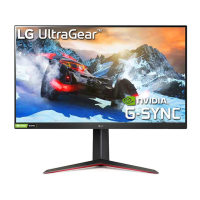
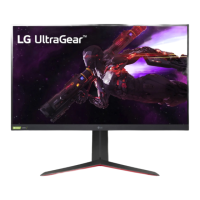
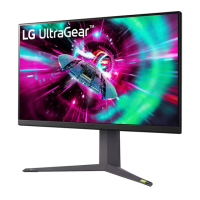
LG UltraGear 32GR93U - User Manual

LG UltraGear 32GR93U
43 pages
Print Icon
To Next Page IconTo Next Page
Loading...
32GR93U
www.lg.com
Copyright © 2022 LG Electronics Inc. All Rights Reserved.
* LG LED Monitor applies LCD screen with LED backlights.
Please read this manual carefully before operating your set and retain it for future reference.
Owner’s Manual
(LED Monitor*)

Questions and Answers

  • C
    Curtis LiAug 7, 2025
    What to do if there is no sound from the headphone port on my LG UltraGear 32GR93U Monitor?
    • D
      Dr. Danielle PhillipsAug 7, 2025
      If you are not getting any sound from the headphone port on your LG Monitor, first make sure that the headphone port connections are properly made. Next, try increasing the volume using the joystick on the monitor. Finally, set the audio output of your PC to the monitor by going to Control Panel > Hardware and Sound > Sound on Microsoft Windows and setting the Monitor as the default device.
  • J
    Jennifer HopkinsAug 11, 2025
    Why is my LG UltraGear 32GR93U screen display unstable and shaky?
    • A
      Aaron LewisAug 12, 2025
      If your LG Monitor screen display is unstable and shaky, or if images displayed on the monitor leave shadow trails, it might be due to the selected resolution. If the resolution is HDMI 1080i 60/50 Hz (interlaced), the screen may flicker. Try changing the resolution to 1080p or the recommended resolution.
  • M
    Michael ConwayAug 16, 2025
    Why is the display color on my LG UltraGear 32GR93U abnormal and how can I fix it?
    • W
      Wayne BrownAug 16, 2025
      If the display color on your LG Monitor is abnormal, first set the color to 24 bit (true color) or higher by navigating to Control Panel > Display > Settings > Color Quality in Windows. If that doesn't work, check if the signal cable is properly connected, and try reconnecting it or reinserting the PC's graphics card. Note that pixilated spots (red, green, blue, white, or black) may appear on the screen, which is normal for an LCD screen and not indicative of an error or performance issue.
  • C
    Caitlin YatesAug 20, 2025
    Why is 3840 x 2160 resolution not available in DisplayPort (144 Hz) on my LG Monitor?
    • K
      Kathy HallAug 20, 2025
      If 3840 x 2160 resolution is not available in DisplayPort (144 Hz) on your LG Monitor, and it is connected with HDMI input, set it to DisplayPort input. Then, go to Settings > General > Input Compatibility Version and set the option to 1.4(DSC). Also, check if the graphics card supports the DSC (Display Stream Compression) and if the graphics card driver has been updated to the latest version.
  • N
    Natalie PierceAug 25, 2025
    Why is 3840 x 2160 resolution not available in HDMI (144 Hz) on my LG UltraGear 32GR93U Monitor?
    • W
      William BruceAug 26, 2025
      If 3840 x 2160 resolution is not available in HDMI (144 Hz) on your LG Monitor, check if the graphics card supports 3840 x 2160 / 144 Hz in HDMI (NVIDIA RTX3000 Series, AMD RX6000 Series or higher). Also, verify that the graphics card driver has been updated to the latest version.
  • J
    Jacqueline SmithAug 28, 2025
    What to do if my LG Monitor screen retains an image?
    • G
      Geoffrey LewisAug 29, 2025
      Displaying a still image for a prolonged time may cause damage to the screen, resulting in the retention of the image. To extend the lifetime of your LG Monitor, use a screensaver.
  • J
    Jamie HunterNov 2, 2025
    How to fix an LG Monitor when nothing is displayed on the screen?
    • J
      Jesse PerezNov 2, 2025
      If nothing is displayed on your LG Monitor, first ensure the power cord is correctly plugged into the power outlet. Then, check the power cable connection and press the power button. Also, verify that the connected input is enabled in the monitor's Settings under Input. If the monitor is in sleep mode, try moving the mouse or pressing a key on the keyboard. Ensure your computer is also turned on. If the issue persists, the signals from your PC might be outside the monitor's recommended frequency range, so check the Product Specification section of the manual to set the appropriate frequency. Finally, check and reconnect the signal cable between the PC and the monitor, and ensure you have installed the display driver from the LG website, confirming that your graphics card supports Plug and ...

Summary

License Information

HDMI Licensing

Licensing terms and trademarks for HDMI.

USB Licensing

Licensing for the SuperSpeed USB Trident logo.

VESA and DisplayPort Licensing

Licensing for VESA and DisplayPort standards.

DTS Licensing

Licensing information for DTS audio technologies.

Open Source Software Notice

Obtaining Source Code

Information on how to access product source code under open source licenses.

Providing Source Code

LG Electronics offers source code on CD-ROM upon request.

Safety and Usage Cautions

Important safety warnings and notes for product usage.

Supported Drivers and Software

Product and Button Description

Overview of product buttons and their functions.

Joystick Button Operation

Moving and Lifting the Monitor Safely

Guidelines for safely handling and transporting the monitor.

Table Installation

Table Installation Safety

Crucial safety warnings for installing the monitor on a table.

Stand Height Adjustment

Stand Height Adjustment Warning

Safety warning regarding finger entrapment during height adjustment.

Screen Angle Adjustment

Screen Angle Adjustment Warning

Warning to prevent finger injury during angle adjustment.

Pivot Feature Operation

Pivot Feature Safety

Warnings to prevent scratches and finger injuries during pivot rotation.

Kensington Lock Security

Kensington Lock Installation

Instructions for connecting the monitor using a Kensington security cable.

Pivot Feature Notes

Notes on Auto Pivot support and OS specific pivot key behavior.

Wall Mount Plate Installation

Wall Mount Plate Installation Steps

Step-by-step guide for attaching the wall mount plate to the monitor.

Installing Monitor on Wall

Guidelines for mounting the monitor on a wall with proper ventilation.

Wall Mounting Specifications

VESA Standards for Wall Mounts

Requirements for wall mount bracket and screw compatibility with VESA standards.

Wall Mounting Cautions

Critical safety warnings for wall installation, including electric shock and falling hazards.

Wall Mount Screw Dimensions

Wall Mount Screw Requirements

Specifications for wall mount screws, including length and VESA compliance.

Using the Monitor

Connecting to a PC

Instructions for connecting the monitor to a computer.

HDMI Connection

How to connect the monitor using an HDMI cable for video and audio.

HDMI Connection Cautions

Warnings about using certified HDMI cables and potential compatibility issues.

DisplayPort Connection

DisplayPort Connection Notes

Notes on DisplayPort version compatibility and cable requirements.

Connecting AV Devices

HDMI Connection for AV Devices

Connecting audio-visual devices via HDMI.

HDMI AV Connection Notes

Notes on HDMI cable certification and compatibility for AV devices.

Connecting Peripherals

USB Device Connection

How to connect USB devices to the monitor's USB hub.

USB Device Usage Cautions

Important cautions when using USB devices with the monitor.

Connecting Headphones

Headphone Connection

Connecting headphones to the monitor's audio port.

Headphone Connection Notes

Notes on earphone types and audio settings.

User Settings Overview

Activating the Main Menu

Step-by-step guide to access and navigate the monitor's main menu.

Joystick Button Functions

Detailed description of joystick button functions within menus.

Main Menu Features

Input, Power, Settings, and Game Mode

Accessing input, power off, settings, and game mode functions.

Exiting the Main Menu

Method for exiting the monitor's main menu.

Detailed User Settings

Menu Navigation and Configuration

How to navigate and configure options within the monitor's OSD menu.

OSD Menu Category Overview

Overview of available settings categories like Game Mode, Picture Adjust, etc.

Game Mode Settings (SDR)

SDR Game Mode Options

Detailed settings for various game modes under SDR signals.

Color Weakness Adjustment

Settings for users with color vision deficiency.

Calibration Studio Note

Note about installing LG Calibration Studio for calibration.

Game Mode Settings (HDR)

HDR Game Mode Options

Information and settings for game modes when using HDR signals.

HDR Functionality Notes

Notes on HDR performance, Windows settings, and graphic card compatibility.

Game Adjust Settings

Adaptive-Sync; VRR Setup

Explanation and settings for Adaptive-Sync/VRR for smoother gameplay.

Adaptive-Sync; VRR Cautions

Cautions regarding supported interfaces, graphic cards, and driver updates for VRR.

Black Stabilizer Adjustment

How to adjust black levels for better visibility in dark scenes.

Game Adjust Settings (Cont.)

Response Time Settings

Adjusting response time for different gaming scenarios.

Crosshair and FPS Counter

Enabling and using the on-screen crosshair and frame rate counter.

Game Reset Function

Resetting game settings to default values.

Picture Adjust Settings

Brightness, Contrast, Sharpness, Gamma

Adjusting basic picture quality parameters like brightness, contrast, sharpness, and gamma.

Color Temperature and RGB;Six Color

Customizing screen color temperature and individual color adjustments.

Black Level Adjustment

Adjusting black levels for contrast and dark scene visibility.

Picture Adjust Settings (Cont.)

Variable Backlight and DFC

Adjusting variable backlight and DFC for enhanced contrast and dynamic range.

Picture Reset Function

Resetting picture settings to default configurations.

Input Settings

Input List and Aspect Ratio

Selecting input sources and adjusting the screen aspect ratio.

Auto Input Switch Function

Enabling or disabling automatic switching to new input signals.

General Settings

Language, Lighting, and User Keys

Configuring language, Hexagon lighting, and user-defined keys.

Audio and Power Saving Modes

Setting DTS Headphone:X modes and SMART ENERGY SAVING options.

Sleep Mode and Auto Standby

Configuring deep sleep mode and automatic monitor turn-off.

General Settings (Cont.)

Input Compatibility and OSD Lock

Setting input compatibility versions and locking OSD menus.

Buzzer, Information, and Reset

Configuring buzzer, viewing information, and resetting settings.

Troubleshooting Guide

No Screen Display Issues

Steps to resolve problems where the screen displays nothing.

Resolution, Signal, and Driver Issues

Troubleshooting display resolution, signal, and driver problems.

Feature Availability Troubleshooting

Resolving issues where certain features are unavailable or locked.

Screen Image and Resolution Issues

Image Sticking and Stability

Troubleshooting image retention, display instability, and shadow trails.

4 K Resolution Troubleshooting

Specific steps for resolving 4K resolution issues via DisplayPort and HDMI.

Display Performance Guidelines

Frequency and Resolution Settings

Guidance on setting recommended resolutions and frequencies for optimal display performance.

Graphics Card Compatibility

Information on graphics card performance and resolution support.

Display Color and Audio Troubleshooting

Color Issues and Pixel Spots

Troubleshooting discolored displays and pixel spot anomalies.

Headphone Audio Issues

Steps to resolve no sound issues from the headphone port.

Product Specifications

Screen, Resolution, and Power Specs

Specifications for LCD screen, resolution, power rating, and consumption.

Adapter, Environment, and Dimensions

Details on AC/DC adapter, operating conditions, and monitor dimensions.

Product Specifications (Cont.)

Monitor Weight Details

Specifications for monitor weight with and without packaging.

General Specification Notes

Notes on AC/DC symbols and power consumption variations.

Factory Support Mode (HDMI)

HDMI Resolution and Timing

HDMI resolution and frequency specifications for factory support.

HDMI Recommended Timing

Recommended timing settings for HDMI input compatibility versions.

Factory Support Mode (DisplayPort)

DisplayPort Resolution and Timing

DisplayPort resolution and frequency specifications for factory support.

DisplayPort Recommended Timing

Recommended timing settings for DisplayPort input compatibility versions.

HDMI Video Timing

HDMI Video Timing Modes

Factory support modes for HDMI video timing with frequencies.

Power LED Indicator

Power LED Status Description

Description of the power LED color and status in different modes.

Beep Guide

Beep Guide Menu Locations

Index of menu items and their corresponding page locations.

Beep Guide Menu Locations (Cont.)

Picture Adjust Menu Locations

Locations for Picture Adjust menu options.

Input Menu Locations

Locations for Input menu options.

General Menu Locations

Locations for General menu options.

Beep Guide Menu Locations (Cont. II)

General Setting Locations

Locations for various General settings like lighting, keys, power, and standby.

Compatibility and Lock Settings Locations

Locations for Input Compatibility, Buzzer, OSD Lock, and Reset settings.

Supplier Declaration of Conformity

LG Electronics USA Contact

Contact information for LG Electronics USA, Inc.

Model and Serial Number Recording

Space to record product model and serial numbers for service.

LG UltraGear 32GR93U Specifications

General IconGeneral
Screen Size32 inches
Resolution3840 x 2160 (4K UHD)
Refresh Rate144Hz
Panel TypeIPS
Response Time1ms (GtG)
Aspect Ratio16:9
Contrast Ratio1000:1
Brightness400 cd/m²
HDRHDR10
Color GamutDCI-P3 95%
Ports2x HDMI 2.1, 1x DisplayPort 1.4, 2x USB 3.0, 1x Headphone Out
VESA Mount100 x 100 mm
Adaptive SyncAMD FreeSync Premium
Stand AdjustmentsHeight, Tilt, Pivot
Weight18.7 lbs (with stand)

Related product manuals