EasyManua.ls Logo

LG UltraGear 32GR93U-B - User Manual

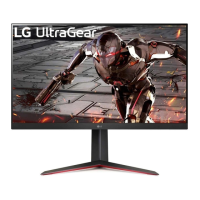
LG UltraGear 32GR93U-B
43 pages
Print Icon
To Next Page IconTo Next Page
Loading...
32GR93U
www.lg.com
Copyright © 2022 LG Electronics Inc. All Rights Reserved.
* LG LED Monitor applies LCD screen with LED backlights.
Please read this manual carefully before operating your set and retain it for future reference.
Owner’s Manual
(LED Monitor*)
Questo manuale d’istruzione è fornito da trovaprezzi.it. Scopri tutte le offerte per LG 32GR93U-B o
cerca il tuo prodotto tra le migliori offerte di Monitor

Questions and Answers

  • M
    Mark HarveyAug 13, 2025
    How to fix LG UltraGear 32GR93U-B when nothing is displayed on the screen?
    • J
      Jodi CarpenterAug 13, 2025
      If nothing is displayed on your LG Monitor screen, first, ensure the power cord is correctly plugged into the power outlet. Then, check the power cable connection and press the power button. Verify that the connected input is enabled in the settings. If the monitor is in sleep mode, move the mouse or press any key. Also, confirm that your computer is turned on. If the signal cable is missing or disconnected, check the cable and reconnect it. Finally, install the display driver from the LG website and ensure your graphics card supports Plug and Play.
  • S
    Seth MeyersAug 16, 2025
    Why is there no sound from the headphone port on my LG Monitor?
    • T
      Tracy StevensAug 16, 2025
      If you can't get sound from the headphone port on your LG Monitor, first ensure the headphone port connections are properly made. Next, try increasing the volume using the joystick. Finally, set the audio output of your PC to the monitor by going to Control Panel > Hardware and Sound > Sound and setting the monitor as the default device.
  • D
    Diane BlairAug 21, 2025
    What to do if screen display is unstable and shaky on LG UltraGear 32GR93U-B?
    • K
      Kimberly MorganAug 21, 2025
      If the screen display is unstable, shaky, or images leave shadow trails on your LG Monitor, and the selected resolution is HDMI 1080i 60/50 Hz (interlaced), the screen may be flickering. Change the resolution to 1080p or the recommended resolution.
  • T
    Thomas ChapmanAug 25, 2025
    Why is the display color abnormal on my LG Monitor?
    • E
      Eric ColeAug 26, 2025
      If the display color on your LG Monitor is abnormal, set the color to 24 bit (true color) or higher by navigating to Control Panel > Display > Settings > Color Quality in Windows. Also, check if the signal cable is properly connected; reconnect the cable or reinsert the PC's graphics card. Note that this may not be an error related to the monitor's performance.
  • J
    James FieldsAug 28, 2025
    Why 3840 x 2160 resolution is not available in HDMI on LG UltraGear 32GR93U-B?
    • C
      Cory JenkinsAug 29, 2025
      If the 3840 x 2160 resolution is not available in HDMI (144 Hz) on your LG Monitor, check if the graphics card supports 3840 x 2160 / 144 Hz in HDMI. Also, verify that the graphics card driver has been updated to the latest version.
  • L
    Lisa DukeSep 1, 2025
    Why 3840 x 2160 resolution is not available in DisplayPort on LG UltraGear 32GR93U-B Monitor?
    • E
      Erin GraySep 1, 2025
      If the 3840 x 2160 resolution is not available in DisplayPort (144 Hz) on your LG Monitor, and it is connected with HDMI input, set it to DisplayPort input. Go to Settings > General > Input Compatibility Version and set the option to 1.4(DSC). Also, check if the graphics card supports the DSC (Display Stream Compression) and if the graphics card driver has been updated to the latest version.
  • S
    Stephanie AllenSep 4, 2025
    How to enable disabled features on LG Monitor?
    • A
      Amy WatkinsSep 4, 2025
      If some features are disabled on your LG Monitor, go to Settings > General and set OSD Lock to Off.
  • K
    Katherine TorresSep 8, 2025
    How to prevent image retention on LG UltraGear 32GR93U-B Monitor?
    • D
      Daniel CamachoSep 8, 2025
      Displaying a still image for a prolonged time may cause damage to the screen of your LG Monitor. To extend the lifetime of the monitor, use a screensaver.

Summary

LICENSE

ASSEMBLING AND PREPARING

Supported Drivers and Software

Lists drivers and software available for download from the LGE website.

Product and Button Description

Identifies the product's physical components and buttons.

Basic Operations

Explains joystick button usage, safe moving, and lifting procedures for the monitor.

Installation Procedures

Covers table installation, stand height/angle adjustment, pivot feature, and Kensington lock.

Wall Mounting

Details on attaching wall mount plates and securely mounting the monitor on a wall.

USING THE MONITOR

Connecting to a PC

Explains how to connect the monitor to a personal computer.

Display Connections

Details on connecting via HDMI and DisplayPort for PC and AV devices.

Connecting Peripherals

USB and Headphone Connectivity

Information on using USB ports and connecting headphones to the monitor.

USER SETTINGS

Menu Navigation and Features

Covers activating the main menu, its features, and general user settings.

Game Settings

Optimizes gaming experience with Adaptive-Sync, response time, and crosshair settings.

Picture Settings

Adjusts brightness, contrast, gamma, color, and other visual parameters.

Input and General Settings

Manages input sources, aspect ratio, language, lighting, and power saving modes.

Advanced General Settings

Covers compatibility, buzzer, OSD lock, information display, and reset options.

TROUBLESHOOTING

Display Issues

Troubleshooting for no display, disabled features, image retention, and screen instability.

Resolution and Color Problems

Resolving issues with specific resolutions, display color abnormalities, and sound output.

PRODUCT SPECIFICATION

Factory Support Mode

Connection Timings

Factory support mode specifications for HDMI and DisplayPort resolutions and frequencies.

Indicator and Guide

Details on Power LED status and the Beep Guide reference for menu locations.

Suppliers Declaration of Conformity

LG UltraGear 32GR93U-B Specifications

General IconGeneral
Color gamut95 %
Pixel pitch0.1818 x 0.1818 mm
Touchscreen-
Screen shapeFlat
Display diagonal31.5 \
Anti-glare screenYes
Display technologyLCD
Native aspect ratio16:9
Contrast ratio (typical)1000:1
Display number of colors1.07 billion colors
Display brightness (peak)500 cd/m²
Display diagonal (metric)80 cm
Digital vertical frequency48 - 144 Hz
Display brightness (typical)400 cd/m²
High Dynamic Range (HDR) technologyDisplayHDR 400, High Dynamic Range 10 (HDR10)
HDCP version2.3
USB hub version2.0 / 3.2 Gen 1 (3.1 Gen 1)
DisplayPort version1.4
Number of upstream ports1
USB Type-A downstream ports quantity2
Tilt angle range-5 - 15 °
Number of OSD languages17
Panel mounting interface100 x 100 mm
On Screen Display (OSD) languagesCHI (SIMPL), CHI (TR), DEU, ENG, ESP, FIN, FRE, GRE, ITA, JPN, KOR, POL, POR, RUS, SWE, UKR
Audio decodersDTS:X
Built-in speaker(s)No
Feet colorGray
Product colorBlack, Grey
Market positioningGaming
AMD FreeSync typeFreeSync Premium
NVIDIA G-SYNC typeG-SYNC Compatible
Brand specific technologiesCrosshair
AC input voltage100 - 240 V
AC input frequency50/60 Hz
Energy efficiency scaleA to G
Power consumption (max)70 W
Power consumption (off)0.3 W
Power consumption (standby)0.5 W
Power consumption (typical)65 W
Cables includedDisplayPort, HDMI, Power, USB Type-A to USB Type-B
Package depth277 mm
Package width968 mm
Package height530 mm
Package weight11600 g
Weight and Dimensions IconWeight and Dimensions
Depth (with stand)278 mm
Width (with stand)713.9 mm
Height (with stand)611.2 mm
Weight (with stand)8300 g
Depth (without stand)54 mm
Height (without stand)428.2 mm
Weight (without stand)6000 g

Related product manuals