EasyManua.ls Logo

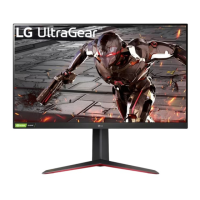
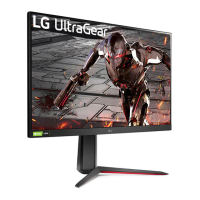
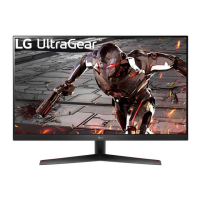
LG UltraGear 32GN600 - User Manual

LG UltraGear 32GN600
58 pages
Print Icon
To Next Page IconTo Next Page
Loading...
* LG LED Monitor applies LCD screen with LED
backlights.
Please read this manual carefully before operating
your set and retain it for future reference.
24GN600/24GN600P
24GN60T/24GN60TP
27GN600/27GN600P
32GN600
32GK60W
www.lg.com
Copyright © 2019 LG Electronics Inc. All Rights Reserved.
OWNER’S MANUAL
(LED Monitor*)

Other manuals for LG UltraGear 32GN600

Questions and Answers

  • Y
    ythomasAug 20, 2025
    Why is nothing displayed on my LG UltraGear 32GN600 Monitor screen?
    • J
      jacob12Aug 20, 2025
      If your LG Monitor screen is blank, try these steps: First, ensure the power cord is securely plugged into the outlet. Next, verify the power cable connection and press the power button. Also, confirm that the correct input is enabled by going to Menu > Input. If the monitor is in sleep mode, move the mouse or press a key. Check that your computer is turned on. If you see a message about the signal cable, inspect the cable between the PC and monitor, and reconnect it if necessary. Finally, install the display driver from LG's website and check that your graphics card supports Plug and Play.
  • M
    Marie SchultzAug 22, 2025
    How to troubleshoot no sound from the headphone port on LG Monitor?
    • M
      Mark ScottAug 22, 2025
      If you're not getting any sound from the headphone port on your LG Monitor, first ensure that the headphone connections are properly made. Next, try increasing the volume using the joystick. Finally, set the audio output of your PC to the monitor by going to Control Panel > Hardware and Sound > Sound and setting the Monitor as the default device.
  • B
    Brenda HardinAug 26, 2025
    Why is there no sound from the headphone port on my LG Monitor?
    • J
      Jeanne BrownAug 27, 2025
      If you're not getting any sound from the headphone port on your LG Monitor: * Ensure the headphone port connections are properly made. * Try increasing the volume using the joystick. * Set the audio output of the PC to the monitor you are using. On Microsoft Windows, go to Control Panel > Hardware and Sound > Sound and set the Monitor as the default device.
  • H
    Heidi SanchezAug 28, 2025
    What to do if nothing is displayed on my LG UltraGear 32GN600?
    • R
      rogerskatherineAug 28, 2025
      If nothing appears on your LG Monitor screen, first ensure the power cord is securely plugged into the outlet and that the power cable is properly connected. Then, press the power button. Also, verify that the correct input is enabled via Menu > Input. If the monitor is in sleep mode, try moving the mouse or pressing a key. If the issue persists, the signals from your PC might be outside the monitor's recommended frequency range, so check the product specifications to set the appropriate frequency. Finally, ensure the signal cable is properly connected. If problems continue, install the display driver from the LG website and confirm your graphics card supports Plug and Play.
  • A
    Anna EllisAug 29, 2025
    How to fix no sound from the headphone port on LG Monitor?
    • J
      Jerry StevensAug 30, 2025
      If you're getting no sound from the headphone port on your LG Monitor, ensure the headphone connections are properly made. Next, try increasing the volume using the joystick. Finally, set the PC's audio output to the monitor by going to Control Panel > Hardware and Sound > Sound and setting the Monitor as the default device on Microsoft Windows.
  • J
    Jose DaughertyAug 31, 2025
    What to do if LG Monitor screen display is unstable and shaky?
    • K
      kmartinAug 31, 2025
      If the screen display on your LG monitor is unstable or shaky, or if images leave shadow trails, and the resolution is set to HDMI 1080i 60/50 Hz (interlaced), the screen may be flickering. Change the resolution to 1080p or the recommended resolution to resolve this issue.
  • S
    Samantha TuckerSep 2, 2025
    How to fix no sound from the headphone port on my LG UltraGear 32GN600?
    • T
      Timothy WalterSep 2, 2025
      If there is no sound from the headphone port on your LG Monitor, ensure the headphone connections are properly made. Try increasing the volume using the joystick. On Microsoft Windows, go to Control Panel > Hardware and Sound > Sound and set the Monitor as the default device.
  • R
    Regina EdwardsSep 4, 2025
    What to do if the display color is abnormal on my LG Monitor?
    • M
      Michael CarterSep 4, 2025
      If the display color on your LG Monitor seems off, try setting the color to 24 bit (true color) or higher via Control Panel > Display > Menu > Color Quality in Windows. Also, check the signal cable connection, reconnecting it or reinserting the PC's graphics card. Note that some pixilated spots (red, green, blue, white, or black) may appear – this is normal and not a defect.
  • M
    Megan SanchezSep 6, 2025
    How to fix unstable and shaky screen display on LG Monitor?
    • R
      Richard SchwartzSep 6, 2025
      If your LG Monitor's screen display is unstable or shaky, and images leave shadow trails, it might be due to the resolution being set to HDMI 1080i 60/50 Hz (interlaced). Try changing the resolution to 1080p or the recommended resolution to resolve the flickering.
  • K
    kmorenoSep 8, 2025
    Why does my LG Monitor screen retain an image?
    • R
      Regina HaleSep 8, 2025
      If your LG Monitor screen retains an image, it might be due to displaying a still image for a long time, which can damage the screen. To extend the monitor's life, use a screensaver.

Summary

Installation and Safety

Safety Precautions

Warnings about monitor stability without stand and handling the screen.

Connectivity Options

Cable Compatibility CAUTIONS

Cautions regarding DVI/DP to HDMI cables and certified HDMI cables.

Troubleshooting Common Issues

TROUBLESHOOTING

Common issues and solutions for monitor problems.

Display Issues

Steps to troubleshoot no display or flickering screen issues.

Product Specifications

PRODUCT SPECIFICATION

Technical details of the monitor.

LCD Screen and Power Specifications

Details on LCD panel, power rating, consumption, and AC/DC adapter.

LG UltraGear 32GN600 Specifications

General IconGeneral
HD type2K Ultra HD
Panel typeVA
Pixel pitch0.27 x 0.27 mm
Screen shapeFlat
Display diagonal31.5 \
Display technology-
Native aspect ratio16:9
sRGB coverage (typical)95 %
Contrast ratio (dynamic)5000000:1
Contrast ratio (typical)3000:1
Display number of colors16.7 million colors
Display diagonal (metric)80 cm
Display brightness (typical)350 cd/m²
High Dynamic Range (HDR) supportedYes
High Dynamic Range (HDR) technologyHigh Dynamic Range 10 (HDR10)
Product colorBlack, Red
Market positioningGaming
DisplayPort version1.4
VGA (D-Sub) ports quantity0
AC input voltage100 - 240 V
AC input frequency50 - 60 Hz
Energy efficiency scaleA to G
Power consumption (max)63 W
Power consumption (off)0.3 W
Power consumption (standby)- W
Power consumption (typical)60 W
Tilt angle range-5 - 15 °
Panel mounting interface100 x 100 mm
Package typeBox
Package depth516 mm
Package width793 mm
Package height149 mm
Package weight8200 g
Cables includedAC, DisplayPort
Harmonized System (HS) code85285210
Weight and Dimensions IconWeight and Dimensions
Depth (with stand)224.8 mm
Width (with stand)714.7 mm
Height (with stand)515.1 mm
Weight (with stand)5900 g
Depth (without stand)77.5 mm
Height (without stand)428 mm
Weight (without stand)5200 g

Related product manuals