EasyManua.ls Logo

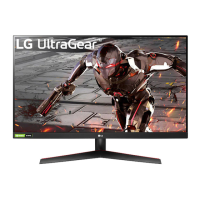
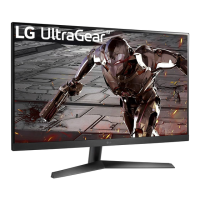
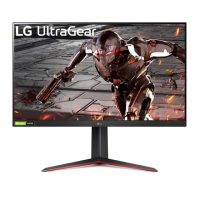
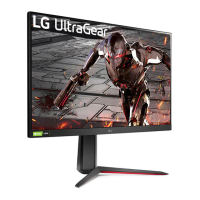
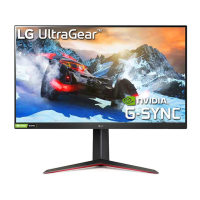
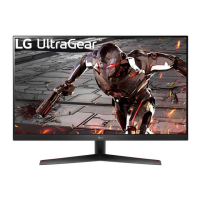
LG UltraGear 32GN500 - User Manual

LG UltraGear 32GN500
39 pages
Print Icon
To Next Page IconTo Next Page
Loading...
* LG LED Monitor applies LCD screen with LED
backlights.
Please read this manual carefully before operating
your set and retain it for future reference.
32GN500
32GN50T
32GN550
www.lg.com
Copyright © 2019 LG Electronics Inc. All Rights Reserved.
OWNER’S MANUAL
(LED Monitor*)

Questions and Answers

  • L
    Lisa RobinsonSep 23, 2025
    How to prevent image retention on LG UltraGear 32GN500?
    • M
      Michael BryantSep 23, 2025
      If your LG monitor screen retains an image, it may be caused by displaying a still image for a prolonged time, which can damage the screen. To extend the monitor's lifetime, use a screensaver.
  • M
    Melissa JohnsonAug 23, 2025
    How to troubleshoot no sound from the headphone port on an LG Monitor?
    • E
      Erica ColemanAug 25, 2025
      If you are not getting any sound from the headphone port on your LG Monitor, ensure that the headphone connections are properly made. If the connections are correct, try increasing the volume using the joystick. Also, verify that the audio output of your PC is set to the monitor. In Microsoft Windows, this can be adjusted via Control Panel > Hardware and Sound > Sound, where you should set the Monitor as the default device.
  • R
    Rachel LongAug 25, 2025
    How to fix LG UltraGear 32GN500 Monitor when nothing is displayed on the screen?
    • A
      adam22Aug 26, 2025
      If nothing appears on your LG Monitor screen, first, ensure the power cord is properly connected to the power outlet. Then, verify the power cable connection and press the power button. Also, check if the connected input is enabled via Menu > Input. If the monitor is in sleep mode, try moving the mouse or pressing a key on the keyboard. Finally, make sure your computer is turned on. If the issue persists, verify that the signal cable between the PC and the monitor is securely connected. If it's still not working, install the display driver from the LG website and ensure your graphics card supports Plug and Play.
  • H
    Harold HuffAug 27, 2025
    What to do if there is no sound from the headphone port on my LG Monitor?
    • D
      Diana TaylorAug 27, 2025
      If you are getting no sound from the headphone port on your LG Monitor, first, ensure that the headphone port connections are properly made. If that doesn't work, try increasing the volume using the joystick. Finally, set the audio output of your PC to the monitor by going to Control Panel > Hardware and Sound > Sound and setting the Monitor as the default device.
  • S
    Stephanie JohnsonAug 27, 2025
    Why is my LG UltraGear 32GN500 screen unstable and shaky?
    • B
      Brittany HayesAug 27, 2025
      If the screen display on your LG Monitor is unstable and shaky, or if images leave shadow trails, and the resolution is set to HDMI 1080i 60/50 Hz (interlaced), the screen may be flickering. Change the resolution to 1080p or the recommended resolution to resolve this issue.
  • M
    Michael SmithSep 16, 2025
    How to enable disabled features on LG UltraGear 32GN500?
    • S
      saracobbSep 16, 2025
      If some features are disabled on your LG Monitor, go to Menu > General and set OSD Lock to Off. This should re-enable the disabled features.
  • D
    danielle47Sep 13, 2025
    Why are some features disabled on my LG Monitor?
    • L
      Lisa FarleySep 13, 2025
      If some features on your LG Monitor are disabled, the OSD might be locked. To unlock it, go to Menu > General and set OSD Lock to Off.
  • J
    Jason MillerSep 14, 2025
    Why is the display color abnormal on my LG UltraGear 32GN500 Monitor?
    • C
      Colleen RamseySep 14, 2025
      If the display color on your LG Monitor is abnormal, try setting the color to 24 bit (true color) or higher by navigating to Control Panel > Display > Menu > Color Quality in Windows. Also, check the signal cable connection, reconnect it, or reinsert the PC's graphics card. Note that pixilated spots (red, green, blue, white, or black) may appear, which is normal and not related to the monitor's performance.
  • H
    Henry PorterSep 5, 2025
    What to do if nothing is displayed on LG UltraGear 32GN500 screen?
    • L
      Linda LewisSep 5, 2025
      If nothing is displayed on your LG Monitor screen, verify that the power cord is correctly plugged into the outlet. Check the power cable connection and ensure the power button is pressed. Also, confirm the connected input is enabled via Menu > Input. If the monitor is in sleep mode, move the mouse or press a key. Ensure your computer is turned on. If the issue persists, check the signal cable between the PC and the monitor and reconnect it if necessary. Finally, install the display driver from the LG website and ensure your graphics card supports Plug and Play.
  • D
    Debbie RussoSep 3, 2025
    Why is the screen display unstable and shaky on my LG UltraGear 32GN500?
    • A
      Amy BowmanSep 3, 2025
      If the screen display on your LG Monitor is unstable or shaky, or if images leave shadow trails, and the resolution is set to HDMI 1080i 60/50 Hz (interlaced), this could be the cause. Try changing the resolution to 1080p or the recommended resolution.

LG UltraGear 32GN500 Specifications

General IconGeneral
Screen Size32 inches
Resolution2560 x 1440 (QHD)
Panel TypeVA
Refresh Rate165 Hz
Response Time1 ms (MPRT)
Aspect Ratio16:9
Contrast Ratio3000:1
HDRHDR10
Adaptive SyncAMD FreeSync Premium
Ports2 x HDMI, 1 x DisplayPort, 1 x Headphone Out
Viewing Angle178° (H) / 178° (V)
VESA Mount100 x 100 mm
Tilt AdjustmentYes
Color GamutsRGB 95%

Related product manuals